Converting a Live Photo to JPG keeps the still frame and drops the motion clip, the sound, and any Portrait depth map.
Here’s what that looks like. The photo that rippled on your lock screen turns flat, and a Portrait shot you meant to refocus later won’t let you touch the blur. Nothing broke. A JPG simply has no place to put that extra data, and Apple’s Live Photos guide describes the moment around the shutter press that gets left behind.
heic.dev’s HEIC Converter handles the still frame in your browser, so nothing is uploaded.
Key Takeaways
- A Live Photo is two files: a HEIC still and a short MOV video clip.
- Converting HEIC to JPG keeps the still image but drops motion, audio and depth data.
- heic.dev converts HEIC photos locally in your browser using WebAssembly, so nothing is uploaded.
- To keep the movement, save the Live Photo as a video on your iPhone before converting.
Table of Contents
What a Live Photo Is Made Of
A Live Photo isn’t one file. It’s a pair: a HEIC (High Efficiency Image Container) still, which is Apple’s version of the HEIF format compressed with HEVC (H.265), plus a short MOV clip that records about 1.5 seconds before and after the shutter press, with sound.

The two travel together inside Apple Photos, linked by a shared identifier. Everywhere else, they’re strangers.
That’s why a Live Photo looks like a single thing on your iPhone and splits apart the moment you export it. A JPG has one image slot and no video track, so it takes the still and nothing more.
Converting a Live Photo to JPG on heic.dev
Open the converter, drag your file in, and download the result. That’s the whole job for the still frame.
- Open heic.dev in any modern browser.
- Drag your HEIC file into the converter.
- Choose your output format, such as JPG, PNG or WebP.
- Download the converted image.
No account. No upload. Nothing stored. The conversion runs on your own device through WebAssembly, which matters when a photo carries a GPS location. A server-based converter has to receive your file before it can process it. heic.dev doesn’t.
One honest caveat: this converts the still. The motion clip is a different file, so it won’t appear in the JPG no matter which converter you use.
What Comes Through
You keep the key frame at full resolution, with the colour data your chosen format supports. What doesn’t make it across is everything that made it live: the movement, the sound, and the link back to the clip.
Saving the Motion First
Do this before you convert, because the clip is easy to lose track of once the still is on its own.
On your iPhone, open the Live Photo in the Photos app, tap the share button, and tap Save as Video. You get a regular video file that plays anywhere. Alternatively, tap the Live button at the top of the photo and choose Loop or Bounce to turn it into an animation inside Photos.
If you’re sending the photo to another iPhone user, use the Photos app’s own share sheet instead of a converted copy. A converted still will never carry the clip.
Live Photo to Video
Saving as a video bakes in the movement and sound, but it’s a copy, not a replacement. Keep the original Live Photo in your library, and use the video for platforms that won’t play a Live Photo.
What Happens to the Depth Map
A depth map is a greyscale layer recording how far each part of the scene sits from the camera. Portrait mode uses it to blur the background, and Photos uses it to let you adjust the blur and focus point after the fact.
The HEIF container format entry explains that HEIF can store auxiliary images alongside the main picture, which is how HEIC carries depth. Some JPEGs can carry depth too, through extensions such as Multi-Picture Format or XMP metadata. But the standard JPG that heic.dev outputs is a single flattened image, so the depth layer stays behind.
The blur you saw in the original is baked into the pixels you keep. What you lose is the ability to change it later. A blurred background stays blurred, and a refocus tap does nothing.
Depth in PNG, WebP and AVIF
Those are single-image outputs too, so none of them carries your Portrait depth data either. If depth editing matters, the original HEIC is the safe home for it, and Apple Photos is the app that reads it. Convert copies, never the original.

Date, Location and Other Metadata
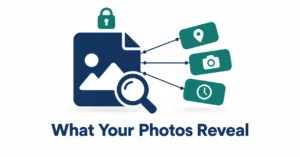
A photo’s capture date, GPS position and camera details live in EXIF (Exchangeable Image File Format) data. Whether that data survives a conversion depends on the converter and on the output format, and some tools strip it entirely.
So check instead of assuming. To see what the original carries, open it in the HEIC Metadata Viewer. Then inspect the converted file: on Windows, right-click it, choose Properties, and open the Details tab; on a Mac, open it in Preview and choose Tools, then Show Inspector.
This cuts both ways. If you’re posting publicly, a location that survives conversion may be a location you didn’t mean to share.
Choosing a Route
- You need a shareable picture: convert the still to JPG at heic.dev.
- You want the movement preserved: save as video on your iPhone first, then convert the still separately.
- You want to edit Portrait blur later: keep the original HEIC and convert only copies.
- You’re archiving: store the original HEIC and treat every converted file as disposable.
For photos already on your camera roll, heic.dev is faster than changing settings. If you’d rather skip another round of lossy compression on the still, the HEIC to PNG Converter keeps the pixels as they are, at a larger file size.
One thing worth knowing: switching your iPhone to Most Compatible under Settings, Camera, Formats only affects future photos. It won’t touch what’s already in your library.
When the Result Looks Wrong
The Converted Photo Doesn’t Move
JPG, PNG and WebP are still-image outputs here, so the clip isn’t inside the file. Go back to the original in Apple Photos and use Save as Video to keep the motion.
Portrait Blur Can’t Be Edited Anymore
The depth map didn’t carry over to the converted copy. Open the original HEIC in Apple Photos, where the depth data is still attached and the blur is adjustable.
Frequently Asked Questions
Does converting a Live Photo to JPG remove the motion?
Yes. A Live Photo is a HEIC still plus a separate short MOV clip, and a JPG has room for only one still image. Converting keeps the key frame and drops the video and audio. To keep the movement, save the Live Photo as a video on your iPhone before converting.
What is a Live Photo made of?
A Live Photo is two linked files: a HEIC still image and a MOV video clip of about three seconds with sound, recorded around the moment you pressed the shutter. Apple Photos pairs them with a shared identifier, so they appear as one photo on iPhone, iPad and Mac.
Does converting HEIC to JPG remove Portrait mode depth data?
With heic.dev, yes. HEIC stores the depth map as an auxiliary image inside the file, and the JPG heic.dev outputs is a single flattened image without it. The blur you see stays baked into the pixels, but you can’t adjust focus or blur afterwards. Keep the original HEIC if you want to edit depth later.
Can I turn a Live Photo into a video?
Yes. Open the Live Photo in the Photos app on your iPhone, tap the share button, then tap Save as Video. You get a standard video file with the motion and sound, which plays on any device. The original Live Photo stays untouched in your library.
Do HEIC files contain video?
Not on their own. The HEIF format can store image sequences, but an iPhone Live Photo keeps its motion in a separate MOV file next to the HEIC still. If you only copy the HEIC, you get the still image and none of the movement.
Does HEIC to JPG conversion keep the date and location?
It depends on the converter and the output format. Date, GPS and camera details are stored as EXIF data, and some tools keep it while others strip it. Check the converted file’s properties before relying on it, and remove location data deliberately if you’re about to post the photo publicly.

Final Words
Live Photos and Portrait shots aren’t broken by conversion. They’re simply more than a JPG can hold, and now you know which parts stay and which need saving first.
The heic.dev HEIC Converter turns your stills into shareable images in seconds, in your browser, with no upload and no account. It’s free every time.