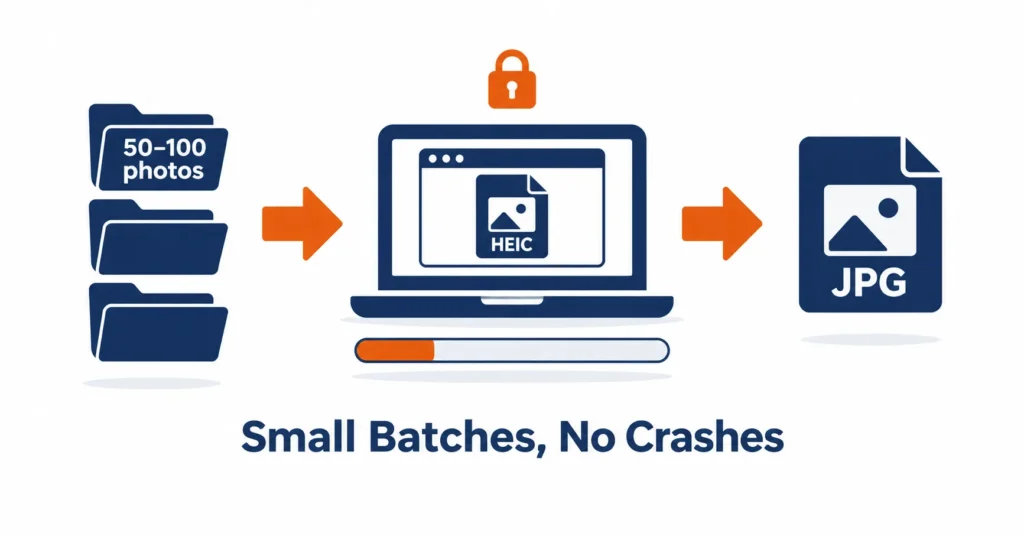
If you need to convert more than 1,000 iPhone photos on an older laptop, don’t try to process them all at once. Split your library into folders sized for your laptop’s available memory: start with 25–50 photos per batch on a 4 GB machine, 50–100 on an 8 GB machine, or 100–200 on a 16 GB machine. Convert one folder at a time using heic.dev’s HEIC to JPG Converter, and adjust the batch size if your laptop struggles.
Picture this: you drop 1,000 photos into a converter on a four-year-old laptop. The fan starts roaring, the browser tab freezes, and eventually the whole thing turns white. Your conversion is gone, and you have to start over. Meanwhile, those HEIC photos still won’t open in the apps you need.
There’s a simpler way to get through the job. heic.dev’s HEIC to JPG Converter processes photos directly in your browser, so your files stay on your device. The trick is to work in smaller batches instead of asking your laptop to handle the entire library at once.
Key Takeaways
- Start with 25–50 photos per batch on a 4 GB laptop, 50–100 on an 8 GB laptop, or 100–200 on a 16 GB laptop.
- Convert one folder at a time and save the results before starting the next batch.
- heic.dev’s HEIC to JPG Converter processes photos in your browser without requiring an account or uploading your files to a conversion server.
- A decoded 12-megapixel photo can use about 48 MB for its pixel data alone, so image resolution and available memory affect how many files you can process comfortably.
Table of Contents
Why Low-RAM Laptops Struggle With Large HEIC Batches
When you try to convert hundreds of photos on an older laptop, three things can get in the way. Memory is usually the biggest problem, but browser limits and slow storage can make matters worse.
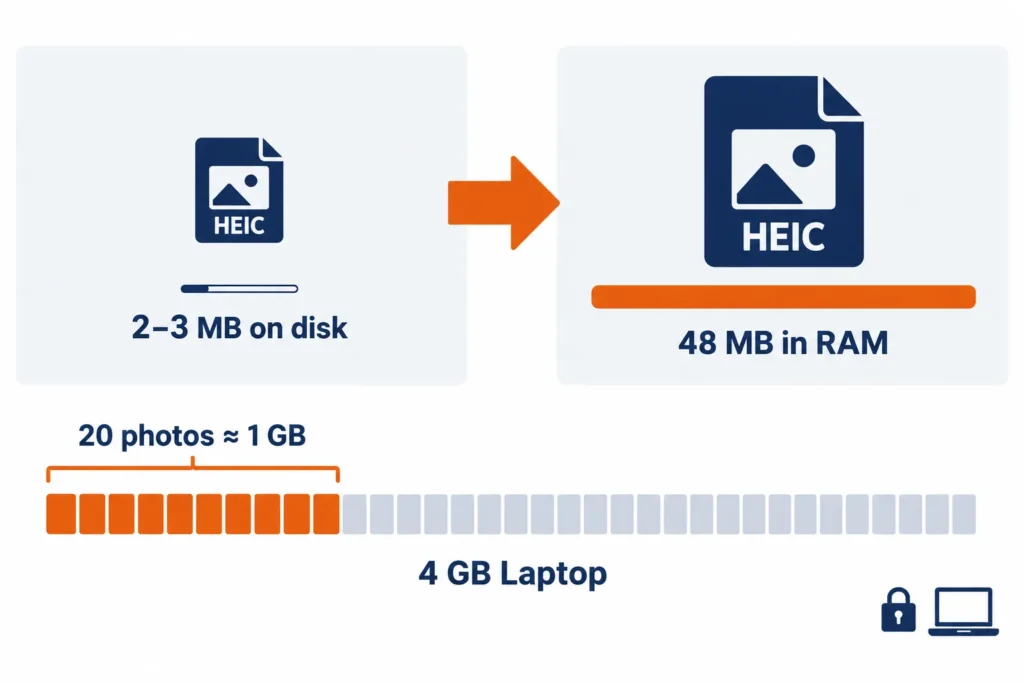
HEIC is the file extension commonly used for photos taken on iPhones, while HEIF is the underlying image format. Many iPhone photos use the HEVC (H.265) codec, which keeps file sizes relatively small without sacrificing too much image quality. That’s why a 12-megapixel photo might take up just 2–3 MB on your drive. You can read more about the format in Wikipedia’s guide to HEIF.
The catch is that a compressed file takes up much more room once the computer decodes it for processing. A 12-megapixel photo measuring 4032 × 3024 pixels contains about 12.2 million pixels. At four bytes per pixel, that’s roughly 48 MB of memory for the pixel data alone. A 48-megapixel photo from a recent iPhone Pro can need around 192–195 MB for the same data.
Now imagine a converter working on 20 photos at the same time. At 48 MB per image, the pixel data alone could use close to 1 GB of RAM. On a laptop with 4 GB of memory, Windows, the browser, and other background processes are already competing for that space.
The browser adds another complication. Tabs can run into memory limits before the computer’s entire RAM is used. When that happens, the browser may freeze or terminate the tab rather than finish the conversion.
Storage speed matters, too. When RAM fills up, the operating system may move some data to disk. This can keep the computer running, but it often makes everything painfully slow, especially if you’re using an older hard drive.
Older laptops are often the ones that struggle most with HEIC compatibility in the first place. The good news is that you don’t need a new computer just to convert a large collection of photos. You need a workflow that fits the hardware you already have.
Prepare Your Laptop Before Starting
Start by restarting your laptop. It might sound obvious, but it’s worth doing before a big conversion job.
A restart closes lingering processes and gives you a clean starting point. On a machine with only 4 GB of RAM, freeing up even a modest amount of memory can help. Once the laptop is back on, work through these steps before opening the converter.
- Close other apps. Quit anything you don’t need and keep just one browser window and one tab open. Chrome, Edge, Firefox, and Safari can all work, depending on your device and browser version.
- Disable unnecessary extensions. A private or incognito window may prevent some extensions from running, depending on your browser settings. You can also disable extensions you don’t need.
- Connect the charger. Keep your laptop plugged in and adjust its sleep settings so it doesn’t go to sleep halfway through a batch.
- Check your available storage. JPG files are often larger than their HEIC originals. If 1,000 HEIC photos average 2.5 MB each, allow around 5 GB for the converted files, plus room for the originals and other files.
- Make sure you have the full-resolution photos. If you use iCloud Photos with Optimize iPhone Storage, some originals may need to be downloaded before you transfer them. On your iPhone, open Settings, tap Photos, and select Download and Keep Originals if you want to keep full-resolution copies on the phone.
Next, organise the photos into folders using the batch sizes recommended in the table below. Start with 25–50 files per folder on a 4 GB laptop, 50–100 on an 8 GB laptop, or 100–200 on a 16 GB laptop. Name them batch-01, batch-02, batch-03, and so on, keeping them in date order if that helps you find specific photos later.
This small bit of preparation saves a lot of frustration later. If a batch fails, you only have to repeat that folder instead of sorting through the entire collection again.
How to Batch Convert HEIC on a Low-RAM Laptop
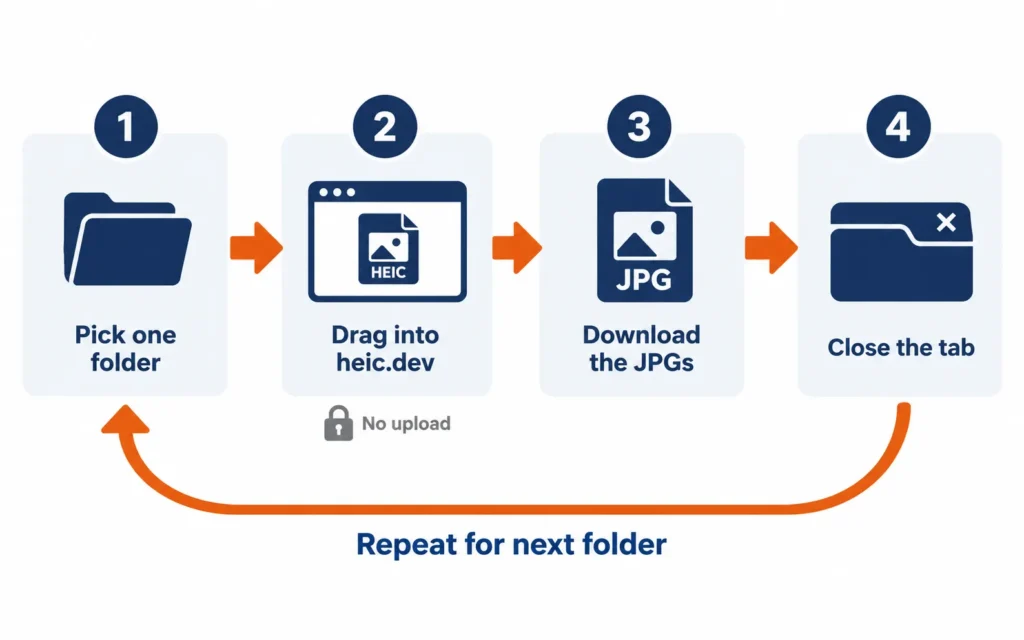
Once your folders are ready, use the same routine for each batch. The aim is to finish one group of photos, save the results, and give the browser a fresh start before moving on.
- Open the converter. Visit heic.dev/heic-to-jpg in a browser window with no other tabs open.
- Open your first folder. Go to batch-01 and select the HEIC files inside it.
- Add the photos. Drag the selected files into the converter’s drop area, or use the file picker if you prefer.
- Wait for the conversion to finish. Let the current batch complete before opening other apps or starting another task.
- Download the JPG files. Save the converted photos into a matching output folder, such as batch-01-jpg.
- Start fresh for the next batch. Once the files are safely downloaded, close the converter tab, open it again, and repeat the process with batch-02.
Convert HEIC to JPG Without Uploading Your Photos
With heic.dev’s HEIC to JPG Converter, you can select your HEIC files, convert them in your browser, and download the resulting JPGs. There’s no account to create and no need to upload your photo library to a conversion server.
The converter uses WebAssembly (Wasm), a technology that allows browsers to run compiled code efficiently. If you’re curious about how it works, MDN’s WebAssembly documentation provides a useful introduction.
Because the conversion runs on your own device, your laptop handles the decoding and processing. That’s good for privacy, but it also means your computer’s available memory and processing power matter. Smaller batches help keep the workload manageable.
Uploading a library of 1,000 photos averaging 3 MB each would involve transferring around 3 GB of data before accounting for any additional overhead. That can take a long time on a slow connection. With a browser-based converter that processes files locally, you can avoid that upload entirely.
Closing and reopening the tab after each batch may feel like an extra chore, but it gives you a clean starting point and can help release memory used by the previous conversion. On a laptop with 4 GB of RAM, that extra step can make a real difference.
If you have a newer laptop with 16 GB of RAM or more, you may be able to handle larger batches. The recommended sizes are starting points, though, not guarantees. High-resolution images or memory-hungry background apps may require smaller batches even on a more powerful machine.
Built-In Options on iPhone, Mac, and Windows
You don’t always need a separate converter. Depending on where your photos are and which devices you use, the tools already available on your iPhone, Mac, or Windows PC may be enough.
Transfer Photos From an iPhone to a Windows PC
If you’re copying photos directly from your iPhone over USB, check the transfer setting before you begin. Open Settings on the iPhone, go to Photos, and find Transfer to Mac or PC. Select Automatic if you want the iPhone to convert compatible photos to a format your PC can use during transfer. Choose Keep Originals if you’d rather copy the original HEIC files.
This setting can save you an extra conversion step when transferring photos in the future. It won’t automatically convert HEIC files that are already sitting on your laptop, though. Likewise, changing Settings, Camera, Formats, Most Compatible affects new photos you take, not the existing library.
Convert Multiple Photos With Preview on a Mac
Macs running macOS High Sierra (10.13) or later support opening HEIC photos natively. You can use Preview to export images as JPEGs without installing another app.
Open the photos in Preview, select the images in the sidebar, then choose File and look for the available export options. Depending on your macOS version and how the images are opened, you may see an option to export selected images. Choose JPEG as the format and select your preferred quality setting.
Preview works well for smaller groups, but hundreds of high-resolution images can still put a strain on an older Mac. Use the same folder-by-folder approach if you notice the app slowing down.
Viewing HEIC Files on Windows Isn’t the Same as Converting Them
Windows may need the HEIF Image Extensions from the Microsoft Store to display HEIC thumbnails and open these photos in supported apps. Installing the extension helps with viewing, but it doesn’t provide a complete batch-conversion workflow by itself.
If your HEIC photos are already on the laptop and you want JPG copies, you can use heic.dev’s converter instead. Select a folder’s worth of files, convert them, and save the results without changing Windows settings.
Choosing Batch Sizes for 1,000 Photos or More
The right batch size depends on your laptop’s RAM, the resolution of your photos, and how much memory your browser and other processes are using. Use this table as a starting point rather than a strict limit.
| Laptop RAM | Suggested Starting Batch | Folders for 1,000 Photos |
|---|---|---|
| 4 GB | 25–50 photos | 20–40 |
| 8 GB | 50–100 photos | 10–20 |
| 16 GB | 100–200 photos | 5–10 |
These numbers are starting points, not guaranteed limits. Actual memory use depends on the converter, browser, image resolution, and other programs running on the laptop. Resolution is particularly important: a 48-megapixel photo can use about four times as much memory for its pixel data as a 12-megapixel photo.
Pay attention to how the first batch behaves. If it finishes without freezing or slowing the laptop noticeably, try increasing the next batch by around 25%. If the fan gets loud, the browser becomes sluggish, or the page stops responding, cut the batch size in half. If the tab crashes, return to the last batch size that worked reliably.
At 50 photos per batch, a 1,000-photo library takes 20 rounds of selecting, converting, and downloading. On a 4 GB laptop, starting with 25 photos means up to 40 rounds. You can increase to 50 if performance allows. The extra steps are worthwhile if they help you avoid losing progress to a browser crash.
If you need transparency or want to use PNG files, try the HEIC to PNG Converter instead. PNG files can be considerably larger than JPGs, so use smaller batches and keep an eye on your available storage.
This folder-by-folder approach works well for a library of 1,000 photos or a few thousand. If you’re dealing with 10,000 photos or more, a dedicated desktop application may be a better fit for the amount of work involved.
Check Your Converted Photos Before Deleting the Originals
Before you call the job finished, check that every photo made it through the process. Start with the file count, then look at image quality and metadata.
Compare the file counts. Check how many HEIC files were in each input folder and how many JPGs you saved in its matching output folder. If the numbers don’t match, investigate before moving on. Catching a missing file in batch-03 is much easier than discovering it after you’ve finished batch-20.
Open a few photos at full size. Choose three or four images from each batch and inspect them closely. Look at faces, fine details, and any text in the image. Both HEIC and JPG can use lossy compression, so converting between them may reduce image quality slightly. With a high-quality JPG setting, the difference is often difficult to notice during normal viewing.
Check the metadata. heic.dev is designed to preserve metadata by default, including information such as capture dates and GPS coordinates when they’re present in the original. To check a sample, open the original in the HEIC Metadata Viewer, then compare its details with the converted JPG. On Windows, right-click the file and choose Properties, then Details. On a Mac, open Get Info and check the available information.
If a photo has no GPS coordinates, that doesn’t necessarily mean conversion removed them. The original may never have contained location data, particularly if Location Services was disabled when the photo was taken.
Finally, keep your HEIC originals until you’ve checked the converted files and backed up the JPGs somewhere else. If the only copies of your photos are on one laptop, deleting the originals too soon can leave you with no way to recover a missing or damaged image.
Common Problems and How to Fix Them
The Browser Tab Freezes or Crashes Midway
This often happens when the browser runs out of available memory. Close the unresponsive tab, reduce the next batch by half, shut down other apps, and restart the browser before trying again.
Any files you downloaded from earlier batches should still be safe. You’ll generally need to repeat only the unfinished batch, which is another reason to save each group before moving on to the next one.
The Converted JPGs Look Soft or Blurry
Check the export quality setting first. If you used Preview on a Mac, move the Quality slider toward Best and export the affected images again. Higher quality usually means larger files, so make sure you have enough storage.
Also compare the JPG with the original HEIC. Some photos are already soft because of low light, camera movement, or the way the image was captured. Conversion won’t fix those problems, and they may be more noticeable when you zoom in.
The Capture Dates or GPS Information Are Missing
Some conversion tools remove EXIF metadata, so check the original before assuming the conversion caused the problem. Open it in the HEIC Metadata Viewer and look for the information you expect to find.
If the original has no location data, the photo may have been taken while Location Services was disabled or without permission to access location information. If the original contains the data but the JPG doesn’t, review the converter’s metadata-preservation options and test another file.
HEIC Files Appear as Grey Boxes on Windows
Install the HEIF Image Extensions from the Microsoft Store if your version of Windows needs them. Once installed, supported apps should be able to display compatible HEIC files and thumbnails.
You don’t need these extensions just to use heic.dev’s browser converter. They’re useful when you also want to browse or open the original HEIC files in Windows apps.
Frequently Asked Questions
How many HEIC photos can I convert at once on a low-RAM laptop?
There’s no fixed limit because image resolution, browser memory use, and other running apps all affect performance. On a 4 GB laptop, start with 25–50 photos per batch. On an 8 GB laptop, try 50–100, and on a 16 GB laptop, try 100–200. Use the lower end for high-resolution photos, and increase the batch size only if conversion runs smoothly.
Why does my browser crash when I convert hundreds of HEIC photos?
HEIC files are compressed on disk, but decoding them takes much more memory. A 12-megapixel photo that occupies only a few megabytes as a file can require around 48 MB for its pixel data when decoded. Loading hundreds of photos at once can push a browser tab beyond its available memory. Smaller batches, fewer open tabs, and closing other apps can help prevent crashes.
Does converting HEIC to JPG reduce image quality?
It can. HEIC and JPG both support lossy compression, so converting a HEIC photo to JPG involves decoding the original and compressing the image again. At a high JPG quality setting, the difference is often hard to spot on a normal screen, though it can become more noticeable in detailed images or after repeated conversions. JPG files are also often larger than HEIC files of similar visual quality.
How much storage do I need to convert 1,000 iPhone photos?
A useful starting estimate is around twice the size of your original HEIC collection for the converted JPGs. For example, 1,000 photos averaging 2.5 MB each would take about 2.5 GB in HEIC format and roughly 5 GB if the JPGs average 5 MB each. Actual sizes vary with image content and compression settings. Keep enough free space for both the originals and the converted files until you’ve backed everything up.
Can I batch convert HEIC to JPG without uploading my photos?
Yes. heic.dev’s HEIC to JPG Converter processes photos locally in your browser using WebAssembly. Your files don’t need to be uploaded to a conversion server, and you don’t need an account or signup. This also avoids the time it would take to upload a large photo library over a slow internet connection.
Will batch conversion keep the date and location data in my photos?
heic.dev is designed to preserve metadata by default, including capture dates, camera details, and GPS information when those details exist in the original file. It’s still worth checking a few converted photos, especially if the metadata is important to you. You can inspect an original with the HEIC Metadata Viewer and compare it with the JPG’s details in Windows or macOS.
What’s the fastest way to convert HEIC photos on an old laptop?
For a laptop with limited RAM, convert small folders one at a time. Start with 25–50 photos on a 4 GB machine, keep other apps closed, download each finished batch, and reopen the converter before moving on. If the laptop handles the batches comfortably, you can gradually increase their size. This approach is more reliable than processing the entire library at once and risking a browser crash.
What’s the fastest way to convert HEIC photos on an old laptop?
For a laptop with limited RAM, convert small folders one at a time. Start with 25–50 photos on a 4 GB machine, keep other apps closed, download each finished batch, and reopen the converter before moving on. If the laptop handles the batches comfortably, you can gradually increase their size. This approach is more reliable than processing the entire library at once and risking a browser crash.
If you’re transferring new photos directly from an iPhone to a computer, setting Transfer to Mac or PC to Automatic may also convert compatible photos during the transfer, saving you a separate step.
Is it better to convert HEIC on the iPhone or the laptop?
It depends on whether you’re dealing with new photos or an existing library. To make future iPhone photos easier to use on other devices, open Settings, Camera, Formats, and select Most Compatible. This affects new photos rather than converting your existing collection.
For USB transfers, the iPhone’s Transfer to Mac or PC setting can convert compatible photos as they copy across. If your HEIC photos are already on the laptop, a browser-based converter is a straightforward way to create JPG copies without transferring them back to your phone.
Do I need HEIF Image Extensions on Windows to convert HEIC files?
No. You can convert HEIC files with heic.dev’s HEIC to JPG Converter without installing the Windows extension. The free HEIF Image Extensions are useful if you want Windows and supported apps to display HEIC thumbnails or open the original files. Without the required support, some systems may show blank icons or fail to preview the photos.
Final Words
Converting 1,000 iPhone photos doesn’t have to mean buying a new laptop or watching your browser crash halfway through. A little organisation and a folder-by-folder routine can make the job much easier, even on a machine with limited memory.
Start with the heic.dev HEIC to JPG Converter, select a batch that suits your laptop, and download the finished files before moving on to the next folder. The conversion runs in your browser, so your photos stay on your device without being uploaded to a server. There’s no account to create and no signup required.
If you need smaller files for email or web uploads, you can also try the HEIC Compressor. Keep your originals until you’ve checked and backed up the converted photos, and the rest is simply a matter of working through your folders one by one.