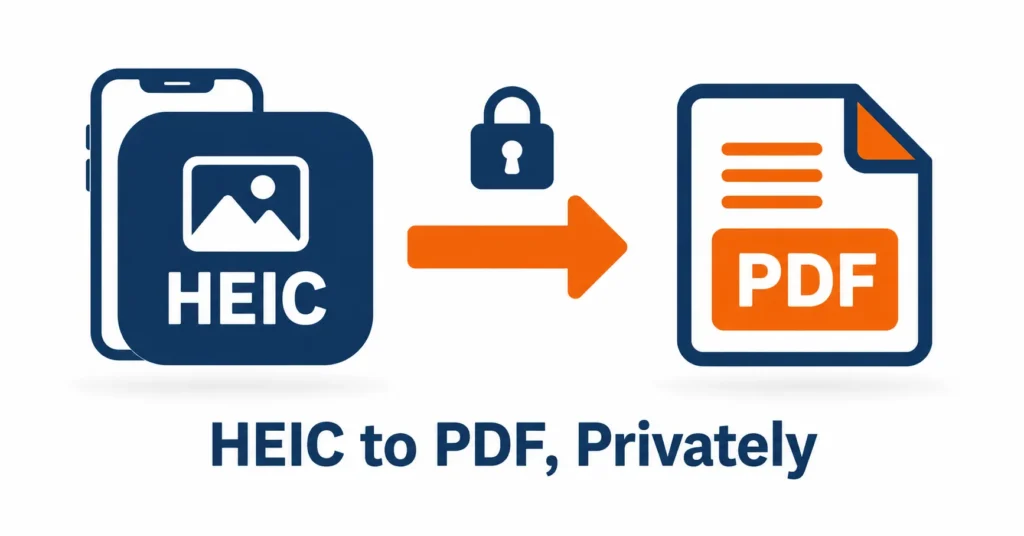
Need to turn an iPhone photo into a PDF? You can do it for free in a few seconds with a modern web browser. There’s no app to install and no account to create to convert HEIC to PDF online.
Maybe you’re uploading a photo to a visa application, school form, or work portal and get an “unsupported file type” message. The form accepts PDF, but your iPhone saved the picture as HEIC. If a deadline is coming up, that’s frustrating. Converting the photo to PDF is often the simplest fix.
The heic.dev HEIC to PDF Converter does the conversion right in your browser. Your photo stays on your device instead of being sent to a server.
Key Takeaways
- Some forms accept PDF files but won’t accept HEIC photos, so converting the image can solve the problem.
- You can use the heic.dev HEIC to PDF Converter without installing an app or creating an account.
- The converter uses WebAssembly in your browser, so your photo stays on your device.
- Changing your iPhone’s camera format affects new photos only. It won’t convert HEIC images already in your library.
Table of Contents
What Is HEIC, and Why Convert It to PDF?
HEIC stands for High Efficiency Image Container. It’s the file extension commonly used by Apple for images saved in the HEIF (High Efficiency Image Format) family. HEIC images use HEVC compression, also known as H.265. Apple introduced the format on iPhones with iOS 11 in 2017. You can read more in Wikipedia’s overview of HEIF.
One reason Apple uses HEIC is that it can keep image quality high while making files around 40–50% smaller than comparable JPGs. The downside is that not every device or website supports it.
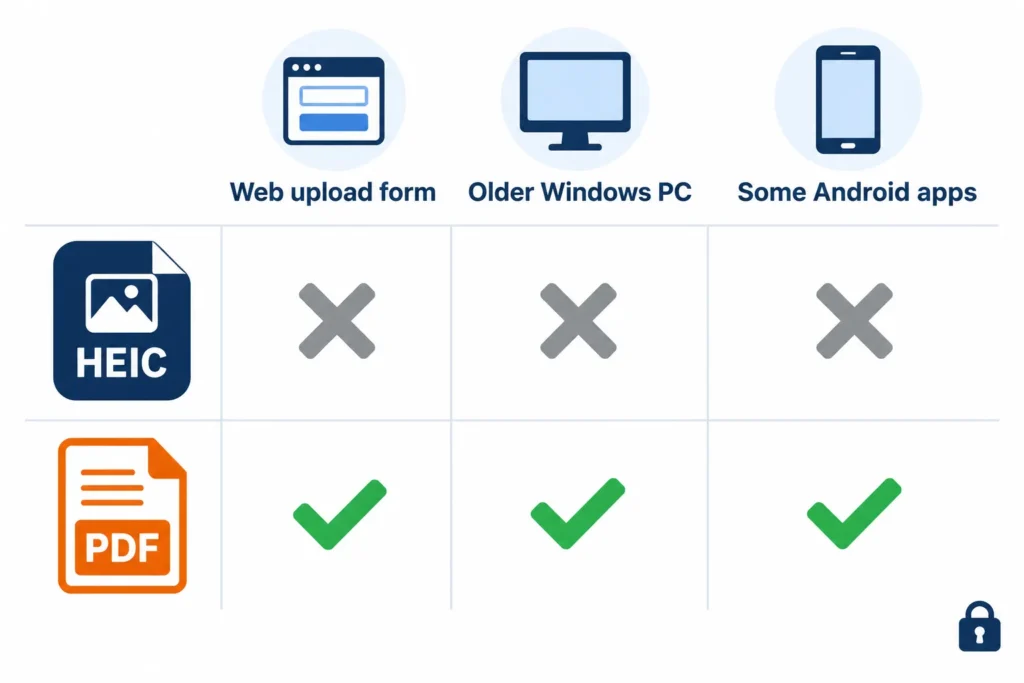
Some older Windows computers, online forms, and Android apps still have trouble opening HEIC files. PDF, on the other hand, is widely supported and is often the format requested for applications, official documents, and printing.
How to Convert HEIC to PDF with heic.dev
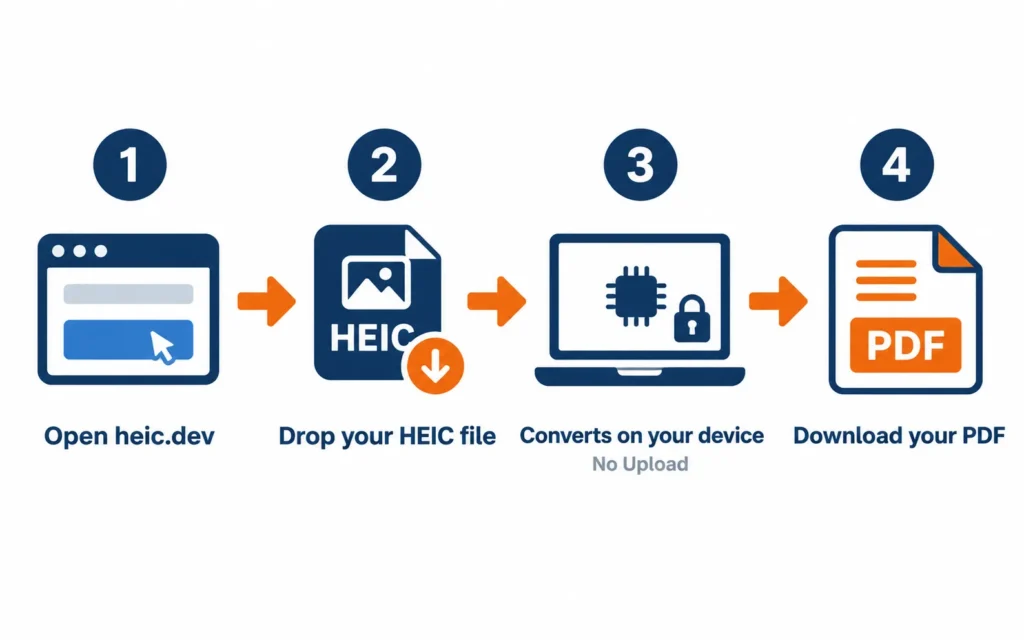
You can use the heic.dev HEIC to PDF Converter in a current version of Chrome, Safari, Firefox, or Edge, whether you’re on a phone or computer. The conversion runs in your browser, so there’s no account to create and no need to upload your photo.
- Open heic.dev/heic-to-pdf in your browser.
- Drag your HEIC photo into the converter, or click the file area to choose a photo from your device.
- Give the browser a few seconds to convert the image on your device.
- Download the PDF and attach it to your form, email, or application.
That’s all you need to do. If you want to check which photo you’re working with before converting it, open it in the heic.dev HEIC Viewer. It also works in your browser without sending the image away from your device.
The process is much the same on a phone. On an iPhone, open the converter in Safari and choose a photo from the file picker. Depending on how your photos are stored, you may be able to select one directly from your Photos library without first saving it to the Files app.
If the website or form asks for a different image format, heic.dev also offers conversions to JPG, PNG, WebP, AVIF, and TIFF.
Convert HEIC to PDF Without Uploading Your Photos
Some online converters ask you to upload a photo to a remote server before they can process it. heic.dev works differently. It uses WebAssembly (Wasm), a browser technology that can run compiled code efficiently, to handle the conversion on your own device.
That can be especially useful when you’re working with sensitive images, such as a passport page, signed document, or medical letter. Your photo doesn’t need to be sent to another computer for conversion.
Keeping the process local can also save time on a slow connection because you don’t have to wait for a large file to upload and download again.
Before sending the PDF, open it and check the image at 100% zoom. Make sure it’s clear and facing the right way.
There is one practical limit to keep in mind: browsers can only use a certain amount of memory in a tab. A few photos should be manageable, but trying to process hundreds of full-resolution images at once may slow down or freeze the page. For a large batch, work in smaller groups. If you need to process an entire library of thousands of photos, desktop software may be a better fit.
How to Convert HEIC to PDF on Mac and Windows
You don’t always need an online converter. Both macOS and Windows have ways to create PDFs from images, though the steps and requirements differ.
Convert HEIC to PDF on a Mac with Preview
Preview can open and export HEIC images on macOS 10.13 High Sierra and later. If your Mac supports the format, there’s no need to install another app for a single photo.
- Double-click the HEIC file to open it in Preview.
- Choose File from the menu bar, then select Export.
- Open the Format menu and choose PDF.
- Choose a file name and save location, then click Save.
This export method creates a PDF from one photo at a time. To combine several photos into one PDF, open them together in Preview and select their thumbnails in the sidebar. Press Command+A to select all the thumbnails, then choose File and Print. Use the PDF menu to save the result. The exact menu wording can vary between macOS versions.
Convert HEIC to PDF on Windows
Windows may need the free HEIF Image Extensions from the Microsoft Store before it can display HEIC photos correctly. Without the required support, you might see blank or grey thumbnails instead of your images.
Once the extension is installed, open the photo in the Photos app and press Ctrl+P. Select Microsoft Print to PDF as the printer, then click Print. Choose where to save the PDF when Windows prompts you. Microsoft Print to PDF is built into Windows, so you don’t need a separate PDF printer.
Both the Mac and Windows methods keep the conversion on your computer. They’re useful for occasional files, although neither is especially convenient for processing hundreds of photos at once.
If you simply need to convert a photo that’s already on your device, using heic.dev can be quicker than installing extensions or changing settings.
Convert HEIC to PDF on iPhone and Android
You can convert photos directly on your phone. On an iPhone, you can use the built-in Files app or convert the image in your browser. On Android, a browser-based converter can be a straightforward option when your usual photo app doesn’t support HEIC.
Convert HEIC to PDF on an iPhone with the Files App
- Open Photos and select the picture you want to convert.
- Tap the Share button, then scroll down and choose Save to Files.
- Choose a folder and save the image.
- Open Files and find the saved image. Touch and hold it, then choose Quick Actions and Create PDF.
You can often select several images in Files before choosing Create PDF to combine them into one document. The available options and wording may differ slightly depending on your iOS version.
Don’t mix this up with the iPhone camera setting under Settings → Camera → Formats → Most Compatible. That setting changes the format used for future photos, usually to JPG. It doesn’t convert images already saved in your library, and it doesn’t create PDFs.
A PDF may be larger than the original HEIC photo. That’s normal: HEIC is designed to store images efficiently, and the size of the resulting PDF depends on how the image is included. If the form has a strict file-size limit, check the final PDF before submitting it.
Use the Files method if you’re offline or want to combine several pictures. Use the browser method if you’d rather not save the image to Files first.
Convert HEIC to PDF on Android
Some Android apps can’t open HEIC images sent from an iPhone. A browser-based converter can help. Open heic.dev/heic-to-pdf in Chrome or another modern browser, select the HEIC photo from your device storage, and download the finished PDF.
The conversion runs locally in your browser, so the photo stays on your phone rather than being uploaded to a conversion server.
Tips for Turning Paper Photos into Clear PDFs
If you’re photographing a paper document, a good result starts before you convert the file. Keep the page flat, use plenty of light, and position your phone directly above it. Shadows and angled shots can make text difficult to read.
- Use daylight or a bright lamp, and keep shadows off the page.
- Hold your phone parallel to the paper rather than shooting from the side.
- Fill as much of the frame as possible with the document.
- Tap the text to focus and wait for the image to sharpen before taking the photo.
If you’re photographing a paper document with an iPhone, you may not need to convert a photo at all. The Notes app has a document-scanning feature. Open a note, tap the attachment button, choose Scan Documents, and capture the page. Notes can straighten and crop the scan, which you can then save or share as a PDF.
For other subjects, such as a receipt, whiteboard, or product label, start with the original HEIC photo in your camera roll. Avoid using a screenshot or a copy forwarded through a messaging app, as either may lose detail before you begin the conversion.
One thing to remember: converting a photo to PDF doesn’t make the text inside it searchable or editable. For that, you need OCR (optical character recognition) software.
Choosing the Right Format: PDF, ODF, or Another Option
PDF is a good choice when a website, organisation, or printer asks for a document. It preserves a fixed page layout, making it useful for visa applications, rental forms, and other submissions where the image needs to appear as a document.
If the destination asks for an image instead, JPG may be a better option because it’s widely supported and often smaller. You can use the heic.dev HEIC to JPG Converter for that.
HEIC to ODF: What If You Need an Editable Document?
ODF (OpenDocument Format) is an open standard used by office applications such as LibreOffice. Its text-document format uses the .odt extension. You can find more background in Wikipedia’s OpenDocument overview.
A photo can’t become an editable text document just by changing its file format. heic.dev doesn’t create ODF files, and converting a picture alone won’t turn the words in it into editable text.
Instead, convert the HEIC image to PDF if you need a fixed layout, or to JPG if you need a regular image. You can then open LibreOffice Writer and use Insert → Image to place the picture in a document. If you need to edit the words shown in the photo, you’ll need OCR.
If you searched for “HEIC to ODF” but meant “HEIC to PDF,” the converter linked above can handle the PDF conversion.
HEIC to PSF: Did You Mean PDF?
If you searched for “HEIC to PSF,” you may have meant PDF. The letters S and D sit next to each other on a QWERTY keyboard, so it’s an easy typo to make. PSF isn’t a typical document format for converting photos; the extension is used for things such as PC Screen Font files on Linux.
If you meant a Photoshop document, the extension is PSD. Convert the HEIC image to PNG or JPG first, then open it in Photoshop. If you need a PDF, use the HEIC to PDF Converter.
Common HEIC-to-PDF Problems and How to Fix Them
The PDF Looks Blurry
A blurry result can mean the image was compressed before conversion or the export settings reduced its quality. Try again with the original photo from your camera roll instead of a copy sent through a messaging app. Once the PDF is ready, open it and inspect the image at 100% zoom.
The Website Still Rejects My PDF
The form may have a file-size limit as well as a format requirement. Check the maximum size before trying again. If the PDF is too large, you can first reduce the image size with the heic.dev HEIC Compressor, then convert it to PDF.
HEIC Files Appear as Grey Boxes on Windows
Windows may be missing the required image support. Install the free HEIF Image Extensions from the Microsoft Store, then reopen the folder. The thumbnails should appear if the extension provides the support your system needs, and the Photos app should be able to open the files.
My Mac Won’t Open the HEIC File
Preview supports HEIC on macOS 10.13 High Sierra and later. If your Mac is running an older version, try updating macOS if possible or use the browser-based converter instead.
Batch Conversion Stops Before It Finishes
A browser tab has a memory limit, and a large batch of full-resolution photos can exceed it. Try converting fewer files at a time and closing other memory-heavy tabs before starting another batch.
Frequently Asked Questions
How do I convert HEIC to PDF on my iPhone?
In Photos, select the picture and tap Share → Save to Files. Then open Files, touch and hold the saved image, and choose Quick Actions → Create PDF. You can also open heic.dev/heic-to-pdf in Safari, select the HEIC photo, and download the PDF. The browser-based method processes the file on your device.
Can I combine several HEIC photos into one PDF?
Yes. On an iPhone, select multiple images in Files and choose Create PDF. On a Mac, open the photos together in Preview, select their thumbnails, and use File → Print to save them as a PDF. You can also convert the photos individually and combine the resulting PDFs with a PDF tool you trust.
Can I convert HEIC to PDF for free without uploading my photos?
Yes. The heic.dev HEIC to PDF Converter is free, doesn’t require an account, and uses WebAssembly to process photos in your browser. Your photo stays on your device instead of being sent to a conversion server. You can also use built-in options such as Preview on Mac, Microsoft Print to PDF on Windows, or Create PDF in the iPhone Files app.
Will converting HEIC to PDF reduce image quality?
Not necessarily. PDF is a container format, and the result depends on how the image is embedded and whether it’s compressed. Check the finished PDF at 100% zoom before submitting it. If the image looks soft, try converting the original photo rather than a copy that may already have been compressed.
How do I convert HEIC to PDF on a Mac?
Open the HEIC photo in Preview, choose File → Export, select PDF from the Format menu, and save it. For several photos in one document, open them together in Preview, select the thumbnails, and use File → Print to save as a PDF. Menu wording can vary by macOS version.
How do I convert HEIC to PDF on Windows?
If needed, install the free HEIF Image Extensions from the Microsoft Store so Windows can open HEIC images. Open the photo in the Photos app, press Ctrl+P, choose Microsoft Print to PDF, and click Print. If you prefer not to install an extension, use heic.dev/heic-to-pdf in your browser.
Can I convert HEIC to PDF on Android?
Yes. Open heic.dev/heic-to-pdf in Chrome or another modern browser, select the HEIC photo from your phone, and download the PDF. The conversion runs in the browser, so the photo stays on your device.
Why does my iPhone save photos as HEIC?
Apple adopted HEIC as the iPhone’s default photo format with iOS 11 in 2017. It can provide similar image quality at roughly 40–50% smaller file sizes than JPG. HEIC can also support features such as Live Photos, depth information, and transparency that JPG doesn’t handle in the same way. To save new photos as JPG, go to Settings → Camera → Formats and select Most Compatible. This setting affects future photos only.
Can I convert HEIC to ODF?
Not directly with heic.dev. ODF is an office-document format used by applications such as LibreOffice. Convert the HEIC image to PDF or JPG first, then insert it into a LibreOffice Writer document using Insert → Image. If you need the text in the image to be editable, you’ll need OCR. If you meant PDF, use the HEIC to PDF Converter.
Is HEIC to PSF the same as HEIC to PDF?
No. “HEIC to PSF” may be a typo for “HEIC to PDF,” since the S and D keys are next to each other. If you need a PDF, use the heic.dev HEIC to PDF Converter. If you meant a Photoshop file, that format is PSD; convert the image to PNG or JPG first.
Final Thoughts
If a website won’t accept your iPhone photo because it’s in HEIC format, converting it to PDF is often an easy solution. You don’t need to change the format of your entire photo library just to submit one file.
The heic.dev HEIC to PDF Converter turns a HEIC photo into a PDF in a few seconds, right in your browser. It’s free, there’s no account to create, and your photo stays on your device throughout the process.
If the finished file exceeds the form’s size limit, try reducing the image size with the heic.dev HEIC Compressor before converting it.