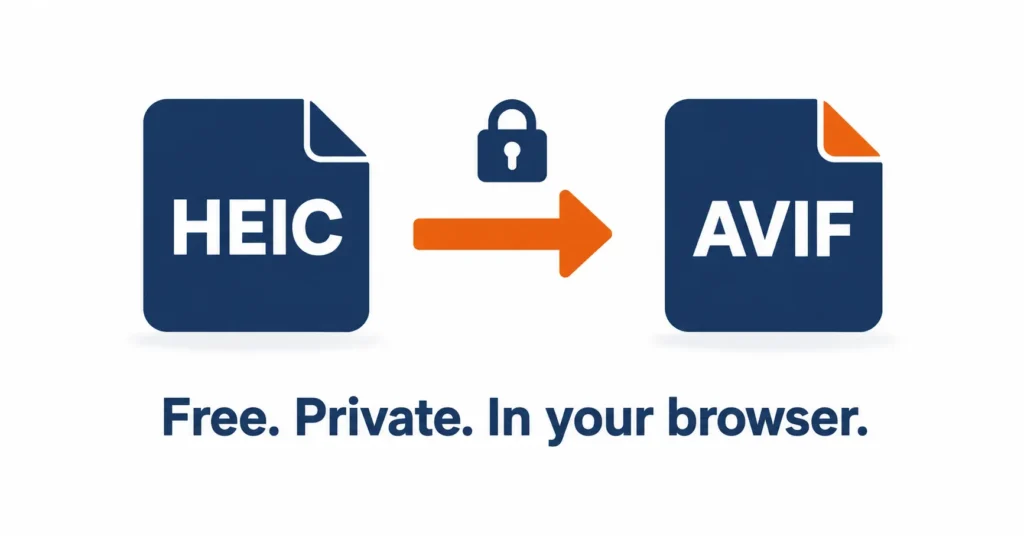
Need to turn a HEIC photo into an AVIF image for your website? You can do HEIC to AVIF Conversion for free in your browser, without installing an app or uploading your photo.
HEIC photos work well on an iPhone, but not every website or app can display them. You might upload one to your website and find that the thumbnail is blank or the file isn’t supported. HEIC is designed to store photos efficiently, while AVIF is a modern format made for sharing images online.
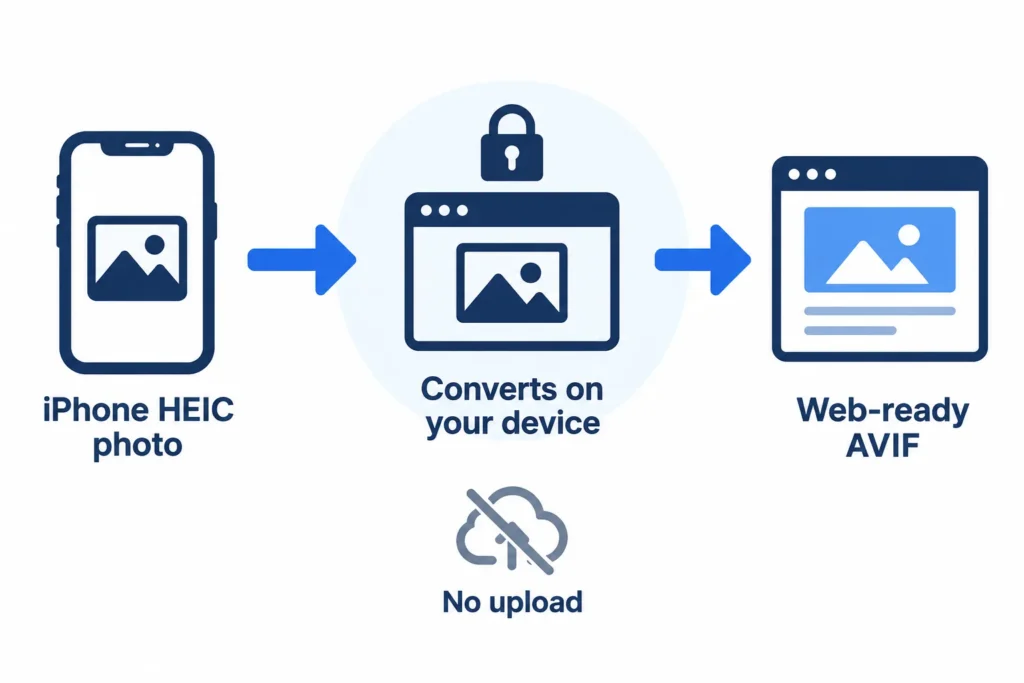
The heic.dev HEIC to AVIF Converter makes the switch in your browser. Your photo stays on your device throughout the conversion.
Key Takeaways
- Convert HEIC photos to AVIF for free in a modern browser, with no app or account required.
- Select a photo, let the converter process it, and download the AVIF file.
- The conversion runs locally through WebAssembly, so your photo isn’t uploaded to a server.
- AVIF output is a still image. Live Photo motion and depth information won’t carry over.
Table of Contents
What Is AVIF, and How Is It Different from HEIC?
AVIF stands for AV1 Image File Format. It’s based on the AV1 codec and was developed by the Alliance for Open Media as a royalty-free image format. Read more in Wikipedia’s AVIF overview.
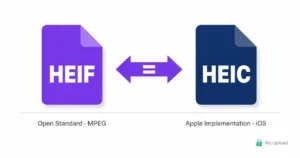
HEIC is commonly used for photos taken on Apple devices. It belongs to the HEIF format family and typically uses HEVC compression, also known as H.265. AVIF uses AV1 instead. Both formats can keep image files relatively small while supporting features such as transparency and a wide range of colours.
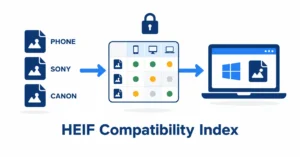
The main difference for website owners is compatibility. AVIF is supported by current major browsers, while HEIC support is much less consistent. Converting HEIC photos to AVIF can make them easier to use on modern websites.
How to Convert HEIC to AVIF with heic.dev
The process is simple: open the converter, select your photo, and download the converted file.
- Open heic.dev/heic-to-avif in Chrome, Safari, Firefox, or Edge.
- Drag your HEIC photo onto the page, or click the file area to choose it from your device.
- Wait while your browser converts the image to AVIF.
- Download the finished AVIF file and save it where you need it.
You can follow the same steps on an iPhone, iPad, Mac, Windows computer, or Android phone, using a modern browser. There’s no app to install and no signup process. If you have lots of photos to convert, try smaller batches if the browser starts to slow down.
Why converting without an upload matters
Many online converters send photos to their servers for processing. heic.dev handles the conversion in your browser using WebAssembly (Wasm), a technology that lets web pages run code efficiently on your device.
That can be reassuring when your camera roll contains personal photos, family pictures, or images with location information. Your file doesn’t need to be sent to a conversion server. Local processing can also save time on a slow connection because there’s no large upload to wait for.
What transfers to AVIF and what doesn’t?
According to heic.dev’s converter information, metadata such as the capture date and GPS location is preserved by default. Live Photo motion and depth maps don’t carry over, however. The resulting AVIF is a single still image.
Keep in mind that HEIC and AVIF commonly use lossy compression. Converting one to the other can remove a small amount of image detail, even if you don’t notice a difference at normal viewing sizes. Keep the original HEIC file if the photo matters to you.
Other Ways to Get AVIF from an iPhone Photo
The iPhone camera doesn’t offer AVIF as a standard photo format, and there isn’t a built-in one-tap option for converting HEIC to AVIF. Here are some alternatives for different devices.
iPhone camera settings
Open Settings → Camera → Formats and select Most Compatible to save new photos as JPG instead of HEIC. This can help with compatibility, but it won’t create AVIF files or change photos already in your library.
Mac Preview
Preview can open HEIC files on macOS 10.13 High Sierra and later. Choose File → Export to save a copy in a supported format such as JPEG, PNG, or TIFF. AVIF isn’t a standard export option in most versions of Preview, so this method usually won’t work for HEIC-to-AVIF conversion.
Windows
Windows may need the free HEIF Image Extensions from the Microsoft Store to display HEIC files and their thumbnails. Opening AVIF images may also require the AV1 Video Extension. These extensions add support for viewing the formats; they don’t convert HEIC files to AVIF.
Google Photos
Depending on your device and download method, a HEIC photo downloaded from Google Photos may be provided as a JPG. It won’t give you an AVIF file directly, so you’ll need another conversion method if AVIF is your goal.
Command-line tools
If you’re comfortable using a terminal, ImageMagick can create AVIF files locally with a command such as magick photo.heic photo.avif, provided your installation supports both HEIC and AVIF. The avifenc tool from libavif is another option, although it typically takes PNG or JPEG input, so you may need to convert the HEIC file first.
These tools can be useful for large collections or automated workflows, but they take more setup than a browser converter. For just a few photos, a web tool is usually simpler.
Other online converters
Before using an online converter, check how it handles your files. If it asks you to upload a photo, the image is sent to a server for processing. Review the service’s privacy information or choose a tool that converts files locally in your browser.
If the photos are already on your device, the heic.dev converter keeps the process simple: select the file, convert it, and download the result.
HEIC vs AVIF vs JPG vs WebP in 2026
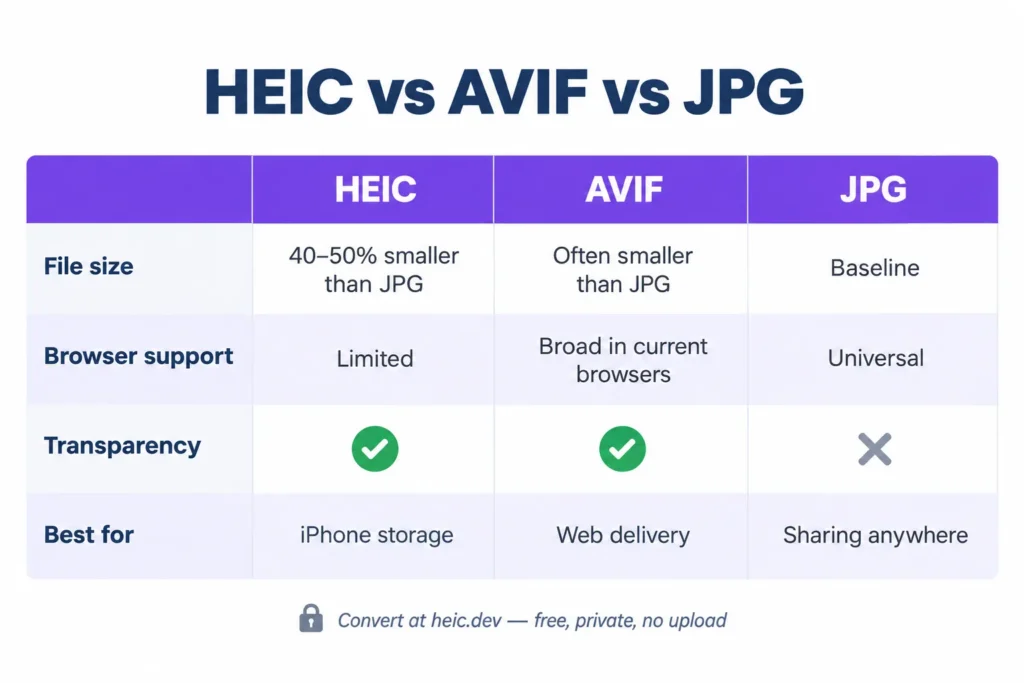
The best image format depends on how you plan to use the photo. HEIC is convenient for storing photos on Apple devices. JPG is widely accepted for sharing. AVIF and WebP are popular choices for websites because they can reduce image file sizes.
| Format | Typical use | File size compared with JPG | Transparency | Browser support |
|---|---|---|---|---|
| HEIC | Photo storage on iPhone | Often 40–50% smaller | Yes | Limited |
| AVIF | Website images | Often smaller than JPG; varies by image | Yes | Broad in current browsers |
| JPG | General sharing and compatibility | Reference format | No | Very broad |
| WebP | Website images | Often smaller than JPG | Yes | Broad |
For example, a 4 MB JPG might be around 2–2.4 MB as a HEIC file, based on a typical 40–50% reduction. AVIF file sizes vary with the image and encoder settings, and may be similar or smaller. If file size is important, test a few of your own photos to see what works best.
Think of HEIC as a format you may use when taking photos and AVIF as a format you can choose when publishing them online. Keep the original HEIC for your records and use an AVIF copy on your website.
AVIF and WebP are both useful for web images. AVIF can offer strong compression and support for HDR and wide colour ranges, but encoding may take longer. WebP has been supported in browsers for longer and can be a practical alternative. If you need WebP, try the heic.dev HEIC to WebP Converter.
JPG doesn’t support transparency, which is one reason logos and images with transparent backgrounds are often saved as PNG, WebP, or AVIF. HEIC can support transparency too, although support depends on the software handling the file.
Current major browsers broadly support AVIF, but support can vary on older devices and operating systems. Check the Can I Use AVIF compatibility table if you need to support a specific audience. A JPG fallback may still be useful for visitors using older software.
When Should You Use AVIF Instead of JPG?
If you’re choosing between AVIF and JPG for a website, think about where the image will appear and which formats your audience’s devices support.
Websites and online shops
Smaller image files can help pages load faster, which can improve the user experience and support good Core Web Vitals results. WordPress has supported AVIF uploads since version 6.5, provided the server meets the necessary requirements. AVIF can be a good option for blog images, product photos, and portfolio galleries.
To support older browsers, provide a fallback format. An HTML <picture> element lets a browser choose AVIF when supported and use JPG or another alternative when it isn’t.
Email, messaging, and printing
Some email services, messaging apps, and print providers still work best with JPG. An AVIF attachment may not display correctly for every recipient. If you’re sending a photo to someone else or submitting it to a service with limited format support, use the HEIC to JPG Converter instead.
Upload forms and social platforms
File requirements vary from one website to another. Some content management systems accept AVIF, while certain social platforms, job portals, and government websites may only accept JPG or PNG. Check the accepted formats before converting a large batch of photos. That way, you won’t waste time converting files the site won’t accept.
Design work and client projects
Support for AVIF varies between design apps and software versions. Before converting an entire photo shoot, test one image in the tools you plan to use. Clients and print workflows may still request JPG or TIFF, so check the delivery requirements first.
Keep your original photos
It’s a good idea to keep your HEIC originals. Information such as Live Photo motion and depth data won’t be included in the AVIF still image. Treat the AVIF as a copy for your website and keep the HEIC as your original.
A simple rule of thumb: use AVIF for websites you manage, and choose JPG when you need broad compatibility with other people’s devices and services.
Common Problems and How to Fix Them
If something goes wrong during conversion or when opening the finished file, these checks may help.
Thumbnails appear as grey boxes on Windows
Windows may be missing the extensions needed to display these image formats. Install HEIF Image Extensions for HEIC files and, if needed, the AV1 Video Extension for AVIF files from the Microsoft Store. If thumbnails still don’t appear, try reopening File Explorer or restarting your computer.
The AVIF looks softer than the original
Both HEIC and AVIF commonly use lossy compression, so converting between them can reduce some detail. Start with the original HEIC rather than a screenshot or a copy compressed by a messaging app. Compare the original and converted images at 100% zoom to see whether the difference matters for your use.
Batch conversion stops partway through
Large images can use a lot of browser memory. If the tab slows down or stops responding, convert fewer photos at a time and close other demanding tabs. Working in smaller batches also means you won’t have to restart the entire job if something goes wrong.
A website or app still rejects the AVIF file
The site may accept only JPG or PNG, or it may enforce a maximum file size. If AVIF isn’t accepted, convert the photo to JPG with the HEIC to JPG Converter. If the file is too large, try the heic.dev HEIC Compressor before converting it.
The date or location information seems to be missing
Some converters remove EXIF metadata, which can include the capture date and GPS location. heic.dev’s converter is described as preserving metadata by default. Check the file properties with a viewer that supports EXIF before assuming the information has been lost. It’s also wise to keep the original HEIC as a backup.
Frequently Asked Questions
How do I convert HEIC to AVIF?
Open the heic.dev HEIC to AVIF Converter in a modern browser, select or drag in your HEIC photo, and download the AVIF file when the conversion finishes. The conversion runs in your browser using WebAssembly, so you don’t need an account or have to upload the photo. If you have lots of images, work in smaller groups if your browser starts to slow down.
Is AVIF better than HEIC?
It depends on what you need. AVIF is useful for websites because current browsers widely support it and the format is royalty-free. HEIC is convenient for storing photos on Apple devices and may contain additional capture information, such as Live Photo and depth data. Many people keep photos in HEIC and convert copies to AVIF when they need web-ready images.
Does converting HEIC to AVIF reduce quality?
It can. Both formats commonly use lossy compression, so converting a HEIC photo to AVIF may remove a small amount of detail. Live Photo motion and depth maps also won’t be included in the resulting still image. Keep the original HEIC and check the AVIF at full size if image quality is important.
Is AVIF smaller than HEIC?
Sometimes, but not always. Both formats can produce files much smaller than comparable JPGs. HEIC is often around 40–50% smaller than JPG, while AVIF file size depends on the image and encoding settings. Try converting a few of your own photos to compare the results.
Can I convert HEIC to AVIF without uploading my photos?
Yes. The heic.dev converter uses WebAssembly to process the photo in your browser, so the file stays on your device instead of being sent to a conversion server. Local desktop tools such as ImageMagick can do this too, but they require more setup.
Can an iPhone take photos in AVIF?
The built-in iPhone camera doesn’t offer AVIF as a standard capture option. It usually saves photos as HEIC, or as JPG if you select Settings → Camera → Formats → Most Compatible. To create an AVIF, take the photo as usual and convert it afterwards using the heic.dev HEIC to AVIF Converter.
Does Safari support AVIF?
Current versions of Safari support AVIF, along with current versions of Chrome, Firefox, and Edge. Older browser or operating system versions may differ. If your website needs to work on older devices, consider offering a JPG or WebP fallback. You can check current support in the Can I Use AVIF table.
Why can’t I open AVIF files on Windows?
Your version of Windows may not have the necessary AVIF support installed. Try installing the AV1 Video Extension from the Microsoft Store, or open the image in a current browser. If you need to send the file to someone whose software doesn’t support AVIF, converting it to JPG is often the simplest option.
Should I use AVIF or JPG on my website?
AVIF can reduce image file sizes and is a good option for websites serving visitors with current browsers. JPG remains useful for compatibility with older software, email, and upload forms that don’t accept newer formats. If possible, serve AVIF with a JPG fallback and test the setup before replacing all your images.
Is the heic.dev HEIC to AVIF Converter free?
Yes. The heic.dev HEIC to AVIF Converter is free to use and doesn’t require an account. It works in modern browsers and processes photos locally using WebAssembly, so you can convert a file without uploading it to a server.
Final Thoughts
If you want to use an iPhone photo on a website that works better with AVIF, you don’t need to change how you take pictures. Convert a copy of the HEIC file when you’re ready to publish it.
The heic.dev HEIC to AVIF Converter is free, doesn’t require signup, and processes your photo in your browser so it stays on your device. Keep the original HEIC for your records and use the AVIF copy on your website. If a site doesn’t accept AVIF, try the HEIC to JPG Converter instead.