
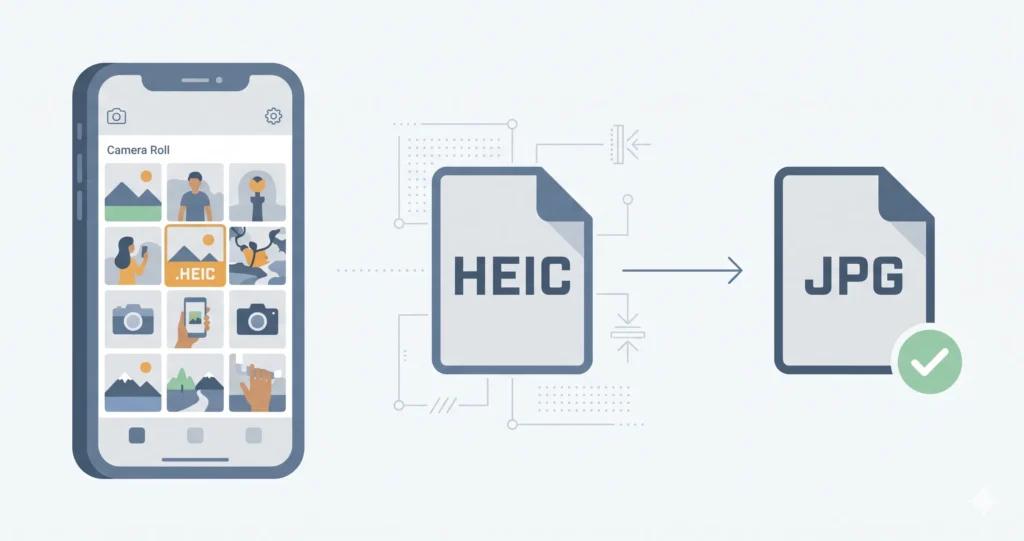
A HEIC file is a photo saved in Apple’s High Efficiency Image Container format — the default format your iPhone or iPad has used to store photos since iOS 11 in 2017. It produces images that are typically 40–50% smaller than equivalent JPGs without any visible loss in quality.
The problem is compatibility. A HEIC file looks perfect in your iPhone’s camera roll, but the moment you try to attach it to an email, upload it to a website, or share it with someone on Android or Windows, it often fails silently — a grey box, an upload error, or a file that simply won’t open. The format is Apple’s, and the rest of the world hasn’t fully caught up.
heic.dev’s HEIC Converter handles this entirely in your browser. Your photo never leaves your device — no upload, no server, no waiting.
What Is a HEIC File, Exactly?
HEIC stands for High Efficiency Image Container. It’s Apple’s specific implementation of a broader standard called HEIF (High Efficiency Image Format), which was developed by the Moving Picture Experts Group (MPEG) and standardised in 2015. HEIF is the container format; HEIC is the file extension Apple chose for it. They’re closely related but not the same thing — a distinction most articles miss.
What makes HEIC technically different from JPG is the compression method. HEIC files use HEVC (H.265) compression — the same technology used to compress modern 4K video — applied to still images. This is why the files are so much smaller. A photo that takes up 4MB as a JPG might be under 2MB as a HEIC, with no perceptible difference in sharpness or colour when viewed on screen.
HEIC also supports features that JPG simply cannot. A single HEIC file can store image sequences (used for Live Photos and burst shots), depth maps (used for Portrait mode), alpha transparency, and wide colour (Display P3). JPG was designed in 1992 and supports none of these natively. HEIC was built for the camera technology that exists today.
You can inspect all of this technical data — EXIF metadata, GPS coordinates, colour depth, and more — using heic.dev’s HEIC Metadata Viewer, which reads it all directly in your browser without uploading anything.
Why Does Your iPhone Use HEIC?
Apple switched the default iPhone photo format to HEIC in iOS 11 because storage space matters. The iPhone camera had reached a quality level — 12 megapixels, then Portrait mode, then 4K video — where JPG was consuming too much space too fast. HEIC let Apple double the effective storage capacity of your photo library without asking you to buy a larger device.
The decision made engineering sense. A 64GB iPhone that previously held roughly 15,000 JPGs could now hold closer to 30,000 HEIC photos at equivalent visual quality. For most users, the switch was invisible — photos still looked great, the camera still felt instant, and nothing appeared broken.
The cracks only showed up when those photos left the Apple ecosystem. Windows couldn’t open them. Many websites rejected them. WhatsApp and other apps converted them automatically, sometimes badly. Android devices had no native support. Apple’s iphone photo format worked beautifully inside its own walls and awkwardly outside them.
HEIC vs JPG: What’s Actually Different?
The two formats serve the same basic purpose — storing a photograph — but they make very different trade-offs.
| Feature | HEIC | JPG |
|---|---|---|
| File size (same visual quality) | 40–50% smaller | Baseline |
| Compression type | HEVC (H.265) | DCT (lossy) |
| Transparency (alpha) | Yes | No |
| Image sequences | Yes (Live Photos, burst) | No |
| Wide colour / HDR | Yes (Display P3) | Limited |
| Universal compatibility | No | Yes |
| Web browser support | Partial (Safari only) | Universal |
| Year introduced | 2017 (iOS 11) | 1992 |
The summary: HEIC is the better format technically, but JPG is the safer format practically. If you’re sharing photos with other people, uploading to websites, or working with non-Apple software, JPG causes fewer problems. If you’re storing photos only on Apple devices and care about saving space, HEIC is the smarter choice.
HEIC is not better than JPG in terms of quality at equal file sizes — it’s better at achieving the same quality at a smaller file size. That’s the key distinction when someone asks “is HEIC better quality than JPG?”
Where HEIC Files Cause Problems
HEIC’s compatibility gap is the reason most people end up searching “what is a HEIC file” in the first place. Here’s where things break.
Windows
Windows 10 and 11 do not open HEIC files by default. To add native support, you need to install the HEIF Image Extensions from the Microsoft Store (free). Even then, some older Windows applications won’t recognise the format. If you’ve ever double-clicked a HEIC file on a PC and seen nothing happen, this is why.
The faster fix for a specific file: open it in the HEIC Viewer on heic.dev — no download, no install, works immediately in any modern browser.
Android
Android has added partial HEIC support in recent versions, but it’s inconsistent across manufacturers and apps. Some Android gallery apps open HEIC natively; others show a blank thumbnail or refuse to open the file at all. If you’re sending photos from iPhone to Android, converting to JPG first avoids the problem entirely.
Websites and Upload Forms
This is the most common frustration. Many websites — social networks, document portals, job application systems, e-commerce platforms — explicitly whitelist JPG and PNG but not HEIC. The upload field either rejects the file outright or accepts it and displays nothing. The site isn’t broken; it just doesn’t know what to do with your iPhone photo format.
Email Clients
Most email clients handle HEIC unpredictably. Some convert automatically (Apple Mail on iOS does this transparently), others attach the raw .heic file, and the recipient may see a blank attachment. If you’ve ever sent a photo and heard back “I can’t open your image,” a HEIC file is the likely culprit.
How to Open or Convert a HEIC File
There are three practical approaches, depending on your situation.
View it instantly without converting
If you just want to see what’s in a HEIC file before deciding what to do with it, heic.dev’s HEIC Viewer opens any HEIC file directly in your browser. Drop the file in and it renders immediately. No software to install, no account to create, and no file is sent anywhere — it all runs locally using WebAssembly.
Convert to JPG for maximum compatibility
For sharing, uploading, or sending to non-Apple users, JPG is the right target format. Open heic.dev’s HEIC to JPG converter, drag your file in, and download the result. The conversion happens entirely on your device — nothing is uploaded to a server. You can adjust quality before downloading if you need a smaller file.
Change your iPhone to shoot in JPG going forward
If you’d rather avoid HEIC altogether, go to Settings → Camera → Formats → Most Compatible on your iPhone. This switches future photos to JPG. It does not convert photos you’ve already taken — those stay as HEIC unless you convert them individually.
Common Problems and How to Fix Them
My HEIC file shows as a blank or grey box
This almost always means the app or website you’re using doesn’t support the HEIC format. The file itself is fine. Open it in the HEIC Viewer to confirm it’s intact, then convert it to JPG before uploading or sharing. JPG will work everywhere the HEIC didn’t.
My HEIC file won’t upload to a website
The site is rejecting the file extension, not the photo. Convert the HEIC to JPG first using heic.dev’s converter, then try the upload again. If the site still rejects it after conversion, check whether the file size limit is the actual issue — a large JPG might exceed the upload limit even though the format is now correct.
I converted HEIC to JPG but the image looks worse
The conversion quality may have been set too low. heic.dev’s HEIC to JPG converter lets you select the output quality before downloading — set it to 90% or higher for photos you care about. At maximum quality, a converted JPG is visually identical to the original HEIC when viewed on screen.
I can’t find the HEIC file — my iPhone shows Photos, not files
iPhone doesn’t show you the file system directly. To get the actual HEIC file, connect your iPhone to a computer via USB, or use AirDrop to transfer the photo to a Mac, or share the photo to Files and open it from there. Alternatively, if you use iCloud, you can access the raw HEIC files from iCloud.com on a desktop browser.
Frequently Asked Questions
What is a HEIC file and why does my iPhone use it?
A HEIC file is a photo saved in Apple’s High Efficiency Image Container format, introduced as the iPhone’s default in iOS 11 (2017). Your iPhone uses it because HEIC files are typically 40–50% smaller than equivalent JPGs, which means your phone can store roughly twice as many photos using the same amount of storage. The trade-off is that HEIC isn’t universally supported outside the Apple ecosystem.
Can I open HEIC files on Windows?
Yes, but not without extra steps. Windows 10 and Windows 11 don’t open HEIC natively. You can install the free HEIF Image Extensions from the Microsoft Store to add support. Alternatively, open any HEIC file instantly in your browser using heic.dev’s HEIC Viewer — no installation needed, and nothing is uploaded to a server.
Is HEIC better quality than JPG?
HEIC achieves the same visual quality as JPG in a smaller file size — it’s not higher quality, it’s more efficient. At equivalent file sizes, HEIC typically looks sharper than JPG because JPG compression introduces more artefacts at the same byte count. HEIC also supports wide colour (Display P3), which JPG does not handle well.
How do I convert a HEIC file to JPG?
Open heic.dev’s HEIC to JPG converter, drag your HEIC file into the browser window, and download the converted JPG. The whole process takes under 30 seconds. No account is needed, and your photo is never sent to a server — conversion runs locally in your browser using WebAssembly.
Why won’t my HEIC file upload to websites or apps?
Most websites and upload forms only accept JPG, PNG, or WebP. HEIC is not on their accepted list, so the upload is rejected even though the photo is perfectly fine. Convert the file to JPG first, then try the upload again. This fixes the problem in virtually every case.
What is the difference between HEIC and HEIF?
HEIF (High Efficiency Image Format) is the open container standard developed by MPEG. HEIC is Apple’s specific file extension for HEIF files. Think of HEIF as the standard and HEIC as Apple’s name for it. The files are the same format; the distinction is mostly in naming. Other devices using the HEIF standard may use the .heif extension instead of .heic.
Does converting HEIC to JPG lose quality?
At high quality settings (90% or above), the visual difference between a converted JPG and the original HEIC is not visible to the naked eye. At lower quality settings, JPG compression introduces artefacts — blockiness around edges and colour banding in gradients. For photos that matter, always convert at 90% quality or higher.
HEIC is a well-designed format held back by an adoption gap. It stores more photo data in less space, supports modern camera features JPG was never built for, and it’s not going away. The problem isn’t HEIC itself — it’s that the rest of the world still runs on JPG, and Apple didn’t wait for everyone else to catch up before switching.
When you need your photos to work outside of an iPhone or Mac, converting HEIC to JPG is the practical fix. heic.dev’s HEIC to JPG Converter does it free, in your browser, with no files sent anywhere. Open it, drop your photo in, and download a JPG that works everywhere.