A HEIC file is a photo saved in Apple’s default iPhone camera format — a format that delivers roughly the same visual quality as JPG at about half the file size. Your iPhone has been saving photos this way since iOS 11, which Apple shipped in 2017. The catch is that most platforms outside Apple’s own apps still can’t open HEIC natively, which is why that photo looks perfect on your phone but turns into a grey box or a download error the moment you try to attach it to an email, upload it to a website, or send it to someone on Android.
That compatibility gap is the real problem. The format itself is genuinely excellent. If you need to convert a HEIC file right now, HEIC to JPG Converter handles it entirely in your browser — your photo never leaves your device.
Key Takeaways
- HEIC is Apple’s default iPhone photo format since iOS 11 — it stores images at roughly half the file size of JPG with comparable visual quality.
- You can convert any HEIC file to JPG instantly at heic.dev — no app download, no account, and nothing to install.
- heic.dev runs entirely in your browser using WebAssembly, so your photos never leave your device and are never uploaded to any server.
- HEIC supports Live Photos, depth maps, and alpha transparency — features that are permanently lost if you convert to standard JPG.
Table of Contents
What Does HEIC Stand For?
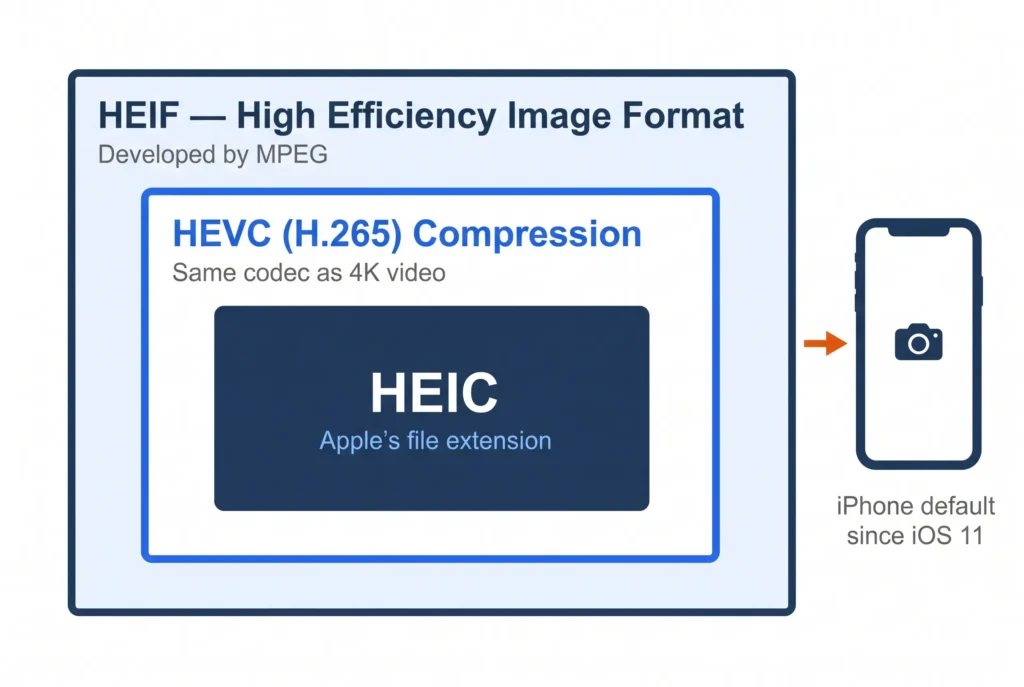
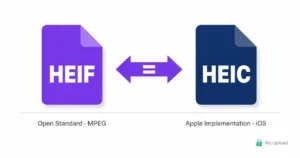
HEIC stands for High Efficiency Image Container. It’s Apple’s specific implementation of HEIF (High Efficiency Image Format), a container standard developed by MPEG — the same group behind the MP3 and MP4 formats. The distinction matters: HEIF is the container specification; HEIC is the file extension Apple chose for its version of that container on iPhone and iPad.
Inside a HEIC file, image data is compressed using HEVC (H.265) — the same codec used for high-quality video. That’s why HEIC achieves such strong compression without visible quality loss. A JPG uses older JPEG compression, which is why equivalent HEIC files typically run 40–50% smaller.
Apple adopted HEIC as the iPhone default camera format starting with iOS 11 in 2017. The motive was storage efficiency: as iPhone cameras moved to 12MP and beyond, JPGs were eating through 64GB and 128GB of storage fast. HEIC was Apple’s answer to that.
HEIC vs JPG: What’s Actually Different
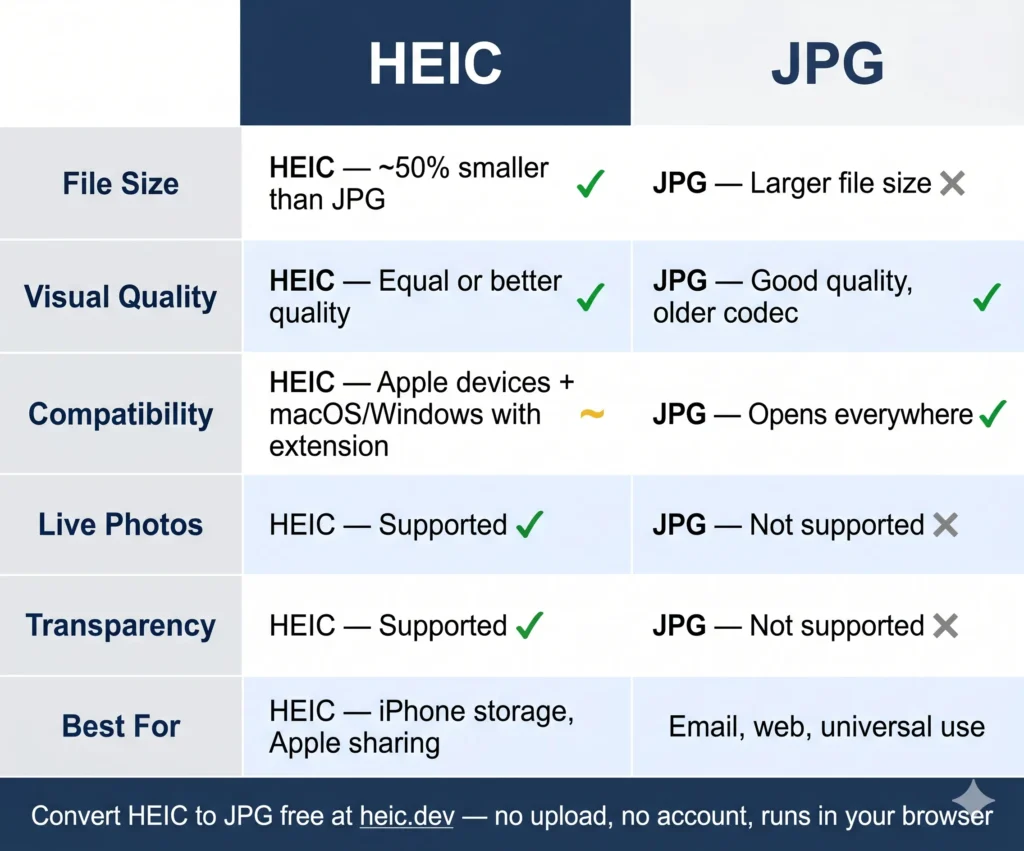
The two formats solve the same problem — storing a still photograph — but in very different ways. Here’s what that difference looks like in practice.
File Size and Compression
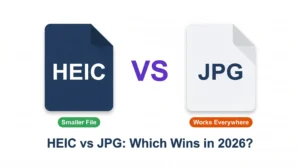
A typical 12MP iPhone photo saved as JPG runs between 3–6 MB. The same shot saved as HEIC is usually 1.5–3 MB. That 40–50% size reduction adds up quickly across a camera roll of thousands of photos — which is exactly why Apple made the switch.
HEIC achieves this through HEVC compression, which is simply better at encoding image data than the decades-old JPEG standard. The compression is lossy in both cases, but HEIC extracts more quality per byte.
What HEIC Supports That JPG Doesn’t
File size isn’t the only difference. HEIC can store things JPG fundamentally cannot:
- Live Photos — the short video clip your iPhone captures with each shot
- Burst photo sequences — multiple frames stored in a single file
- Depth maps — the data behind Portrait Mode blur
- Alpha transparency — like PNG, HEIC supports transparent backgrounds
- HDR image data — wider colour depth than standard JPG allows
When you convert a HEIC to JPG, all of that extra data is gone. You get one still frame, no transparency, no depth information. You may use HEIC to PNG Converter for transparency. For most everyday photos that’s fine. But it’s worth knowing before you convert a Live Photo.
Compatibility in 2026
JPG opens everywhere. HEIC does not. macOS 10.13 High Sierra and later open HEIC natively in Preview. Windows 10 and 11 require a free extension from the Microsoft Store — without it, HEIC files show as grey boxes with no thumbnail. Most web upload forms, email clients, and Android gallery apps either reject HEIC outright or display nothing.
That’s the compatibility trade-off Apple made: a better format that doesn’t work outside its own ecosystem. The format is excellent. The support problem is real.
How to Convert a HEIC File to JPG
Three methods work reliably. The first is the fastest if you have a file in front of you right now.
Method 1: Convert in Your Browser with heic.dev
heic.dev’s HEIC to JPG Converter runs entirely in your browser using WebAssembly. No files are uploaded to any server — the entire conversion happens locally on your device. No account, no signup, completely free.
- Open heic.dev/heic-to-jpg in any modern browser — Chrome, Safari, Firefox, or Edge.
- Drag your HEIC file onto the upload area, or click to browse and select it from your device.
- The converter processes the file immediately. Click the Download button to save the JPG to your device.
That’s it. The converted JPG retains the original EXIF metadata — GPS location, date, camera settings — because heic.dev preserves it by default. Most other converters strip it.
Method 2: Convert on a Mac Using Preview
Mac users running macOS 10.13 or later can convert HEIC to JPG without any extra software.
- Open the HEIC file in Preview — double-click it or right-click and choose Open With → Preview.
- Go to File → Export.
- In the Format dropdown, select JPEG. Adjust quality if needed, then click Save.
Preview is reliable for single files. For converting a batch of 50 or 500 photos, the heic.dev method is faster — drag in multiple files at once, convert, download.
Method 3: Change iPhone Camera Settings
You can stop your iPhone from saving new photos as HEIC by switching to a more compatible format. Go to Settings → Camera → Formats, then tap Most Compatible. Future photos will save as JPG automatically.
One important thing: this only changes future photos. It does nothing to the HEIC files already in your camera roll. For those, you still need to convert.
Common Problems and How to Fix Them
HEIC file shows as a grey box on Windows
Windows doesn’t support HEIC natively. You need the HEIC Viewer or HEIF Image Extensions, a free add-on available from the Microsoft Store — search “HEIF Image Extensions” and install it. After that, HEIC files will display thumbnails and open in Photos. Alternatively, convert the file to JPG first using heic.dev — no extension needed.
Website or app won’t accept the HEIC file
Most upload forms check the file extension and MIME type. HEIC is still widely blocklisted. Convert to JPG before uploading — that’s the most reliable fix. Some platforms that appear to accept HEIC actually convert it silently on their servers, which means your photo is being uploaded and processed by a third party you didn’t choose.
Converted JPG looks blurry or degraded
The quality setting during export was probably too low. In heic.dev, the default quality setting preserves the original quality well. In Preview on Mac, drag the quality slider to 85% or higher before saving. Going below 70% produces visible softness, especially on fine details and text in photos.
GPS and date missing from converted photo
Some converters strip EXIF metadata during conversion. heic.dev preserves it by default, so the date taken, GPS coordinates, and camera model stay intact. If you’ve used another tool and lost this data, it cannot be recovered — the original HEIC file is the only source of that metadata.
HEIC opens on iPhone but won’t open on my older Mac
HEIC support in macOS started with High Sierra (10.13). If you’re running an older version, Preview won’t open the file. Convert using heic.dev in a browser instead — it works regardless of your macOS version.
Frequently Asked Questions
What does HEIC stand for?
HEIC stands for High Efficiency Image Container. It’s Apple’s specific implementation of the HEIF (High Efficiency Image Format) standard, which was developed by MPEG — the same organisation behind MP3 and MP4. Apple introduced HEIC as the default iPhone camera format with iOS 11 in 2017. The format uses HEVC (H.265) compression to store images at roughly half the file size of an equivalent JPG.
Why does my iPhone save photos as HEIC instead of JPG?
Apple switched to HEIC in iOS 11 because it’s significantly more efficient than JPG — same visual quality, about half the file size. For a device with a high-resolution camera and limited storage, that trade-off made sense. HEIC also supports features JPG can’t handle, including Live Photos and depth map data from Portrait Mode. Apple chose the better format. The compatibility gap with non-Apple software is the downside Apple accepted.
Can I open a HEIC file on Windows?
Yes, but not without extra steps. Windows 10 and 11 need the HEIF Image Extensions, a free add-on from the Microsoft Store. Without it, HEIC files appear as grey boxes with no thumbnail. Once installed, the Photos app opens HEIC files normally. The faster alternative is to convert the HEIC to JPG first — at heic.dev, this takes about ten seconds and requires nothing installed.
Is HEIC better quality than JPG?
At the same file size, HEIC produces better quality than JPG. At the same quality level, HEIC produces a smaller file — typically 40–50% smaller than an equivalent JPG. The compression algorithm inside HEIC (HEVC) is simply more efficient than the decades-old JPEG standard. For storage and visual fidelity, HEIC wins. The only area JPG wins is compatibility — it opens everywhere, while HEIC still fails on many platforms in 2026.
How do I convert a HEIC file to JPG for free?
Go to heic.dev/heic-to-jpg, drag your HEIC file onto the page, and download the converted JPG. The conversion runs entirely in your browser — nothing is uploaded, nothing is stored, and no account is required. On a Mac, you can also export via Preview: open the file, go to File → Export, and choose JPEG from the format dropdown.
Does converting HEIC to JPG reduce quality?
A small quality reduction is technically possible, because both HEIC and JPG are lossy formats and re-encoding introduces a second round of compression. In practice, at a quality setting of 85% or above, the difference is invisible to the eye for most photos. heic.dev uses a quality setting that preserves visual detail well. Where you’ll notice a more significant change is with Live Photo data, depth maps, and transparency — those features don’t exist in JPG and are permanently lost during conversion.
How do I stop my iPhone from saving photos as HEIC?
Go to Settings → Camera → Formats and tap Most Compatible. Your iPhone will save new photos as JPG instead of HEIC. This setting only affects photos taken from that point on — it does not change any existing HEIC files in your camera roll. To convert photos already saved as HEIC, use heic.dev to convert them individually or in a batch.
Final Words
HEIC is a genuinely good format — smaller files, better compression, and features JPG simply can’t replicate. The format isn’t the problem. The compatibility gap is. And that gap is easy to close.
heic.dev’s HEIC to JPG Converter converts your files in seconds, entirely in your browser, with no upload and no account. Your photos stay on your device throughout. It’s free every time, handles batches, and preserves your EXIF metadata by default. If you also need to reduce file size before sharing, the heic.dev HEIC Compressor handles that without any format conversion at all.