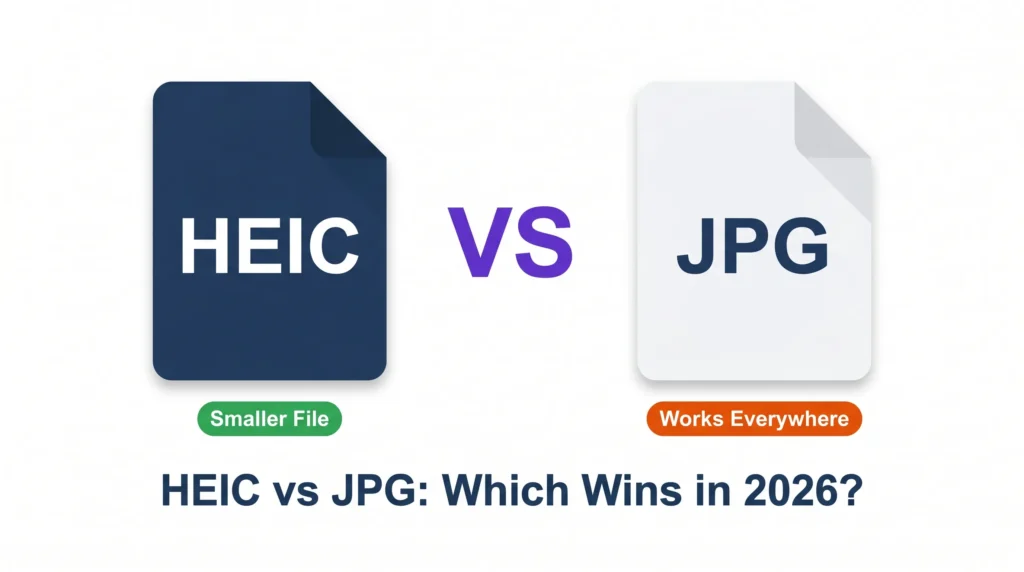
HEIC is the smarter format on paper roughly half the file size of JPG at the same visual quality but JPG is still the one that actually works everywhere. Apple’s support documentation confirms that HEIC has been the iPhone default since iOS 11, chosen precisely because of that compression advantage. The problem isn’t what HEIC does. The problem is where it breaks.
HEIC photos look perfect on your iPhone and in your Mac’s Photos app. The moment you try to attach one to a Gmail, upload it to an e-commerce platform, or send it to someone on Windows without the right extensions installed, it becomes a grey box or a flat refusal. That gap between “works on Apple” and “works everywhere” is what this comparison is really about.
If you’ve already got HEIC files that need to work somewhere they don’t, HEIC to JPG Converter handles the conversion entirely in your browser your photos never leave your device, and there’s nothing to install.
Key Takeaways
- HEIC files are typically 40–50% smaller than equivalent JPGs, but lack universal compatibility across Windows, Android, and most web platforms in 2026.
- You can convert any HEIC file to JPG instantly at heic.dev – no app, no account, and no file upload required.
- heic.dev converts photos entirely in your browser using WebAssembly, so your photos never touch a server.
- Switching your iPhone to JPG mode only affects future photos – it does not convert your existing HEIC library.
Table of Contents
What HEIC and JPG Actually Are
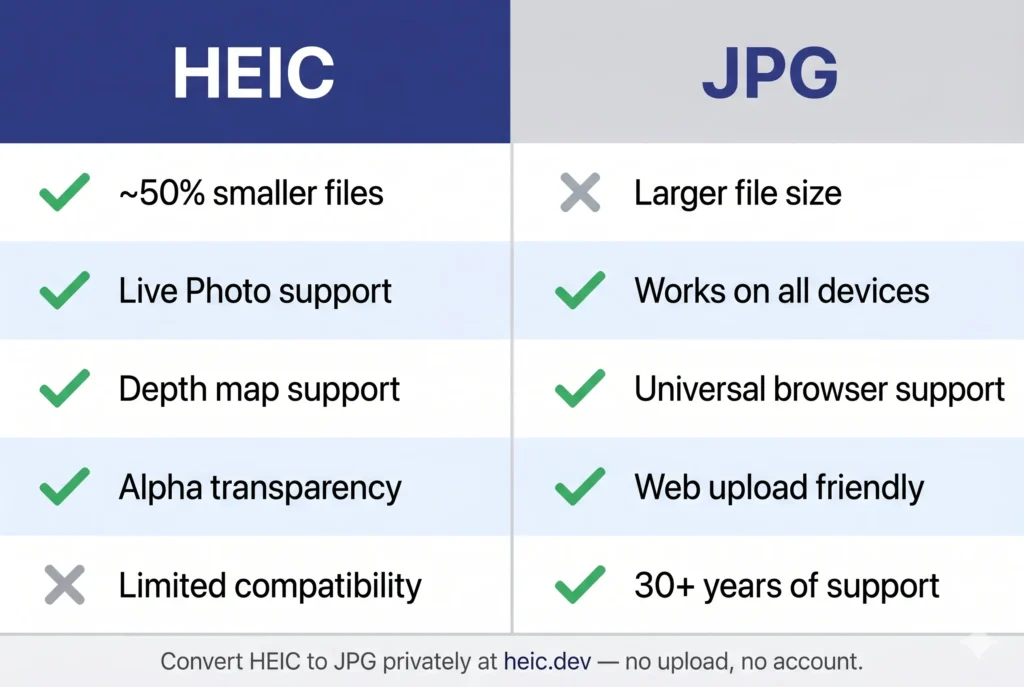
JPG (also written JPEG) has been the standard photo format since the early 1990s. It uses lossy compression to shrink image data, and it’s readable by virtually every device, operating system, camera, browser, and web platform on the planet. That ubiquity is its single greatest strength and the reason it’s still relevant in 2026 despite being 30-plus years old.
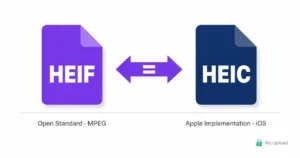
HEIC is Apple’s implementation of the HEIF (High Efficiency Image Format) container, using HEVC (H.265) compression, the same codec that powers 4K video streaming. Apple introduced it as the iPhone default in iOS 11 in 2017. HEIC achieves roughly the same visual quality as JPG at about half the file size, and it supports features JPG simply cannot: Live Photos, image sequences, depth maps, and alpha transparency. It’s genuinely better technology. The catch is that the rest of the world hasn’t fully caught up.
File Size and Image Quality: The Real Numbers
On file size, HEIC wins clearly. A photo shot at full iPhone resolution typically comes in at 2–4 MB as a HEIC file versus 4–7 MB as an equivalent JPG. Across a camera roll of 10,000 photos, that difference adds up fast we’re talking gigabytes of storage recovered.
Quality is a trickier call. Both formats are lossy, meaning both discard some image data during compression. HEIC is more efficient at that trade-off: it retains more detail at the same compression level. Side-by-side at 100% zoom, most people can’t tell the difference between a well-encoded HEIC and a high-quality JPG. At aggressive compression settings, HEIC holds up better fewer artefacts, sharper edges, better colour gradients.
Does converting HEIC to JPG reduce quality?
Yes, but only slightly and in most cases you won’t see it. Converting HEIC to JPG at high quality settings (90–95 out of 100) produces a result that’s visually indistinguishable from the original for everyday photos. Where you might notice a difference: very high-frequency detail like hair, fabric texture, or foliage at 100% zoom. For printing, social media, or general sharing, the quality loss is negligible. heic.dev’s converter defaults to a quality setting that preserves as much detail as possible.
HEIC Compatibility in 2026: Where It Works and Where It Doesn’t
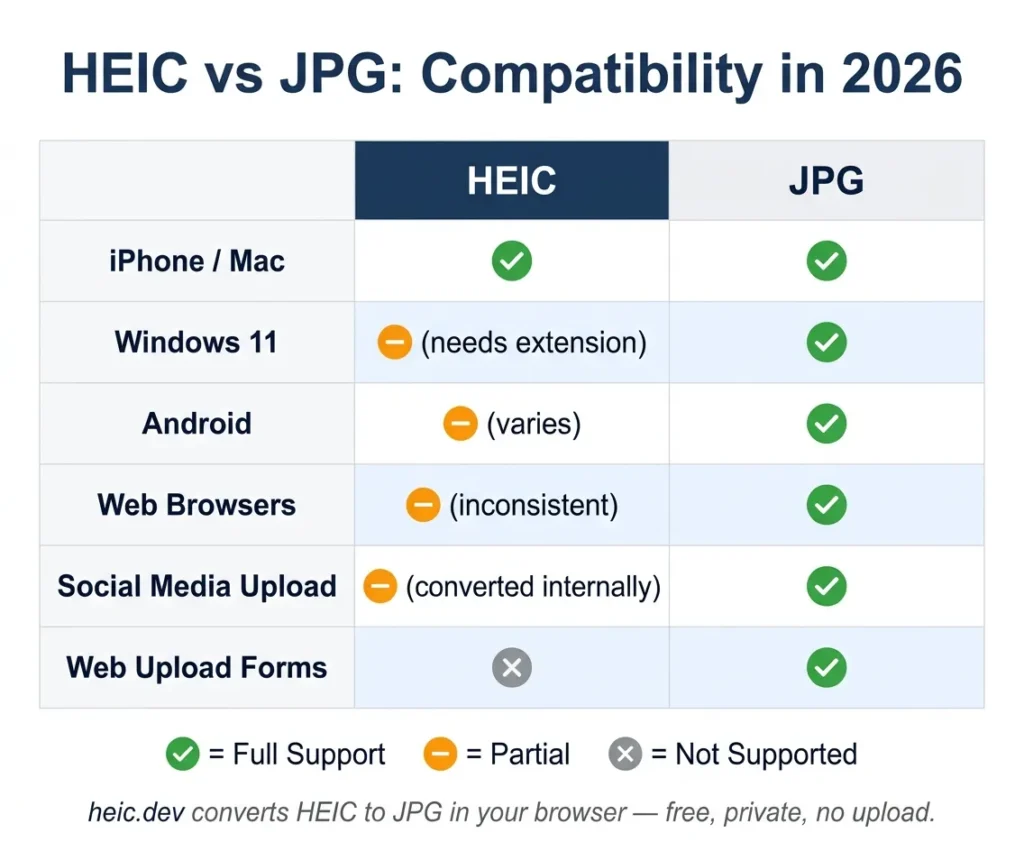
Three things break with HEIC more often than anything else: Windows without extensions, web upload forms, and Android devices.
On Windows, HEIC support isn’t built into the operating system by default. Even on Windows 11, you need the HEIF Image Extensions from the Microsoft Store (free, but not pre-installed) before HEIC files will open in Photos or File Explorer. Without it, HEIC files appear as grey boxes with no preview. Many Windows users never install this, which is why HEIC attachments cause problems in business environments.
On the web, native HEIC browser support remains inconsistent. As browser support data from Can I Use shows, HEIC is not universally supported across browsers without OS-level support. Most file upload forms on websites e-commerce platforms, form builders, social media schedulers, print labs either reject HEIC outright or convert it on the backend with unpredictable quality results.
On Android, support varies by manufacturer and Android version. Some devices open HEIC natively; many don’t. If you’re regularly sharing photos with Android users, JPG is the safer choice.
Where HEIC does work reliably: within Apple’s own ecosystem. iPhone to iPhone, iPhone to Mac, iCloud, Apple Photos, Preview, Lightroom (CC 2018+), and Photoshop (2019+) all handle HEIC without issues. If your photos stay in that world, you probably don’t need to convert anything.
HEIC vs JPG for Sharing, Social Media, and Uploading
For sharing on social media Instagram, Facebook, LinkedIn, Pinterest the platforms themselves accept HEIC but convert it to JPG or WebP internally anyway. You’re not gaining anything by uploading HEIC. You might as well convert it yourself first, so you control the quality settings rather than letting the platform’s compression algorithm decide.
For email, the same logic applies. Gmail and Outlook accept HEIC attachments, but the recipient may not be able to open them. Converting to JPG before attaching removes that uncertainty entirely.
For web uploads product photos, portfolio images, stock photography submissions JPG remains the expected format in 2026. Many platforms cap uploads at specific file types, and HEIC frequently isn’t on the list. If it is accepted, the backend conversion is often lossy and outside your control.
The quickest fix for any of these situations: drop your HEIC file into the heic.dev HEIC to JPG Converter, download the result, and upload that. The whole process takes under 30 seconds. No account. No upload to a server. Your photo stays on your device the entire time which matters when that photo contains GPS location data or personal content you’d rather not hand to a third-party service.
When to Keep HEIC — and When to Switch to JPG
Keep HEIC if: your photos stay within Apple’s ecosystem, you’re shooting a lot and storage space is a real concern, or you’re capturing Live Photos, portrait mode depth data, or image sequences that would lose that extra data in a JPG conversion.
Switch to JPG or convert to JPG if: you regularly share photos with Windows or Android users, you upload product or portfolio photos to websites, you work with design teams outside the Apple ecosystem, or you need photos to be universally viewable without any special software or extensions.
One honest caveat: changing your iPhone’s camera format to “Most Compatible” (Settings → Camera → Formats → Most Compatible) only affects photos taken after that change. Your existing HEIC library stays HEIC. If you want to convert existing photos, you need a converter and the heic.dev approach (browser-based, no upload, free) is the most private way to do it.
Common Problems and How to Fix Them
HEIC file shows as a grey box on Windows
Windows doesn’t include HEIC support by default. Open the Microsoft Store, search for “HEIF Image Extensions,” and install the free extension from Microsoft. After installation, HEIC files will open in Photos and display thumbnails in File Explorer. If you’d rather not install anything, convert the file to JPG first using heic.dev no extensions needed on the recipient’s end.
Website won’t accept my HEIC photo
Most web upload forms have a whitelist of accepted file types, and HEIC often isn’t on it. Convert the file to JPG before uploading. heic.dev’s HEIC to JPG Converter runs entirely in your browser drag the file in, download the JPG, upload that instead. The conversion takes seconds.
Converted JPG looks blurry or washed out
This usually means the quality setting during conversion was too low. Most free online converters default to aggressive compression to reduce server load. heic.dev lets your device do the processing locally and applies high-quality defaults if you’re seeing blurry results elsewhere, switch to heic.dev and the output quality difference will be noticeable.
Android contacts can’t open photos I send them
Android HEIC support varies by device and Android version it’s not reliable across the board in 2026. For any photos you’re sharing outside the Apple ecosystem, convert to JPG first. It adds 20 seconds to your workflow and eliminates the problem entirely.
Frequently Asked Questions
Is HEIC better quality than JPG?
HEIC achieves better quality at the same file size not necessarily better quality at the same settings. Using HEVC (H.265) compression, HEIC retains more image detail than JPG when both are compressed to the same file size. At a matching quality level with no size constraints, the two formats look nearly identical for everyday photos. HEIC’s advantage shows most clearly when you’re trying to keep files small without visible quality loss.
Should I change my iPhone from HEIC to JPG?
Only if you regularly share photos outside Apple’s ecosystem. Go to Settings → Camera → Formats → Most Compatible to switch future photos to JPG. This reduces storage efficiency but eliminates compatibility problems with Windows PCs, Android users, and web upload forms. If your photos stay on Apple devices or in iCloud, there’s no reason to switch HEIC’s storage savings are real and meaningful over a large photo library.
Why can’t I open HEIC files on my Windows PC?
Windows doesn’t include HEIC support out of the box even Windows 11. You need the HEIF Image Extensions, available free from the Microsoft Store. Without that extension, HEIC files appear as grey boxes with no thumbnail or preview. Alternatively, convert HEIC files to JPG before transferring them to Windows, which removes the dependency entirely and makes the files universally openable.
Does converting HEIC to JPG reduce quality?
Yes, but the reduction is small and usually invisible. Both HEIC and JPG use lossy compression, so converting between them involves a second compression pass. At high quality settings (90+ out of 100), the result is visually indistinguishable from the original for photos used in social media, email, or general sharing. For large print or professional retouching, shoot in RAW instead of relying on either format for archival quality.
Which is smaller — a HEIC file or a JPG file?
HEIC is typically 40–50% smaller than an equivalent JPG at matching visual quality. A photo that would be 5 MB as a JPG often comes in around 2.5 MB as a HEIC. This is why Apple switched to HEIC as the iPhone default it meant roughly twice as many photos in the same storage space with no visible quality penalty. The trade-off is compatibility, not quality.
Can Android phones open HEIC photos?
Some can, some can’t. Android HEIC support depends on the device manufacturer and Android version there’s no consistent answer across the Android ecosystem in 2026. Google Photos on Android can display HEIC files, but the native Gallery app on many devices cannot. If you’re regularly sharing photos with Android users, converting to JPG before sending is the reliable option.
Is HEIC good for sharing photos online?
Not reliably. Social media platforms like Instagram and Facebook accept HEIC uploads but convert them to their own formats internally so you’re not preserving any HEIC advantage. Many other platforms reject HEIC entirely. For any photo you plan to share publicly or upload to a web service, JPG (or WebP for web use) is the safer choice. Convert at heic.dev to keep the quality under your control rather than the platform’s.
Does JPG still make sense in 2026?
Yes – specifically because of compatibility. AVIF and WebP are technically superior to JPG for web use, and HEIC beats JPG on mobile storage efficiency. But JPG remains the one format that works everywhere without conditions: every device, every browser, every operating system, every upload form. Until HEIC achieves that same universal support, JPG remains the safe, reliable choice for anything that needs to work outside your own devices.
What happens to my existing HEIC photos if I switch my iPhone to JPG?
Nothing. Changing your iPhone’s camera format setting to “Most Compatible” only affects photos taken after the change. Every photo already in your camera roll stays in its original HEIC format. To convert existing HEIC photos, you need a converter. heic.dev handles this in your browser no upload, no account, and you can batch-convert multiple files at once if you have a larger library to deal with.
Is there a way to convert HEIC to JPG without uploading to a website?
Yes. heic.dev processes your photos using WebAssembly – a technology that runs directly in your browser on your own device. Your files are never sent to any server. This matters because most free online converters do upload your photos to their servers, where they may be stored, processed, or accessed. heic.dev’s approach gives you the same conversion result with none of that exposure.
Final Words
The HEIC vs JPG question doesn’t have one answer for everyone, it has one answer for your situation. HEIC is the better format if you stay in Apple’s world. JPG is the format that works when you leave it. In 2026, most people move photos across both, which is why knowing how to convert quickly and privately matters.
heic.dev’s HEIC to JPG Converter is free, requires no account, and runs entirely in your browser nothing you convert is ever uploaded anywhere. If you also need to reduce file size before sending or archiving, the heic.dev HEIC Compressor handles that without touching your originals.