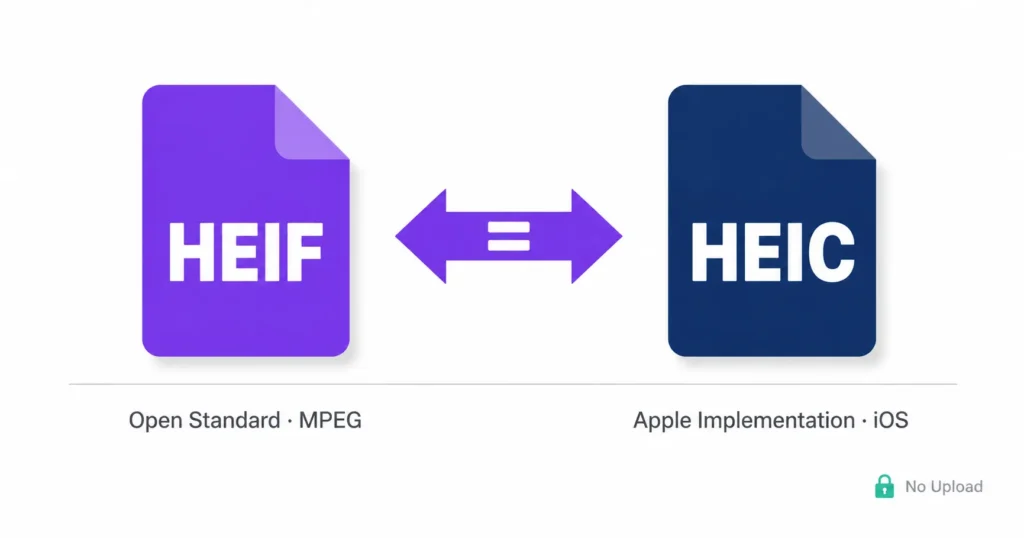
HEIF and HEIC are not the same thing – but HEIC is built on top of HEIF, which is why the two names appear almost interchangeably in camera settings, export menus, and error messages. HEIF vs HEIC – HEIF (High Efficiency Image File Format) is the open container standard. HEIC (High Efficiency Image Container) is Apple’s specific implementation of that standard, using the .heic file extension on iPhones and Macs.
The confusion is completely understandable. You’ll see “HEIF” in your iPhone’s camera settings but find .heic on every photo file in your camera roll. Android phones save HEIF images with a .heif extension instead. Some apps and platforms use both terms without explaining either. So the files look different, behave differently across devices, and carry different extensions – but they share the same underlying format.
heic.dev’s HEIF to JPG Converter handles both .heif and .heic files in your browser – your photos never leave your device during the process.
Key Takeaways
- HEIF is an open container format standardised by MPEG; HEIC is Apple’s specific implementation of HEIF, used on every iPhone since iOS 11.
- You can convert both
.heifand.heicfiles to JPG instantly at heic.dev – free, no account, no file upload. - heic.dev converts files entirely in your browser using WebAssembly, so your photos stay on your device throughout the entire process.
- HEIC and HEIF files are typically 40–50% smaller than equivalent JPGs – the compatibility gap, not the format quality, is the real problem.
Table of Contents
What Is HEIF – and Where Did It Come From?
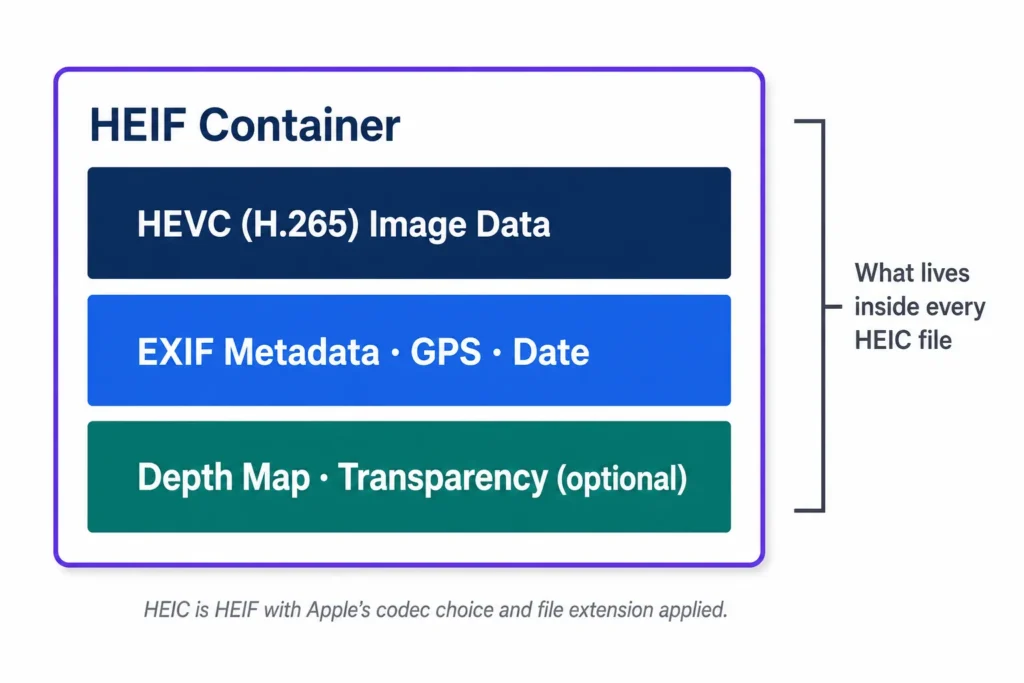
HEIF stands for High Efficiency Image File Format. It’s a container format – meaning it defines how image data, metadata, and optional extras (like depth maps or image sequences) are wrapped together into a single file. HEIF itself doesn’t compress images. That job belongs to the codec inside the container, which in most cases is HEVC (H.265). According to the MPEG standardisation documentation, HEIF was developed by the Moving Picture Experts Group and finalised in 2015. Apple adopted it as the default iPhone photo format in 2017 with iOS 11.
HEIF is an open standard – not an Apple invention. Google, Samsung, and other manufacturers also use it. The difference is in how they implement it and what file extension they attach. Android devices, particularly Samsung phones, typically save HEIF images with the .heif extension. Apple uses .heic. Same container, different label.
One thing HEIF does particularly well: it supports image sequences (multiple frames in a single file), depth maps, alpha transparency, and HDR colour data. Standard JPG handles none of those. That’s the technical reason Apple moved away from JPG – not just file size, though the size savings are real.
HEIC vs HEIF: What Apple Actually Changed
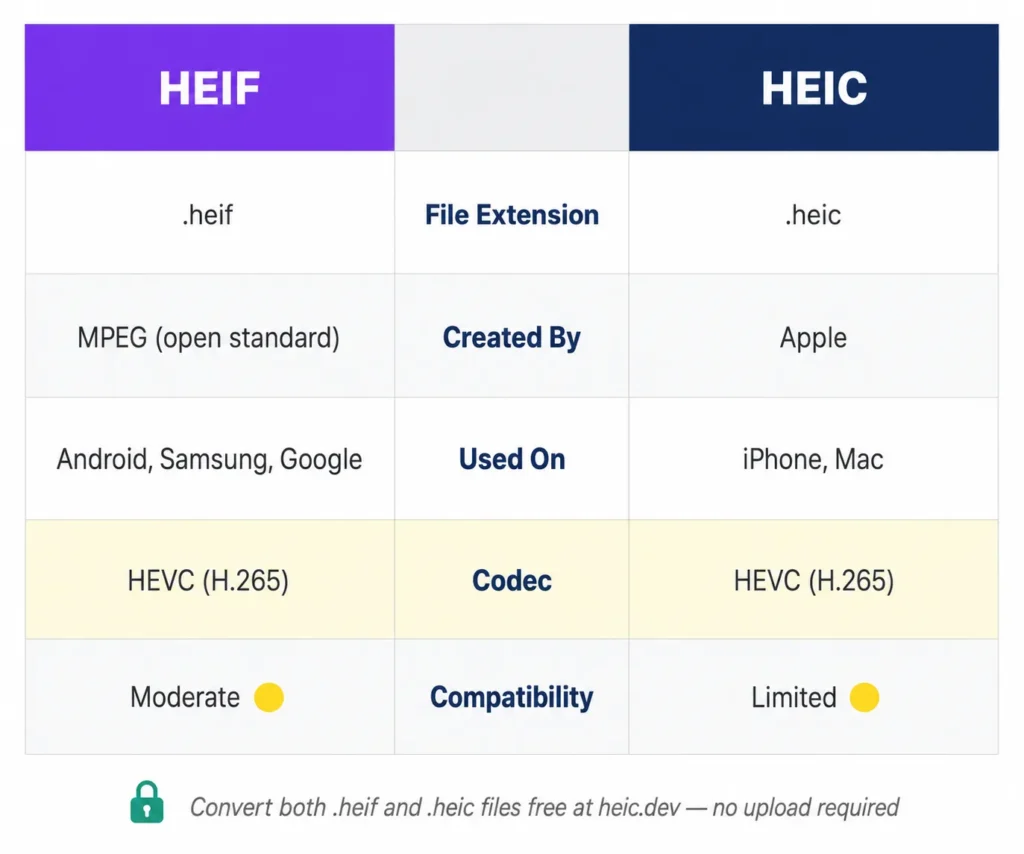
Apple didn’t create a new format from scratch. They took HEIF, chose HEVC (H.265) as the compression codec, named their implementation HEIC, and gave it the .heic file extension. That’s the whole distinction. HEIC is HEIF with Apple’s specific codec choice and naming convention applied.
According to Apple’s support documentation, every iPhone running iOS 11 or later defaults to HEIC for camera photos – unless you manually change the camera format in Settings. The files look identical to JPGs on your iPhone screen. They’re typically 40–50% smaller than an equivalent JPG at similar visual quality. The problem only surfaces when you move files to a non-Apple device or try to upload them somewhere that hasn’t added HEIC support yet.
The codec is the key technical detail
HEIF the container supports multiple codecs – technically you could have a HEIF file using AVC (H.264) compression, though you almost never see this in practice. Apple’s HEIC implementation always uses HEVC (H.265). When developers at Google or Samsung implement HEIF on Android, they also use HEVC. So in practice, almost every HEIF or HEIC file you’ll encounter uses the same underlying codec. The extension on the file is the only meaningful practical difference for most users.
There’s also AVIF – a newer HEIF variant that uses AV1 compression instead of HEVC. AVIF has broader native browser support than HEIC and is increasingly common for web images. But that’s a separate format conversation.
Compatibility: Where Each Format Works (and Doesn’t)
Three things can go wrong when you move HEIF or HEIC files off the device that created them.
On Windows, neither format opens natively without installing the free HEIF Image Extensions from the Microsoft Store. Without that extension, HEIC and HEIF files appear as grey boxes or generic document icons. The fix takes about 30 seconds – but it’s a step Windows never prompts you to take, so most users don’t know it exists until something breaks.
On macOS 10.13 (High Sierra) and later, Preview opens both .heic and .heif files without any additional software. Export to JPG via File → Export in Preview. Older Mac versions don’t support either format natively.
Web upload forms and third-party apps are the trickiest area. Many platforms – older content management systems, some e-commerce sites, certain social platforms — still reject HEIC and HEIF files outright, or silently fail to process them correctly. When that happens, converting to JPG before uploading is the fastest fix. heic.dev’s HEIF to JPG Converter runs directly in your browser – drop the file in, download the JPG, done. No upload, no account, nothing stored on any server.
If you need PNG output instead – useful when transparency matters – heic.dev’s HEIF to PNG Converter handles that too, with the same browser-only approach.
Common Problems and How to Fix Them
HEIF file opens on iPhone but shows as a grey box on Windows
Windows doesn’t support HEIF or HEIC natively without an extension. Open the Microsoft Store, search for “HEIF Image Extensions”, and install the free Microsoft package. After installation, existing HEIF and HEIC files will display thumbnails and open in Photos automatically. No restart required.
Uploaded HEIF file gets rejected by a website
Most upload forms check the file extension – and many block .heif and .heic even if the platform could technically handle the image data. Convert to JPG first using HEIF to JPG Converter, then upload the JPG. This resolves virtually every upload rejection related to format.
Converted JPG looks softer than the original HEIF
This usually means the export quality was set too low during conversion. heic.dev defaults to high-quality output, but if you’re using another tool, check its quality slider. Aim for 85–95% JPG quality. Anything below 80% introduces visible compression artefacts on detailed areas like hair, fabric, or foliage.
EXIF data (date, GPS location) is missing from the converted file
Some converters strip metadata during the conversion process. heic.dev preserves EXIF data by default, so your photo’s date, camera model, and GPS coordinates carry through to the output JPG. If metadata is missing after a conversion you ran elsewhere, the tool you used didn’t preserve it – and there’s no way to recover it after the fact.
HEIF file from an Android phone won’t open in Apple Photos
A .heif extension (common on Samsung and Google Pixel devices) is handled differently from .heic by some Apple software versions. Renaming the file from .heif to .heic occasionally fixes this, but a cleaner approach is converting to JPG – which opens everywhere without this kind of extension-matching issue.
Frequently Asked Questions
What is the difference between HEIF and HEIC?
HEIF (High Efficiency Image File Format) is an open container format developed by MPEG for storing image data efficiently. HEIC (High Efficiency Image Container) is Apple’s specific implementation of HEIF, using the HEVC (H.265) codec and the .heic file extension. HEIC is a subset of HEIF – every HEIC file is technically a HEIF file, but not every HEIF file carries the .heic extension. Android devices, for example, save HEIF files with a .heif extension instead.
Is HEIF the same as HEIC?
Not exactly. HEIF is the broader standard; HEIC is Apple’s version of it. Think of HEIF as the format category and HEIC as one product within that category. In practice, the files are structured identically — the difference is mainly the file extension and which device created them. A HEIF converter that handles .heic will almost always handle .heif files too, and vice versa.
Can I open HEIF files on Windows?
Yes, but not without an extra step. Windows doesn’t support HEIF or HEIC natively. You need to install the free HEIF Image Extensions from the Microsoft Store – search “HEIF Image Extensions” and install the Microsoft-published package. Once installed, Windows Photos and File Explorer will display HEIF and HEIC files correctly. Alternatively, converting to JPG before transferring the file sidesteps this entirely.
Does converting HEIF to JPG lose quality?
Converting from HEIF to JPG involves re-encoding the image, and JPG is a lossy format – so some quality reduction is technically happening. In practice, at high quality settings (85–95%), the difference is invisible to the naked eye in most photos. The key is using a converter that defaults to high quality output and doesn’t silently compress the image aggressively. heic.dev uses high-quality output settings by default.
Why does my Android phone save photos as HEIF?
Android device manufacturers particularly Samsung and Google adopted HEIF because it delivers better image quality at smaller file sizes compared to JPG, using the same HEVC compression as Apple’s HEIC. Android devices save these files with a .heif extension rather than .heic. The underlying format is functionally identical; only the file extension differs from Apple’s implementation.
Can I convert HEIF to JPG without uploading my photos?
Yes. heic.dev’s HEIF to JPG Converter runs entirely in your browser using WebAssembly – your photos are processed locally on your device and never sent to any server. This is meaningfully different from most online converters, which require uploading your files to their servers for processing. Drop your file in, download the JPG. Nothing is stored or transmitted.
What codec does HEIF use?
HEIF is a container format, so technically it can support multiple codecs. In practice, almost every HEIF and HEIC file you’ll encounter uses HEVC (H.265) compression – the same codec used for 4K video. A newer HEIF variant called AVIF uses AV1 compression instead, and is gaining traction for web images because of broader browser support. Standard HEIC from an iPhone always uses HEVC.
Is HEIF better than JPG?
On technical merit, yes – HEIF delivers comparable or better image quality at roughly half the file size of an equivalent JPG. It also supports features JPG can’t handle: transparency, image sequences, depth maps, and HDR data. The catch is compatibility. JPG opens everywhere without any additional software or conversion. HEIF doesn’t. For storing photos on your own devices, HEIF wins. For sharing files across different platforms and apps, JPG is still the safer choice in 2026.
Why won’t my HEIF file open on my computer?
On Windows, HEIF files require the free HEIF Image Extensions from the Microsoft Store they won’t open without it. On older Macs (before macOS 10.13 High Sierra), HEIF and HEIC aren’t supported natively. On Linux, native HEIF support varies by distribution and software. If installing the extension isn’t an option, converting the file to JPG at heic.dev takes under a minute and produces a file that opens anywhere.
Does Apple use HEIF or HEIC — what’s actually on my iPhone?
Your iPhone saves photos as HEIC files with the .heic extension since iOS 11. When you open Settings → Camera → Formats, you’ll see the format labelled “High Efficiency”, which refers to HEIF/HEIC. The photos in your camera roll have .heic extensions. Apple uses “HEIF” as the format name in its documentation and settings UI, but the actual files on your device use the HEIC extension. Both terms refer to the same photos.
Final Words
The HEIF vs HEIC question has a clean answer: same format, different names for different contexts. HEIF is the open standard; HEIC is what Apple calls it on your iPhone. Android calls it HEIF. Windows doesn’t care what you call it — it won’t open either without the right extension installed.
The format itself is genuinely good. The compatibility situation is what frustrates people. And that’s a solvable problem. heic.dev’s HEIF to JPG Converter converts both .heif and .heic files to JPG in seconds, entirely in your browser, with no file upload and no account required. Free every time, on any modern browser. If you need PNG output instead, for an image with a transparent background the HEIF to PNG Converter handles that with the same browser-only approach.