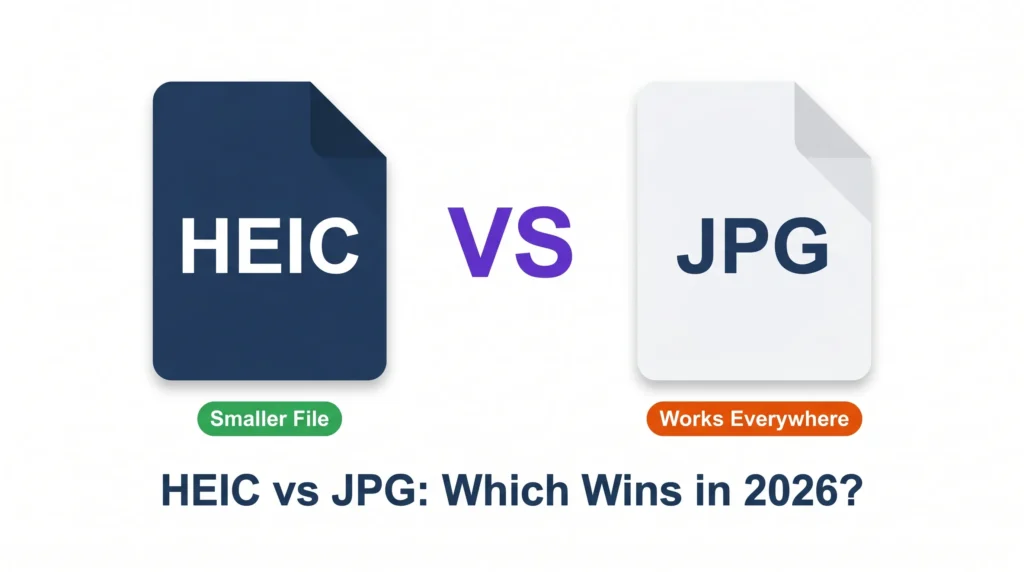
HEIC is the more efficient format on paper: files are often 40 to 50% smaller than a JPG of similar visual quality. JPG is still the one that works almost everywhere. Apple’s camera formats page describes HEIC as the iPhone’s default photo format since iOS 11. The problem is not what HEIC does. The problem is where it breaks.
HEIC photos look perfect on your iPhone and in your Mac’s Photos app. The moment you attach one to an email, upload it to an online shop, or send it to someone on Windows without the right extensions installed, it can become a grey box or a flat refusal. That gap between “works on Apple” and “works everywhere” is what this comparison is about.
If you already have HEIC files that need to work somewhere they do not, the heic.dev HEIC to JPG Converter converts them in your browser without uploading your photos, and there is nothing to install.
Key Takeaways
- HEIC files are often 40 to 50% smaller than JPGs of similar quality, but they open in fewer places: older Windows setups, many upload forms and some Android apps.
- Keep HEIC if your photos stay in Apple’s ecosystem. Convert to JPG when you share outside it.
- You can convert HEIC to JPG at heic.dev without uploading your photos. Your HEIC originals are not changed.
- Switching your iPhone to Most Compatible only affects future photos. It does not convert your existing HEIC library.
Table of Contents
What HEIC and JPG Actually Are
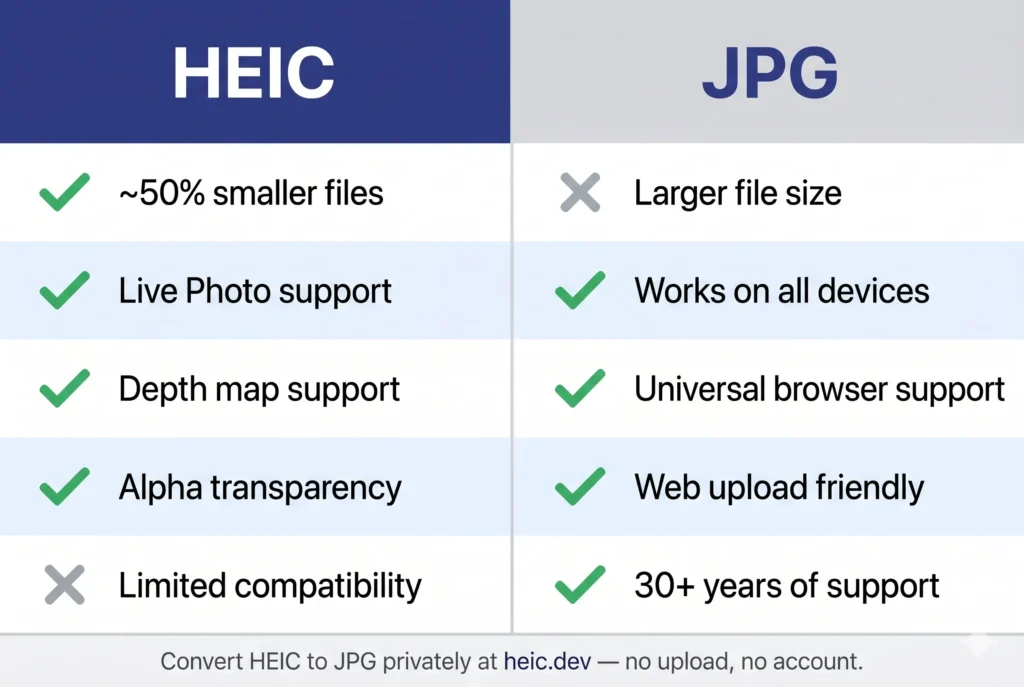
JPG (also written JPEG) has been the standard photo format since the early 1990s. It uses lossy compression to shrink image data, and almost every device, operating system, camera, browser and web platform can read it. That ubiquity is its biggest strength and the reason it still matters despite being more than 30 years old.
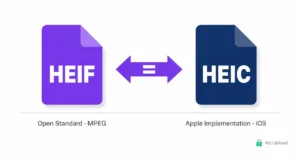
HEIC is the name for files in the HEIF container whose images are compressed with HEVC (H.265), the codec also used for 4K video. Apple made it the iPhone default in iOS 11 in 2017. It gives similar visual quality at a smaller file size, and the format can store things JPG cannot, such as depth maps, transparency and 10-bit or HDR data. A Live Photo is a HEIC still plus a separate short MOV file, not a single file. HEIC is good technology. The catch is that the rest of the world has not fully caught up. For the container and codec details, see HEIF vs HEIC.
| HEIC | JPG | |
|---|---|---|
| File size | Often 40 to 50% smaller at similar quality | Larger |
| Compatibility | Apple devices, current Windows with extensions, many Android apps; not accepted by every upload form | Opens almost everywhere |
| Extras the format can store | Depth maps, transparency, 10-bit and HDR data | A single 8-bit image |
| Best for | Saving storage inside Apple’s ecosystem | Sharing, uploading and anything that must open everywhere |
File Size and Image Quality
On file size, HEIC wins clearly. As a rough guide, a full-resolution iPhone photo is often around 2 to 4 MB as a HEIC and 4 to 7 MB as a JPG, though it varies with the scene and the phone. Across a camera roll of thousands of photos, that adds up to gigabytes of storage.
Quality is a trickier call. Both formats are lossy, so both discard some image data. HEIC is more efficient at that trade-off, keeping more detail at the same file size. Viewed at normal sizes, most people cannot tell a well-encoded HEIC from a high-quality JPG. At aggressive compression settings, HEIC tends to hold up better, with fewer artefacts and smoother gradients.
Does converting HEIC to JPG reduce quality?
Slightly, and usually not in a way you can see. Converting adds a second lossy compression pass. At a quality setting of roughly 85 to 95 out of 100, the result looks the same as the original for everyday photos at normal viewing sizes. You may notice a difference in very fine detail such as hair, fabric or foliage at 100% zoom. The heic.dev default is 85%; raise it if you want more detail. Depth maps, transparency and HDR range are not carried over to JPG, so keep the HEIC original of photos you may want to edit later.
HEIC Compatibility in 2026: Where It Works and Where It Doesn’t
Three things break with HEIC more often than anything else: Windows without extensions, web upload forms, and some Android apps and older software.
On Windows, HEIC support is not built in by default, even on Windows 11. You need the free HEIF Image Extensions from the Microsoft Store, and many PCs also need the HEVC Video Extensions, before HEIC files show thumbnails and open in Photos. Without them, HEIC files appear as grey icons. Many Windows users never install these, which is why HEIC attachments cause problems in business settings.
On the web, browser support for HEIC is limited. Can I Use’s HEIF data shows that it depends on the browser and the operating system. Many upload forms, such as online shops, form builders and print labs, either reject HEIC or convert it on their side with results you do not control.
On Android, the system has been able to decode HEIF images since Android 9, so many phones show HEIC photos without trouble. The problems usually appear in individual apps, older software and upload forms. If you often share photos with people on different devices, JPG is the safer choice.
Where HEIC works reliably: inside Apple’s own ecosystem. iPhone to iPhone, iPhone to Mac, iCloud, Photos and Preview all handle it, and current versions of Lightroom and Photoshop read HEIC too (check your version). If your photos stay in that world, you probably do not need to convert anything.
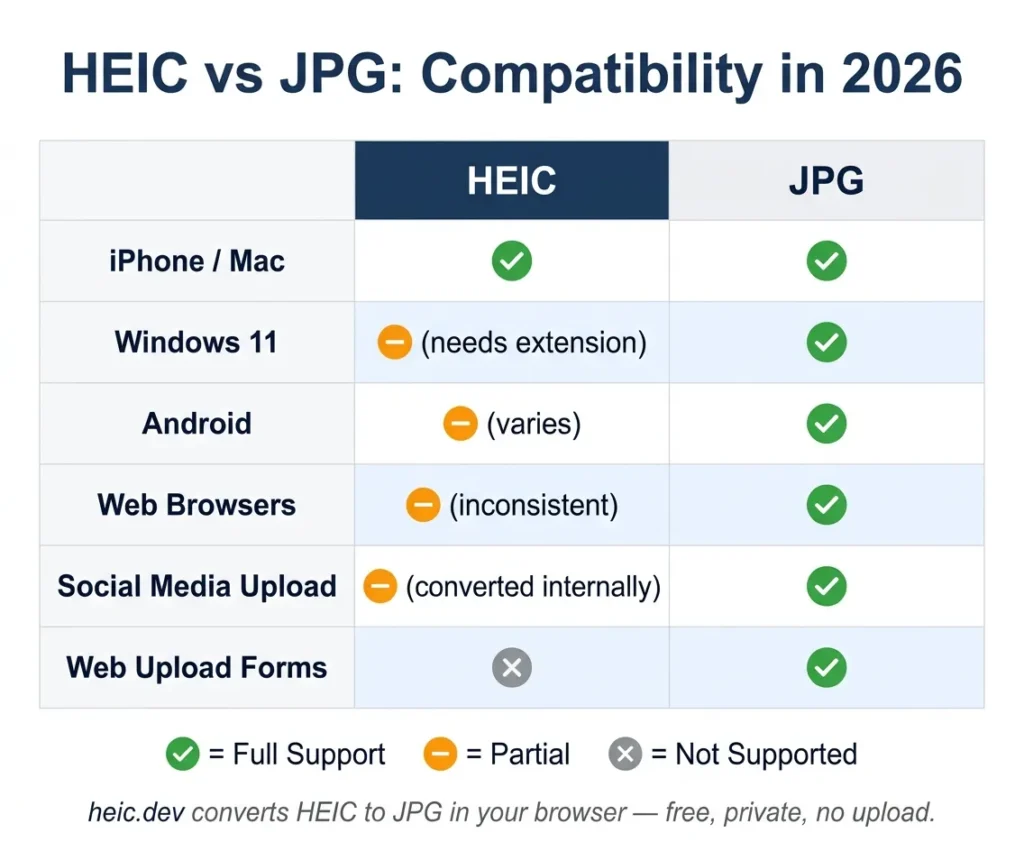
Support changes with each OS and app update. For a device-by-device table, see the HEIF compatibility index.
HEIC vs JPG for Sharing, Social Media, and Uploading
For social media, platforms handle HEIC differently, and some convert it on their side with compression settings you cannot see or change. Uploading a JPG you exported yourself removes the guesswork and keeps the quality under your control.
For email, Gmail and Outlook can carry HEIC attachments, but the recipient may not be able to open them. Converting to JPG before attaching removes that uncertainty.
For web uploads such as product photos, portfolios and stock submissions, JPG is still the expected format. Many platforms accept only specific file types, and HEIC is often not on the list. If it is accepted, any conversion on the platform’s side is outside your control.
The quickest fix for all of these: drop your HEIC file into the heic.dev HEIC to JPG Converter, download the result, and upload that. There is no account, and the conversion runs on your device rather than on a conversion server. Check one converted file before you delete the originals.
When to Keep HEIC, and When to Switch to JPG
Keep HEIC if: your photos stay within Apple’s ecosystem, you shoot a lot and storage space is a real concern, or you capture Portrait mode depth data and other extras you may want to edit later.
Switch to JPG, or convert to JPG, if: you regularly share photos with Windows or Android users, you upload product or portfolio photos to websites, you work with teams outside the Apple ecosystem, or you need photos to open without special software or extensions.
One caveat: changing your iPhone’s camera format to Most Compatible (Settings, Camera, Formats, Most Compatible) only affects photos taken after the change. Your existing HEIC photos stay HEIC. To convert those, you need a converter, and a browser-based one that does not upload your photos is the most private way to do it.
Common Problems and How to Fix Them
A HEIC file shows as a grey box on Windows
Open the Microsoft Store, search for “HEIF Image Extensions” and install the free extension from Microsoft. If thumbnails are still grey, add the HEVC Video Extensions too. After that, HEIC files should show thumbnails and open in Photos. If you would rather not install anything, convert the file to JPG with the browser converter first.
A website won’t accept my HEIC photo
Many upload forms accept only certain file types, and HEIC is often not one of them. Convert the file to JPG before uploading. The HEIC to JPG Converter runs in your browser: select the file, download the JPG, and upload that instead. If the JPG is still rejected, check the platform’s size limit and try a lower quality setting.
The converted JPG looks blurry or washed out
Blurriness usually means the quality setting was too low; raise it and convert again. If colours look washed out, the original may have been HDR or a wide colour profile that an 8-bit JPG cannot fully represent. Check one image before converting the rest, and keep the original.
Android contacts can’t open photos I send them
Many Android phones can display HEIC, but not every app or older device can. If a recipient cannot open a HEIC photo, send a JPG instead. Converting before you send takes a few seconds and avoids the problem.
Frequently Asked Questions
Is HEIC better quality than JPG?
HEIC gives better quality at the same file size, not necessarily at the same settings. With HEVC compression it keeps more detail than JPG when both are compressed to a similar size. At a matching quality level with no size limit, the two look nearly identical for everyday photos. HEIC’s advantage shows most when you want small files without visible loss.
Should I change my iPhone from HEIC to JPG?
Only if you regularly share photos outside Apple’s ecosystem. Go to Settings, Camera, Formats, and choose Most Compatible to save future photos as JPG. That uses more storage but avoids compatibility problems with Windows PCs, some Android apps and web upload forms. If your photos stay on Apple devices or in iCloud, the smaller HEIC files are a real benefit over a large library.
Why can’t I open HEIC files on my Windows PC?
Windows does not include HEIC support by default, even Windows 11. You need the free HEIF Image Extensions from the Microsoft Store, and many PCs also need the HEVC Video Extensions. Without them, HEIC files appear as grey icons. Alternatively, convert the files to JPG before moving them to Windows.
Which is smaller, a HEIC file or a JPG file?
HEIC is often quoted as 40 to 50% smaller than a JPG of similar visual quality. A photo that would be around 5 MB as a JPG may come in near 2.5 MB as a HEIC, though it varies by photo. The trade-off is compatibility, not quality.
Can Android phones open HEIC photos?
Often, yes. Android has been able to decode HEIF images since Android 9, and many Gallery apps and Google Photos can show HEIC. Problems usually come from individual apps, older devices and upload forms that reject .heic. If you share photos with many different people, convert to JPG first.
Is HEIC good for sharing photos online?
Not reliably. Platforms handle HEIC differently: some convert it on their side with settings you cannot control, and others reject it. For anything you plan to share publicly or upload to a web service, JPG (or WebP for the web) is the safer choice.
Does JPG still make sense in 2026?
Yes, mainly because of compatibility. AVIF and WebP are often smaller than JPG for the web, and HEIC beats JPG on storage efficiency on phones. But JPG remains the format that opens almost everywhere. Until HEIC has that same universal support, JPG is the safe choice for anything that must work outside your own devices.
What happens to my existing HEIC photos if I switch my iPhone to JPG?
Nothing. The Most Compatible setting only affects photos taken after the change. Every photo already in your camera roll stays HEIC. To convert existing photos, use a converter; heic.dev lets you select several files and convert them in one batch.
Is there a way to convert HEIC to JPG without uploading to a website?
Yes. heic.dev uses WebAssembly to convert photos in your browser, on your own device, so the photos are not sent to a conversion server. Many free online converters do upload your photos to their servers, so it is worth checking what a converter does before you use it.
Final Words
The HEIC vs JPG question has one answer per situation, not one answer for everyone. HEIC is the better format if you stay in Apple’s world. JPG is the format that works when you leave it. Most people move photos across both, so it helps to know how to convert quickly and privately.
The heic.dev HEIC to JPG Converter is free, needs no account, and converts in your browser so your photos are not uploaded to a conversion server. If you only need smaller files, the HEIC Compressor reduces size without changing the format.