In the heic vs webp comparison, WebP wins for anything you publish online: every major browser displays it, while HEIC (High Efficiency Image Container) opens reliably only on Apple devices.
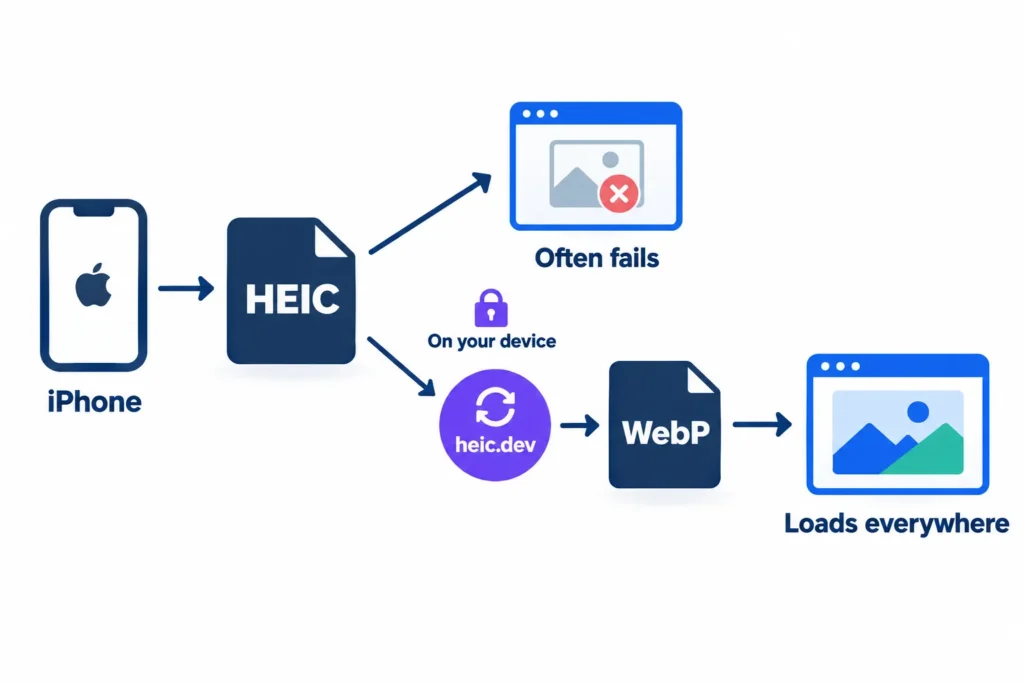
HEIC photos look flawless on your iPhone. Upload one to a website form or a shop listing, though, and you’ll get a broken-image icon or a flat rejection. The format was built to save phone storage, not to load on web pages.
Browser makers have supported WebP for years, as Can I Use’s WebP support table shows. HEIC never got the same treatment. heic.dev’s HEIC to WebP Converter bridges the gap entirely in your browser, so your photo never leaves your device.
Key Takeaways
- WebP is the better format for websites because every major browser displays it, while HEIC is limited to Apple software.
- HEIC usually compresses photos tighter than WebP, but only WebP loads reliably in web browsers.
- You can convert HEIC to WebP at heic.dev for free, with no account and no signup.
- heic.dev converts photos locally using WebAssembly, so your files never reach a server.
Table of Contents
What HEIC and WebP actually are
HEIC is Apple’s version of HEIF (High Efficiency Image Format), a container that stores photos compressed with the HEVC (H.265) codec. iPhones have saved photos this way by default since iOS 11 in 2017. WebP is Google’s format, built for the web, and it handles lossy compression, lossless compression, transparency and animation. One was designed for cameras. The other was designed for browsers. That single difference explains almost every trade-off below, and MDN’s image format guide covers the web side in more detail.
HEIC vs WebP: File Size, Quality and Features
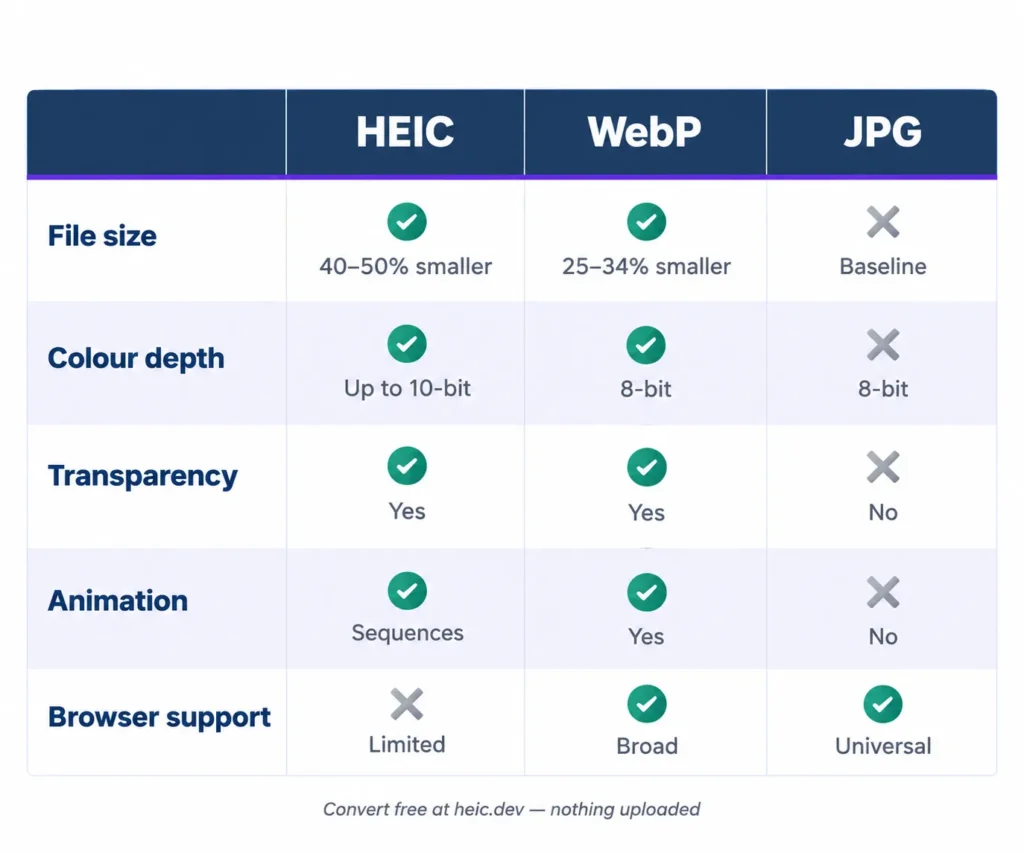
Here’s the short version. HEIC compresses harder, and WebP travels further.
File size and compression
HEIC files typically run 40–50% smaller than an equivalent-quality JPG, because HEVC is a far more modern codec than the one JPG relies on. WebP also beats JPG – Google’s own testing puts lossy WebP at roughly 25–34% smaller, but it doesn’t usually match HEIC on photographs. That’s the catch with converting: the WebP you create can end up larger than the HEIC you started with.
Does it matter? For a 200-photo product catalogue, a little. For a single blog header, barely. Either way, you’re still saving a lot compared with JPG, and lighter pages load faster for every visitor.
Image quality and colour depth
HEIC can store 10-bit colour, which gives smoother gradients in skies, skin tones and shadows. WebP tops out at 8 bits per channel, the same ceiling as JPG. On an ordinary screen you won’t spot the difference (on a good HDR display, you might).
Colour space is another quirk. iPhones shoot in the wide Display P3 range, and a converter that drops the embedded colour profile can leave photos looking flatter. WebP also caps images at 16,383 pixels per side, which only matters for very large stitched panoramas.
Transparency, animation and Apple extras
HEIC supports alpha transparency, burst photos, image sequences, depth maps and Live Photos. WebP supports transparency and animation, but none of the Apple-specific extras. Convert a Live Photo and you get one still frame. The motion and depth data stay behind.
For a web page, that’s usually fine – visitors don’t need your depth map.
| Feature | HEIC | WebP | JPG |
|---|---|---|---|
| Typical size vs JPG | 40–50% smaller | 25–34% smaller (lossy) | Baseline |
| Colour depth | Up to 10-bit | 8-bit | 8-bit |
| Transparency | Yes | Yes | No |
| Animation | Image sequences | Yes | No |
| Live Photos and depth maps | Yes | No | No |
| Browser support | Limited | Broad | Universal |
If you’d rather skip the decision, heic.dev’s HEIC to WebP Converter turns your HEIC photos into web-ready WebP files in a few seconds. It’s free, it needs no signup, and it runs locally in your browser.
Browser and platform support in 2026
Three places decide whether a format works: browsers, upload forms, and the software people use to open files.
Browsers first. WebP displays in Chrome, Safari, Firefox and Edge any modern browser, which is why it became a default for page-speed tuning. Native HEIC support in browsers is limited and varies by operating system, so you can’t count on a visitor seeing a HEIC image at all.
Upload forms are the second trap. Many websites, marketplaces and content management systems reject HEIC outright, or accept it and then fail to generate thumbnails. Some Android apps can’t open it either.
Then there’s desktop software. Macs handle HEIC natively in Preview (macOS 10.13 High Sierra and later), but Windows needs the free HEIF Image Extensions from the Microsoft Store before it shows anything other than a grey box. If you just need to check what’s inside a file without installing anything, the heic.dev HEIC Viewer opens HEIC photos right in your browser.
WebP isn’t perfect either. A few older desktop programs and some email clients still struggle with it, which is why JPG remains the safe choice for attachments going to people you can’t predict.
One more option is AVIF, a newer open format with broad browser support and strong compression. If WebP doesn’t quite fit, heic.dev also offers a HEIC to AVIF Converter.
Choosing the right format for each job
Treating this as a winner-takes-all contest misses the point. The two formats do different jobs, and the smartest workflow uses both.
Keep HEIC for the originals. Your iPhone or Mac saves space with it, iCloud storage stretches further, and you hold on to depth data, Live Photos and 10-bit colour in case you edit later. Think of the HEIC file as your negative.
Use WebP for the published copy. That covers a lot of ground:
- Blog and product images that need to load quickly
- Logos and cut-outs that need transparency
- Short animations that would otherwise be heavy GIFs
Reach for JPG when the destination is unpredictable: an email to a client, a print shop’s upload form, a decade-old content management system. It’s the one format nearly every system accepts.
And here’s the honest caveat. Conversion is a one-way trip, because WebP can’t hold everything HEIC holds. Don’t delete the originals.
How to convert HEIC to WebP
Open a browser. That’s the whole setup.
heic.dev’s HEIC to WebP Converter runs entirely in your browser. Open heic.dev/heic-to-webp, drag your HEIC file in, and download the converted file. No account. No upload. Nothing stored.
- Open heic.dev/heic-to-webp in Chrome, Safari, Firefox or Edge.
- Drag your HEIC files into the drop area, or click to select them.
- Wait a few seconds while WebAssembly converts each photo on your device.
- Download the WebP files and check them before you delete anything.
Under the hood, your browser decodes the HEVC-compressed image, then re-encodes the pixels as WebP. That re-encoding is the only moment quality can slip, so keep the quality setting sensible instead of chasing the smallest possible file.
Here’s why the local approach matters. Most online converters require uploading your photos to their servers, which means personal pictures and any location data inside them pass through someone else’s infrastructure. heic.dev doesn’t work that way. Everything happens in WebAssembly (Wasm) on your own device, so your photos stay put from start to finish.
The method suits single files and small batches. If you’re moving a 10,000-photo library, a desktop app is a better tool for that job.
Serving WebP on your website
Converting the file is half the job. The other half is making sure every visitor gets an image they can actually see.
Because WebP works across all major browsers, most sites can serve it on its own. If you need to cover older software, wrap the image in a picture element so the browser picks the first format it understands.
<picture>
  <source srcset="photo.webp" type="image/webp">
  <img src="photo.jpg" alt="Describe the photo here" width="1200" height="800">
</picture>
Three habits pay off here. Set explicit width and height attributes so the page doesn’t jump around while loading. Resize photos to the largest size they’ll actually display, because a 4,032-pixel-wide original is wasted on an 800-pixel column. And write descriptive alt text, since a fast image with no alt text still fails screen-reader users.
Tiny file sizes aren’t the goal. Fast pages that look right are.
Common Problems and How to Fix Them
Four things tend to go wrong, and each has a quick fix.
Converted WebP looks blurry
That usually points to a quality setting that’s too low. Convert again from the original HEIC at a higher setting. Don’t re-convert a WebP you’ve already made, because each lossy pass stacks more compression on top of the last.
The platform still rejects the file
Many platforms check file size and pixel dimensions, not just format. If your photo is huge, shrink the HEIC first with the heic.dev HEIC Compressor, then convert it.
Batch conversion stops partway
Your browser has hit its memory limit. Split the job into smaller batches, and close other heavy tabs before you start.
Location data travels with the file
heic.dev preserves metadata by default, which is useful for archives. For public images, though, GPS coordinates can reveal where a photo was taken. Check the original in the heic.dev HEIC Metadata Viewer before you publish anything sensitive.
Frequently Asked Questions
Is WebP better than HEIC?
For websites, yes. WebP loads in every major browser, while HEIC doesn’t load reliably outside Apple software. For storing photos on an iPhone or Mac, HEIC is better because it compresses more tightly and keeps extras like Live Photos and depth data. Neither format is universally superior; the right choice depends on whether the image is headed for a camera roll or a web page.
Is HEIC smaller than WebP?
Usually, yes, for photographs. HEIC uses HEVC compression and typically comes out 40–50% smaller than an equivalent-quality JPG, while lossy WebP averages roughly 25–34% smaller than JPG in Google’s tests. The exact gap varies by image. Converting a HEIC photo to WebP often produces a larger file, though it will still load in any modern browser.
Can I use HEIC images on a website?
Technically you can upload them, but you shouldn’t. Native HEIC support in browsers is limited and depends on the operating system, so many visitors would see a broken image. Most upload forms and content management systems also reject the format. Convert HEIC to WebP or JPG before publishing, and keep the original HEIC file as your archive copy.
Does converting HEIC to WebP lose quality?
Slightly, if you use lossy WebP. Both formats compress lossily, so converting adds one more round of compression. At a sensible quality setting the difference is invisible on normal screens. You’ll also lose HEIC-only extras like depth maps, Live Photo motion and 10-bit colour. Always convert from the original HEIC rather than a previously converted copy to avoid stacking losses.
Does WebP support transparency like HEIC?
Yes. WebP supports an alpha channel in both lossy and lossless modes, so logos and cut-out product shots keep clean transparent edges. HEIC also supports alpha transparency, and standard JPG doesn’t. WebP additionally supports animation, which makes it a practical replacement for both GIF and transparent PNG on websites where page weight matters.
Why don’t browsers support HEIC?
Largely because of patent licensing. HEIC relies on HEVC (H.265), a codec covered by patents and licensing fees that browser makers have been reluctant to adopt for images. WebP and AVIF are open, royalty-free formats, so browsers added them freely. HEIC support today is limited and varies by operating system, so you can’t depend on it.
Is WebP better than JPG for websites?
Generally, yes. Lossy WebP is roughly 25–34% smaller than JPG at comparable quality, supports transparency and animation, and works in every major browser. JPG remains the safest choice for email attachments and older software that may not read WebP. For website images, WebP’s smaller files mean faster page loads with no visible drop in quality.
Can I convert HEIC to WebP without uploading my photos?
Yes. heic.dev’s HEIC to WebP Converter runs entirely in your browser using WebAssembly, so your files never leave your device and nothing reaches a server. Most online converters require you to upload photos to their servers first. With heic.dev, you open the page, drag in your HEIC file, and download the WebP result, free and with no signup.
Does WebP keep EXIF data like GPS and date?
WebP can store EXIF and XMP metadata, including GPS coordinates and capture date, and heic.dev preserves metadata by default during conversion. That’s useful for archives but risky for public images, since location data can travel with the file. Check the original with a metadata viewer before publishing photos taken at your home or workplace.
Should I use AVIF instead of WebP?
AVIF often compresses better than WebP and also has broad browser support, so it’s a strong option if you can accept slower encoding. WebP remains the faster, more familiar default. If you want to try AVIF, heic.dev also offers a HEIC to AVIF Converter that works the same way, entirely in your browser.
Final Words
Your iPhone photos can now go onto a website without a single broken-image icon. Convert a copy to WebP, publish it, and keep the HEIC original as your archive. HEIC isn’t going anywhere, because it’s too good at saving space, and WebP isn’t its rival. It’s simply the format browsers actually understand.
The heic.dev HEIC to WebP Converter does the job in seconds, entirely in your browser. It’s free, it needs no signup, and your photos never leave your device. If you want to check a file before converting it, the heic.dev HEIC Viewer opens it instantly.