HEIC metadata on your iPhone covers far more than a date: every photo carries camera settings, lens details, a timestamp accurate to the second and, if Location Services was on, GPS coordinates, all written in the Exif metadata standard.
That’s the part nobody sees. You email a photo of your garden to a neighbor, and the file goes out with a tiny map pin baked inside. The picture looks harmless the data underneath isn’t always.
heic.dev’s HEIC Metadata Viewer shows you exactly what’s inside a file, entirely in your browser, so your photo never leaves your device.
Key Takeaways
- Every iPhone HEIC photo carries Exif data: camera model, lens, exposure settings, timestamp, and often GPS coordinates.
- You can read all of it for free with heic.dev’s HEIC Metadata Viewer, no app or account needed.
- heic.dev reads metadata locally in your browser using WebAssembly, so your photos never get uploaded anywhere.
- Turning off Location in the share sheet removes GPS coordinates from that copy, but other details can still travel.
Table of Contents
What HEIC Metadata Actually Is
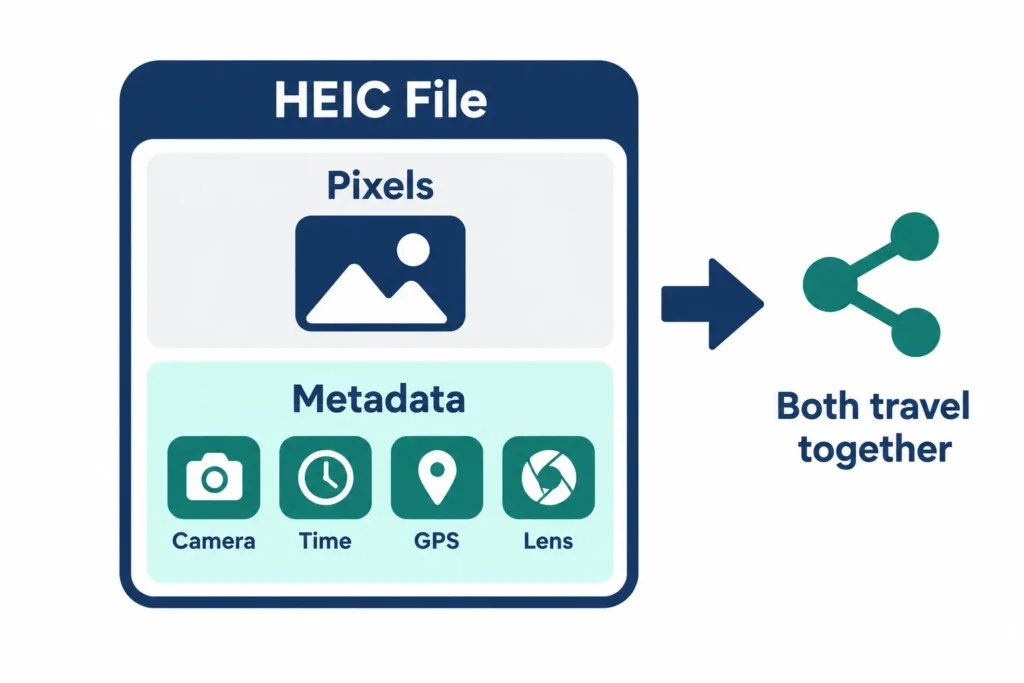
HEIC (High Efficiency Image Container) is Apple’s file extension for pictures stored in the HEIF file format, the container behind the iPhone’s default photo type since iOS 11. The pixels are compressed with HEVC (H.265). Metadata is different: it’s data about the photo, not the photo itself.
Inside a HEIC file it lives in separate blocks Exif for camera and location details, XMP for descriptive fields, and an ICC profile for color. Pixels and metadata ship in one file. Share the file, and you share both.
HEIC Metadata on iPhone: What’s Inside the File
Open any iPhone photo in a metadata reader and you’ll find dozens of fields. Three groups matter most for privacy, and the last one is why this topic exists.
Camera and lens details
Every file names the hardware that made it. Make always reads Apple, Model gives the exact iPhone, and a lens string spells out which camera fired (wide, ultra-wide or telephoto) along with its focal length and aperture. Exposure data follows: shutter speed, ISO, f-number, flash status, white balance and metering mode. A Software field records the iOS version that processed the shot.
Nothing shocking there. But it does tell a stranger how old your phone is and whether you keep it updated.
Date, Time and Timezone
iPhones stamp each photo with the original capture time down to the second (Exif calls this field DateTimeOriginal), and recent iOS versions also write the UTC offset. So the file says when you took the shot and which timezone you were standing in. A photo timed 6:42 a.m. with a +09:00 offset tells a story even with no coordinates attached.
GPS Location
Here’s the catch. If Location Services is on for the Camera app, each photo gets latitude, longitude and altitude, and often the compass direction the lens faced. Outdoors, those coordinates are usually accurate enough to land on a specific building, not just a neighbourhood. Shoot at home and the file quietly records your home.
Go to Settings → Privacy & Security → Location Services → Camera and choose Never, and new photos carry none of it. Existing photos keep what they already have.
Want to see your own? heic.dev’s HEIC Metadata Viewer runs entirely in your browser. Open the page, drag in a HEIC file, and read every field. No account. No upload. Nothing stored. It works in Chrome, Safari, Firefox and Edge any modern browser.
Apple-Specific Data and a Quick Risk Map
Exif isn’t the whole story.
iPhone HEIC files carry extra material that most viewers barely touch, and some of it never shows up in the Photos app at all. Nobody outside Apple can list every field with certainty, and the set shifts between iOS versions. Still, a few pieces are well documented or decoded.
- MakerNote: a proprietary Apple block inside the Exif data. Apple doesn’t publish its layout, but community tools like ExifTool have decoded parts of it, including capture and burst-grouping details.
- Live Photo identifier: the still image stores an ID that matches a separate short video clip, which is how Photos pairs the two. Share only the still and the ID still rides along.
- Depth and HDR data: Portrait photos store a depth map as an auxiliary image inside the file, and recent iPhones can add an HDR gain map too. These are image data, not text tags, but they travel with the file.
There’s also a small embedded thumbnail and, usually, a Display P3 colour profile. Neither is sensitive, but both add to the pile of data inside a single file.
| Metadata Group | What it Records | Privacy Risk |
|---|---|---|
| Camera and lens | Model, lens, exposure, iOS version | Low |
| Date and time | Capture time, UTC offset | Medium |
| GPS | Coordinates, altitude, direction | High |
| MakerNote | Apple-specific capture data | Low to medium |
| Live Photo ID | Link to the paired video clip | Low |
So which of this matters for privacy? Mostly the GPS block and the timestamps. The rest is technical residue — useful to photographers, mildly revealing to everyone else.
How to Check What Your Own Photos Reveal
Pull up a photo you’ve shared recently and check it yourself. Four ways work, and each takes about a minute.
On iPhone
- Open Photos and tap the picture.
- Tap the Info button (the small i) or swipe up.
- Read the date, camera, lens, dimensions and file size, plus a map if a location exists.
Photos shows a slice of the metadata, not the full set.
On Mac
Open the file in Preview (macOS 10.13 High Sierra and later handle HEIC natively), choose Tools → Show Inspector, click the More Info tab, then open the Exif or GPS tab.
On Windows
Install the free HEIF Image Extensions from the Microsoft Store, right-click the file, choose Properties, and open the Details tab. Without the extension, Windows shows a blank thumbnail and little else.
With heic.dev
The HEIC Metadata Viewer behaves the same on every device with a modern browser. And it fits the problem you’re checking for: many online metadata viewers require uploading your photo to their servers, which defeats the purpose. heic.dev processes the file locally with WebAssembly, so nothing is sent anywhere.
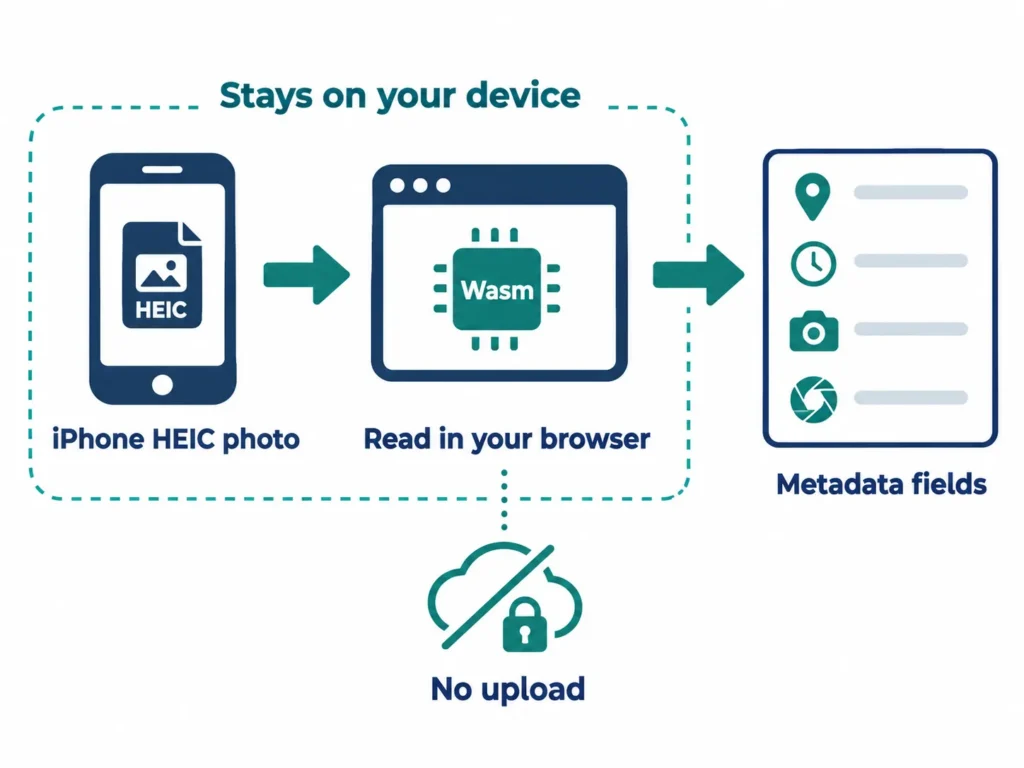
When you read the results, look for three things: whether GPS fields exist at all, how precise the timestamp is, and whether the lens and Software fields reveal more about your device than you’d like.
For photos already on your camera roll, the heic.dev method is faster than digging through OS menus drag in the file, read the fields, done. One honest limit: it shows what’s in the file, not what a receiving app will keep.
What Travels with a Photo When You Share It
Send the original HEIC file as an email attachment, a cloud-storage link or a direct file transfer and everything inside it goes along, GPS included. That’s the default, and it’s the case people forget.
Social platforms are less predictable. Many strip or rewrite metadata when you upload, but each app behaves differently, and policies change without notice. Don’t count on it.
Why does the file carry all this in the first place? Because metadata is useful. Photos sorts your library by date and place, editors read exposure settings, and photographers check lens data to learn what worked. The data isn’t sneaky. It’s just unfiltered, and it doesn’t know who’s on the other end.
Turning off location at share time
On iOS 13 and later, tap Share, then Options at the top of the sheet, and switch Location off. That removes the GPS coordinates from the copy you send, though camera details and timestamps may still go along, depending on your iOS version. On iOS 15 and later, Photos also lets you edit a picture’s location: open Info, tap Adjust, and pick No Location. Then check the exported copy in a viewer to be sure.
Converting doesn’t scrub anything
Converting HEIC to JPG changes the format, not the privacy profile. heic.dev preserves metadata by default, which is what you want for keeping dates and camera info and exactly what you don’t want when GPS is the worry. Drop the converted file into the viewer and check before you send it.
One caveat. Stripping a single photo is quick with the steps above; for a 10,000-photo library, a desktop tool such as ExifTool is the better job for it.
Common Problems and How to Fix Them
Location is off but details still travel
Turning Location off in the share sheet targets GPS. Timestamps, camera model and other fields can still travel with the file, depending on your iOS version. Check the exported copy in a metadata viewer rather than assuming it’s clean.
Metadata vanishes after conversion
Some converters strip Exif to save space, so your JPG arrives with no date or camera info. heic.dev preserves metadata by default. If you need those fields intact, compare the before and after files in the viewer.
Windows shows no details or thumbnail
Without HEIF Image Extensions, Windows can’t read HEIC files properly: you get blank thumbnails and an empty Details tab. Install the free extension from the Microsoft Store, then reopen the file. Or skip the install and read the file in your browser at heic.dev.
Dates don’t match when you took the photo
The Exif capture time and the file’s modified date are separate values. Copying, editing or re-exporting a photo can change the modified date while DateTimeOriginal stays put. Trust the capture time in the metadata viewer, not the date your file manager shows.
Frequently Asked Questions
Does HEIC store metadata like JPG does?
Yes. HEIC stores Exif and XMP metadata in separate blocks inside its HEIF container, much like JPG stores Exif in its own segment. iPhone HEIC files typically carry camera model, lens, exposure settings, capture time and GPS coordinates when Location Services is on. HEIC can additionally hold depth maps and Live Photo identifiers that standard JPG files don’t.
Does my iPhone photo include my location?
It does when Location Services is turned on for the Camera app. The file then stores latitude, longitude and altitude in its GPS Exif fields. With Camera set to Never under Settings, Privacy & Security, Location Services, new photos carry no coordinates. Photos you already took keep the location they were saved with.
How do I see the metadata of a HEIC photo?
On iPhone, tap the Info button in Photos for the basics. On Mac, open the file in Preview and use Tools, Show Inspector, then the More Info tab. On Windows, install HEIF Image Extensions and check Properties, Details. For a browser-based option, heic.dev’s HEIC Metadata Viewer reads the file locally, with no upload or account.
Can someone find my home address from an iPhone photo?
Potentially, yes. If you shot the photo at home with Location Services on and shared the original file, its GPS coordinates can point to your building on a map. Anyone with a metadata viewer can read them. Turning off Location in the share sheet, or stripping metadata first, removes the coordinates from the copy you send.
How do I remove location data from iPhone photos?
To share without location, tap Share, choose Options, and switch Location off. To edit a photo in your library on iOS 15 or later, open Info, tap Adjust, and pick No Location. To stop future geotagging, set Camera to Never under Settings, Privacy & Security, Location Services. Then verify the result in a metadata viewer.
Does converting HEIC to JPG keep the metadata?
It depends on the converter. Some strip Exif data during conversion; others keep it. heic.dev preserves metadata by default, so a converted JPG keeps its date, camera details and any GPS coordinates. If privacy is the goal, check the converted file in a metadata viewer before sharing it.
Do iPhone screenshots contain metadata?
Yes, but much less. iPhone screenshots save as PNG files with basic image properties, and they carry no camera settings or GPS coordinates because no camera captured them. A screenshot’s file details usually show little beyond dimensions and creation date, so it’s a safer thing to share than an original photo.
Do social media sites strip metadata from photos?
Many do, but not all, and behaviour changes over time. Some platforms remove GPS data or re-encode the image on upload, while others keep more. Sending the original file by email or cloud link almost always preserves everything. Strip location yourself before sharing rather than trusting a platform to do it.
Is it safe to view HEIC metadata online?
It depends on how the tool works. Many online viewers upload your photo to a remote server, which means your GPS data leaves your device. heic.dev’s HEIC Metadata Viewer runs in your browser through WebAssembly, so the file is read locally and never uploaded. It’s free and needs no signup.
What is Exif data in an iPhone photo?
Exif (Exchangeable Image File Format) is a metadata standard for recording how a photo was taken. On an iPhone it holds the camera model, lens, shutter speed, ISO, aperture, capture time and, when Location Services is on, GPS coordinates. HEIC files store this data as a separate item inside the HEIF container alongside the image.
Final Words
Your photos were never anonymous they just kept their details quiet. You can now see where the location, timestamps and camera data sit, and check any file before it leaves your hands.
The HEIC Metadata Viewer on heic.dev is free, needs no signup, and runs entirely in your browser through WebAssembly, so the file you inspect stays on your device the whole time. Open it, drop in a photo, and look at what you’d be sharing. If a site also rejects HEIC files, the HEIC to JPG Converter works the same private way.