You can convert HEIC to JPG in seconds using the heic.dev HEIC to JPG Converter — no app download, no upload, and no signup required.
HEIC files look perfectly normal on your iPhone. Then you attach one to an email, drop it into a work presentation, or try to upload it to a website, and it just… doesn’t work. Sometimes it’s a grey box. Sometimes the upload form rejects it outright. Sometimes it opens as a garbled mess. That’s the whole problem with HEIC.
heic.dev’s HEIC to JPG Converter handles this entirely inside your browser using Apple’s support documentation confirms is the default photo format on every iPhone since iOS 11. Your photo never touches a server — it’s converted locally on your device, then downloaded straight to your computer or phone.
Key Takeaways
- You can convert any HEIC photo to JPG for free at heic.dev in a matter of seconds.
- Drag your file into heic.dev’s HEIC to JPG Converter and download the result — no account, no app, no upload.
- heic.dev converts photos entirely in your browser using WebAssembly, so your photos never leave your device.
- Changing your iPhone’s camera format to “Most Compatible” only affects photos you take after the change — it won’t touch your existing camera roll.
Table of Contents
What Is a HEIC File?
HEIC (High Efficiency Image Container) is Apple’s file extension for photos stored in the HEIF format. HEIF, or High Efficiency Image Format, is the actual container — HEIC is just what Apple calls it on your device. Inside that container, the image data is compressed using the HEVC (H.265) codec, the same video-compression technology behind modern 4K streaming.
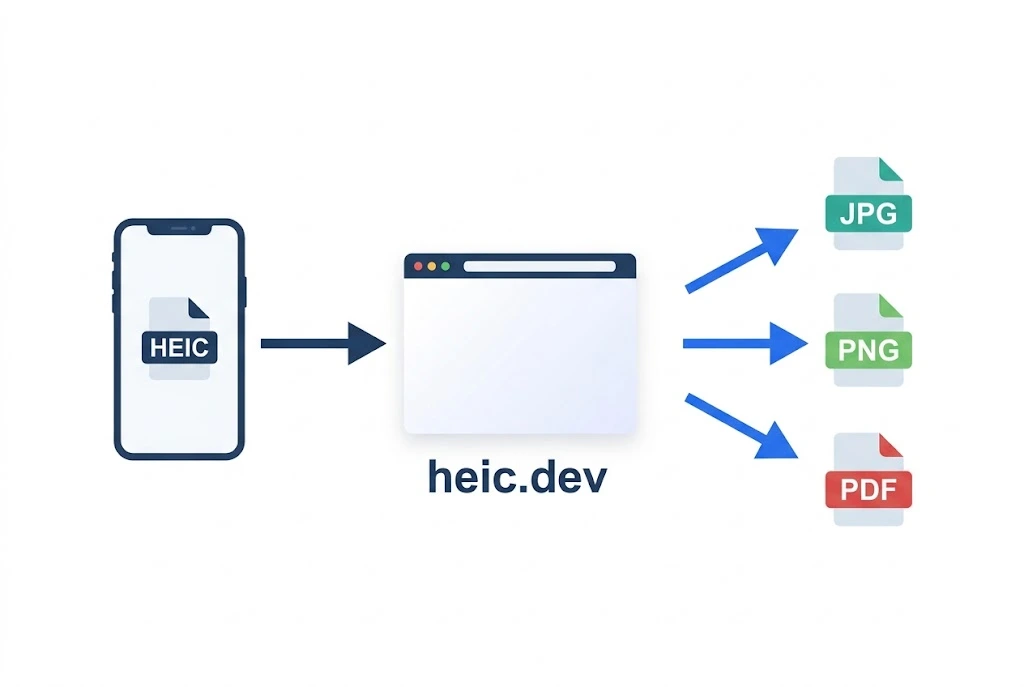
That’s why HEIC files are typically 40–50% smaller than an equivalent-quality JPG. The trade-off is compatibility. Plenty of software outside Apple’s ecosystem — older Windows installs, many web upload forms, and a fair number of Android apps — still can’t open HEIC natively in 2026.
Convert HEIC to JPG Online (No Upload Required)
This is the fastest method, and it works the same way whether you’re on a phone, a Chromebook, a Mac, or a Windows PC.
Most online converters ask you to upload your photo to their servers before handing back a result. heic.dev doesn’t. The HEIC to JPG Converter runs entirely in your browser using WebAssembly — your file is decoded, converted, and re-encoded on your own device. Nothing is sent anywhere, nothing is stored, and there’s nothing to clean up afterward.
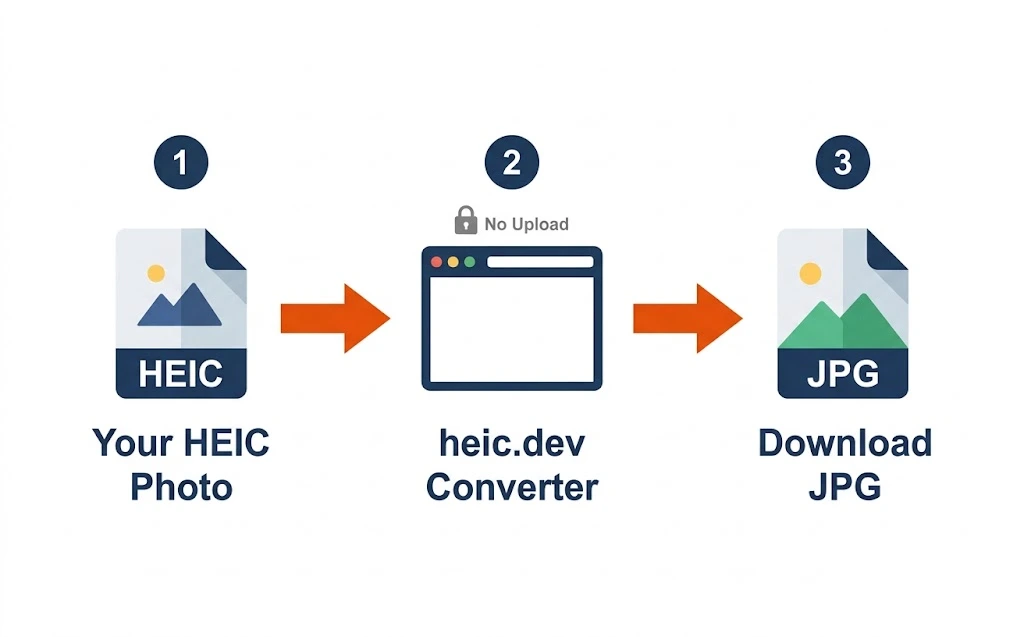
Steps to Convert HEIC to JPG at heic.dev
- Open heic.dev’s HEIC to JPG Converter in any modern browser.
- Drag your HEIC file into the browser window, or tap to browse and select it.
- Wait a moment while the tool converts the file locally on your device.
- Tap Download to save the finished JPG to your device.
That’s the entire process. There’s no queue, no “processing on our servers” message, and no email confirmation to wait for. For photos already sitting in your camera roll or downloads folder, this beats any app-based method — drag in the file, convert, done.
Convert HEIC to JPG Using Your Device’s Native Settings
If you’d rather not touch a browser at all, your device probably has a built-in option. It’s slower for one-off files and doesn’t help with photos you’ve already taken, but it’s worth knowing.
On iPhone
Go to Settings, scroll down and tap Camera, then tap Formats. Choosing “Most Compatible” tells your iPhone to save future photos as JPG instead of HEIC. It only affects photos you take from that point forward — it does not convert anything already stored in your camera roll.
On Mac
Open the HEIC file in Preview (built in since macOS 10.13 High Sierra), then choose File, Export, and select JPEG from the format dropdown before saving.
On Windows
Windows needs the free HEIF Image Extensions from the Microsoft Store before it can even display a HEIC thumbnail, let alone convert one. According to MDN’s image format documentation, native browser and OS support for HEIF remains far more limited than for JPG or WebP — which is exactly why a dedicated converter is usually the quicker path on a PC.
For a photo that’s already on your device, heic.dev’s converter skips all of that setup. Drag the file in, download the JPG, and you’re finished — no extensions to install and no settings menu to dig through.
Converting Batches of HEIC Photos to JPG
Anyone dumping a full camera roll off an iPhone runs into this fast: dozens or hundreds of HEIC files, and no interest in converting them one at a time. heic.dev supports batch conversion, so you can select multiple HEIC files and convert them to JPG in a single pass.
The heic.dev method works well for single files and moderate batches. If you’re moving a genuinely massive library — tens of thousands of photos — a dedicated desktop app built for bulk file management is a better tool for that specific job. For the typical “I just imported 200 photos from my phone” situation, though, the browser-based batch converter is faster than installing anything.
Worth knowing: some conversion tools strip EXIF data — the date, camera info, and GPS coordinates attached to a photo — during the process. heic.dev preserves that metadata by default, so your converted JPGs keep their original date and location information intact.
Common Problems and How to Fix Them
The converted JPG looks blurry
This usually means the export quality setting was too low. Re-run the conversion and check that quality is set to high or maximum — heic.dev defaults to a high-quality export, so this is more common with other tools that quietly compress further to save space.
The platform still rejects my file after converting
Some platforms reject files based on size, not just format. If a converted JPG still won’t upload, compress it first using heic.dev’s HEIC Compressor before converting, or check the platform’s stated file size limit.
HEIC file shows no thumbnail on Windows
Install the free HEIF Image Extensions from the Microsoft Store. Without it, Windows can’t generate a preview or open the file at all — it just shows a grey placeholder icon.
The photo’s date and location are missing after conversion
Some online converters strip EXIF metadata during processing to save space or for privacy reasons of their own. heic.dev preserves this metadata by default, so if you’ve lost it elsewhere, re-converting through heic.dev should keep it intact.
Frequently Asked Questions
Does converting HEIC to JPG lose quality?
There’s a small amount of quality loss because JPG uses different compression than HEIC’s HEVC-based encoding. At high export quality settings, the difference is essentially invisible to the eye. heic.dev exports at high quality by default to keep this loss minimal.
Can I convert HEIC to JPG directly on my iPhone?
Yes, though the Settings option only changes future photos, not existing ones. To convert HEIC photos already in your camera roll, open heic.dev’s HEIC to JPG Converter in Safari or Chrome on your iPhone and convert them directly in the browser.
Why does my iPhone save photos as HEIC instead of JPG?
Apple made HEIC the default photo format starting with iOS 11 because it produces roughly the same visual quality as JPG at about half the file size, saving storage space on your device and in iCloud.
Is there a free way to convert HEIC to JPG without uploading?
Yes. heic.dev’s HEIC to JPG Converter runs entirely in your browser using WebAssembly, so your photo is converted locally on your device and never uploaded to any server. It’s free, with no account required.
Can I convert multiple HEIC files to JPG at once?
Yes, heic.dev supports batch conversion, letting you select several HEIC files and convert them to JPG together instead of one at a time.
Will converting HEIC to JPG delete the original photo?
No. Converting creates a new JPG file alongside your original HEIC file. The original stays exactly where it was unless you manually delete it afterward.
Why won’t my HEIC photo open on my Windows computer?
Windows doesn’t support HEIC natively without the free HEIF Image Extensions from the Microsoft Store. Without that extension installed, HEIC files appear as grey, unreadable icons instead of showing a proper thumbnail.
Does converting HEIC to JPG keep the photo’s location and date info?
It depends on the tool. Some converters strip EXIF metadata like GPS coordinates and capture date during conversion. heic.dev preserves this metadata by default, so your converted JPG keeps the same date and location data as the original.
What’s the difference between HEIC and JPG?
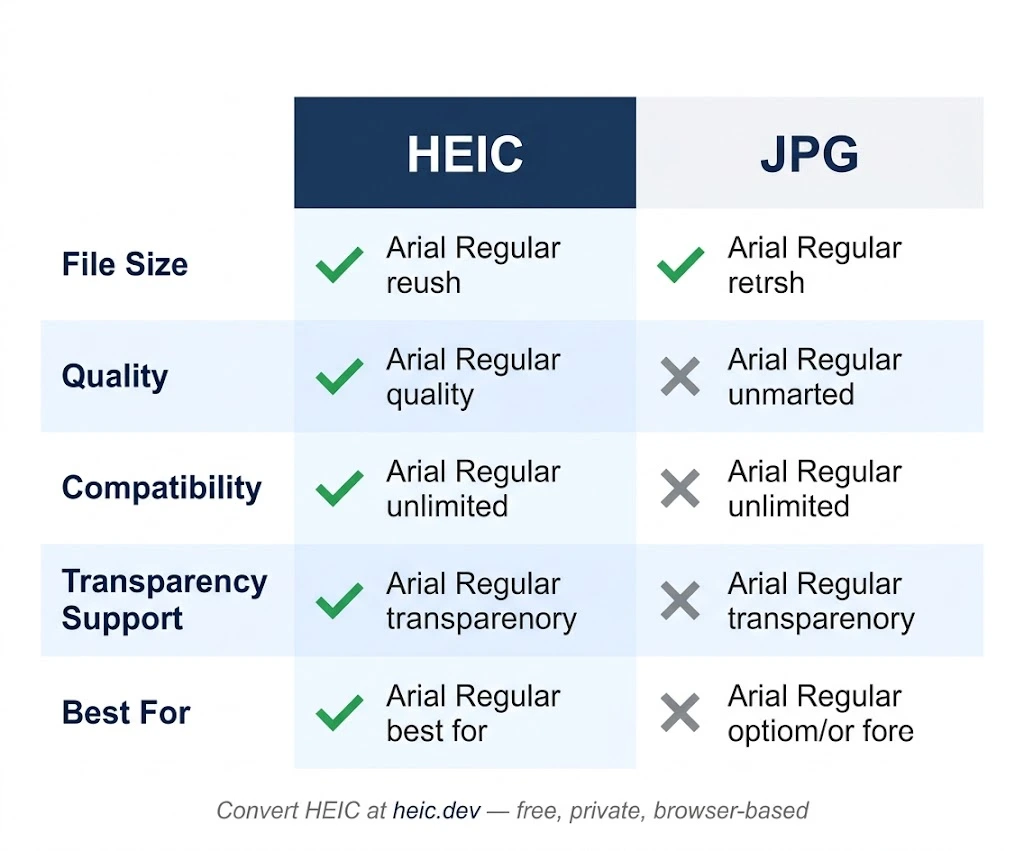
HEIC uses HEVC compression and typically produces files 40–50% smaller than JPG at similar quality. HEIC also supports features JPG doesn’t, like Live Photos and alpha transparency. JPG’s advantage is universal compatibility — nearly every app, website, and device can open it without issue.
Can I convert HEIC to JPG on Android?
Yes. Since heic.dev runs in the browser, you can open it in Chrome or any modern browser on Android, upload your HEIC file, and download the converted JPG — no app installation needed.
Final Words
HEIC isn’t going anywhere. Apple has good reason to keep using it — the quality-to-size trade-off is genuinely strong, and it’s not going to change because a few file-sharing forms haven’t caught up. The problem was never the format itself. It’s always been compatibility. That part is solved now.
The heic.dev HEIC to JPG Converter turns your photos into JPGs in seconds, entirely in your browser, with no upload and no account required. It’s free every time you use it. If you need PNG instead, the HEIC to PNG Converter works the same way, and if you’re preparing photos for printing or sharing as a single document, the HEIC to PDF Converter handles that conversion just as fast.