HEIC isn’t supported by most social media upload forms, so Instagram, Facebook, and plenty of Google tools reject the file until you convert it to JPG, which the free heic.dev converter does in seconds.
Here’s the frustrating part. The photo looks perfect on your iPhone, then you pick it in a web upload form and get an error, a blank thumbnail, or a spinner that never finishes. Apple made HEIC the default iPhone format in iOS 11, as Wikipedia’s HEIF article explains, but most of the web never caught up.
heic.dev’s HEIC to JPG Converter handles the fix entirely in your browser, so your photo never leaves your device.
Key Takeaways
- HEIC is Apple’s default iPhone photo format, but many social media and Google upload forms only accept JPG or PNG.
- You can convert HEIC to JPG at heic.dev in seconds, with no app, no account, and no signup.
- heic.dev converts entirely in your browser with WebAssembly, so your photos never reach a server.
- Switching your iPhone to Most Compatible only affects future photos; it doesn’t convert your existing library.
Table of Contents
What HEIC Is and Why Uploads Fail
HEIC is the file extension Apple uses for photos stored in HEIF (High Efficiency Image Format), a container that compresses pictures with the HEVC (High Efficiency Video Coding, also called H.265) codec. The payoff is size: a HEIC photo typically runs 40–50% smaller than an equivalent JPG, and the format also carries Live Photos, depth maps, and alpha transparency, none of which standard JPG can hold.
The catch? Compatibility.
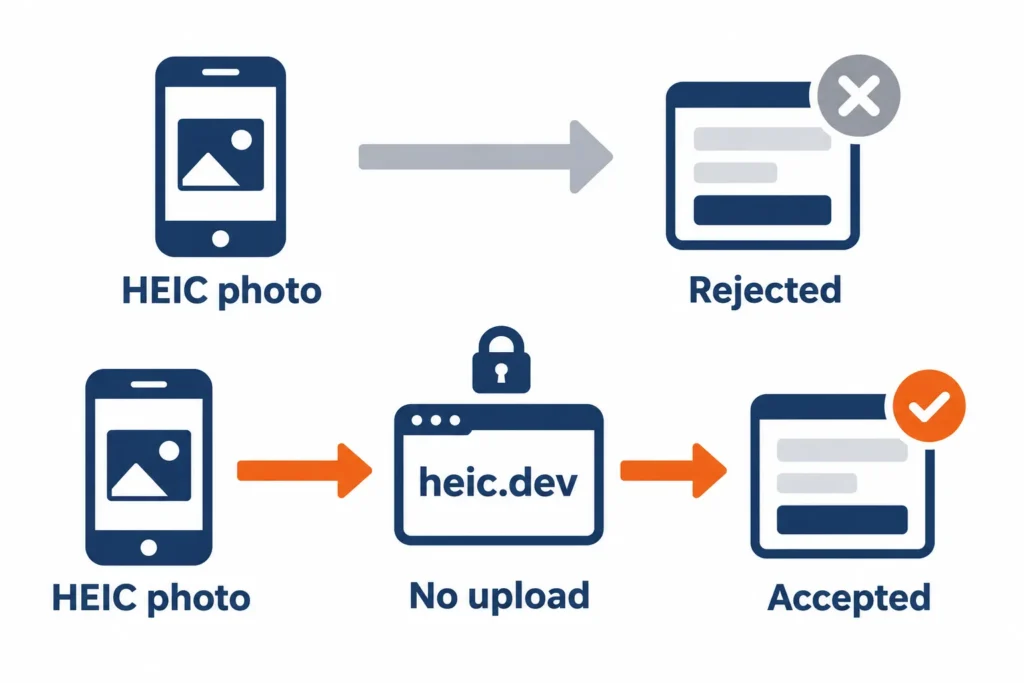
Many upload forms check a file against a short allow-list, and JPG and PNG are usually the only names on it. HEIC isn’t. So the form rejects the file outright, or accepts it and never draws a thumbnail. HEIC is genuinely good at what it does the support problem is real though, and it’s still around in 2026.
Convert HEIC to JPG Before You Upload
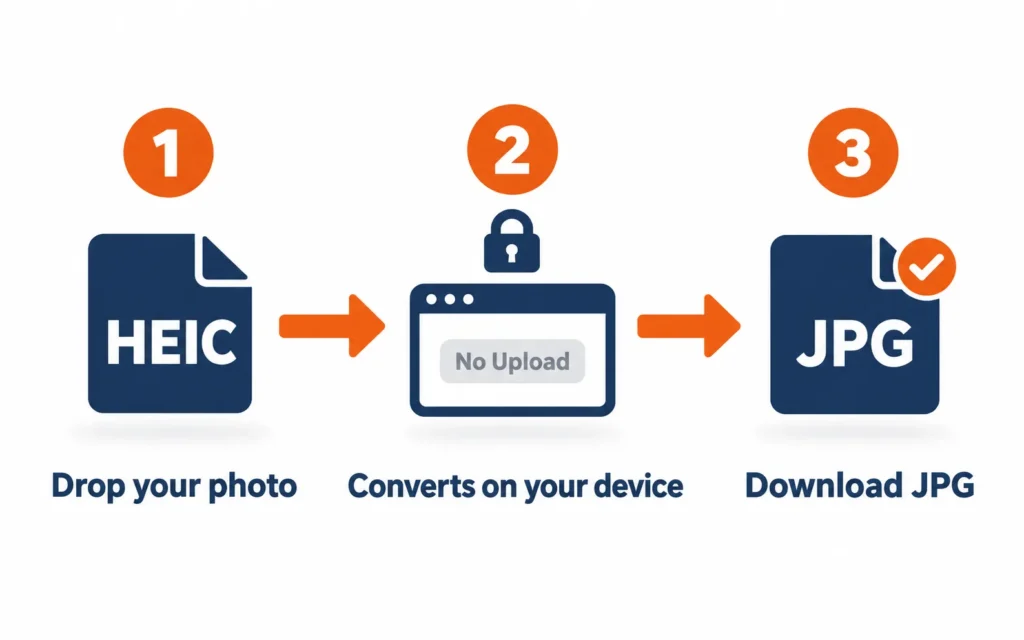
Open the heic.dev HEIC to JPG Converter, drag in your photo, and download the JPG. That’s the fix, start to finish, and it works on iPhone, Android, Windows, and Mac in any modern browser: Chrome, Safari, Firefox, or Edge.
Most online converters make you upload your photos to their servers first, which means your pictures sit on someone else’s machine. heic.dev works differently. It runs on WebAssembly (Wasm), a browser technology that executes compiled code locally, so the conversion happens on your own device and nothing is uploaded or stored. It’s also free, and there’s no signup.
- Open heic.dev/heic-to-jpg in Chrome, Safari, Firefox, or Edge.
- Drag your HEIC file onto the converter, or tap the drop area and pick the photo from your device.
- Wait a few seconds while the conversion runs locally in your browser.
- Download the converted JPG to your device.
- Upload the JPG to Instagram, Facebook, or Google in place of the original.
Convert HEIC to WebP Instead
WebP is the other option. It’s an image format Google developed, and browsers support it widely, as the Can I Use WebP table shows. The heic.dev HEIC to WebP Converter produces files that are often lighter than a JPG of similar quality.
But social upload forms are pickier than browsers. If a form says JPG or PNG, WebP hits the same wall HEIC did, so stick with JPG for those and save WebP for your own website or blog.
One limit worth stating plainly: the browser method suits single photos and small batches. If you’re moving a 10,000-photo library, a desktop app is the better tool for that job.
Change Your iPhone or Mac Settings
Apple, Microsoft, and Google each offer a native workaround, and each one has a catch.
On iPhone, tap Settings, scroll down and tap Camera, then tap Formats and choose Most Compatible. Your camera then shoots JPG photos (and H.264 video) instead of HEIC. Here’s the catch: it changes future photos only. Everything already in your camera roll stays HEIC, and JPG files are bigger, so your storage fills faster.
On a Mac running macOS 10.13 High Sierra or newer, open the photo in Preview, choose File, then Export, and pick JPEG from the Format menu. It’s fine for a handful of photos. It gets tedious fast for anything more.
Windows takes an extra step. Install the free HEIF Image Extensions from the Microsoft Store, otherwise HEIC files show up as grey boxes with no thumbnail. That fixes viewing, but it doesn’t change what a website will accept when you upload.
Google Photos has a shortcut too: on some devices, downloading a HEIC photo saves it as a JPG automatically. It isn’t consistent across phones, so check the file extension after you download.
For photos already on your camera roll, the heic.dev method is faster — drag in the file, convert, done. No settings to change.
HEIC Not Supported on Social Media: What Actually Breaks
If you’re wondering why you can’t upload HEIC to Instagram, Facebook, or Google, the answer depends on where the file comes from and which upload form you’re facing.
Instagram and Facebook
On an iPhone, picking a photo from your Photos library inside the app usually works, because iOS converts the image to a compatible format as it hands it over. The trouble starts when the file arrives some other way: from the Files app, a desktop browser, an email attachment, or a photo someone sent you.
App behavior also shifts between versions and devices. Treat this as a pattern rather than a promise, and convert to JPG whenever an upload fails.
Google Services
Google Photos can store and display HEIC images from iPhone backups. Other Google tools are pickier. Business-facing uploads, such as photos for a Google Business Profile listing, typically list JPG and PNG as the accepted formats. Read the note in the upload dialog before you start, because it names exactly what the tool will take.
A Quick Pre-Upload Check
- Convert the photo to a real JPG. Renaming the extension doesn’t count.
- Check the file size, since some tools reject large files even when the format is fine.
- Look for the accepted-formats note in the upload dialog and match it.
Common Problems and How to Fix Them
The platform still rejects your JPG
Upload forms often check file size as well as format. If a converted JPG still bounces, run the original through the heic.dev HEIC Compressor first, then convert it. Smaller in, smaller out.
Renaming the file to .jpg doesn’t work
Changing photo.heic to photo.jpg only changes the label. The data inside is still HEIC, so the form rejects it or the image fails to open. Convert it properly instead.
The converted JPG looks blurry
That usually means the quality setting was too low during export. If your converter offers a quality slider, keep it high. And don’t re-save the same JPG over and over, because each save adds compression.
Date and location are missing
Some converters strip EXIF metadata, the date, camera, and GPS tags stored inside a photo. heic.dev preserves metadata by default. Want to see what a file carries before you post it publicly? The heic.dev HEIC Metadata Viewer shows everything inside.
Frequently Asked Questions
Why can’t I upload HEIC to Instagram?
Instagram’s iPhone app usually converts HEIC photos automatically when you pick them from your library, so failures typically come from desktop uploads, files chosen from the Files app, or photos received by email. Those routes pass the raw HEIC file, which upload forms often reject. Converting the photo to JPG first avoids the problem.
Why won’t Facebook accept my iPhone photos?
Facebook’s upload paths differ between the mobile app, the website, and third-party tools, and not all of them handle HEIC. When a photo is rejected or shows a blank thumbnail, the file is usually still in HEIC format. Converting it to JPG before uploading works across every route.
Does Google Photos support HEIC files?
Google Photos can back up and display HEIC images from an iPhone. Other Google tools vary: business listing and advertising uploads commonly list JPG and PNG as accepted formats. Check the accepted-formats note in each upload dialog, and convert to JPG when a Google tool refuses your file.
Can I convert HEIC to JPG on my iPhone for free?
Yes. Open heic.dev/heic-to-jpg in your iPhone’s browser, choose your HEIC photo, and download the JPG. It’s free, needs no app or account, and runs locally through WebAssembly. Alternatively, set Camera Formats to Most Compatible so future photos are saved as JPG.
Does converting HEIC to JPG lose quality?
JPG uses lossy compression, so converting re-encodes the image. At a high quality setting the difference is rarely visible, and the JPG will be larger than the HEIC because HEIC is typically 40–50% smaller. You do lose HEIC-only extras such as Live Photo motion, depth data, and transparency.
Will changing my iPhone camera settings fix photos I already took?
No. Setting Camera Formats to Most Compatible makes your iPhone shoot JPG from that point forward. Photos already in your camera roll stay in HEIC. To fix those, convert them individually with a tool such as the heic.dev HEIC to JPG Converter.
Can I convert HEIC without uploading my photos to a website?
Yes. heic.dev runs entirely in your browser using WebAssembly, so the conversion happens on your own device. No file is sent to a server, nothing is stored, and no account is required. Many other online converters do upload your photos first, so check before you use them.
Is WebP better than JPG for uploads?
Not for most social media forms. WebP files are often smaller and browsers support them widely, but many upload forms list only JPG and PNG. Use JPG when a platform asks for it, and choose WebP for your own website, where you control what browsers receive.
Why does my iPhone save photos as HEIC instead of JPG?
Apple made HEIC the default in iOS 11 because it delivers similar visual quality at roughly half the file size, which saves storage. You can switch it off under Settings, Camera, Formats by choosing Most Compatible, but photos then take more space on your phone.
Final Words
Your upload problem has a fix, and it isn’t a new phone setting or a stack of apps. HEIC will stay the iPhone default because the quality-to-size trade-off is excellent; the trouble has always been who accepts it.
The heic.dev HEIC to JPG Converter turns your photos into upload-ready JPGs in seconds, right in your browser. Nothing is uploaded, nothing is stored, and it costs nothing. Need a lighter file for your own site? Try the HEIC to WebP Converter, or shrink the original first with the HEIC Compressor.