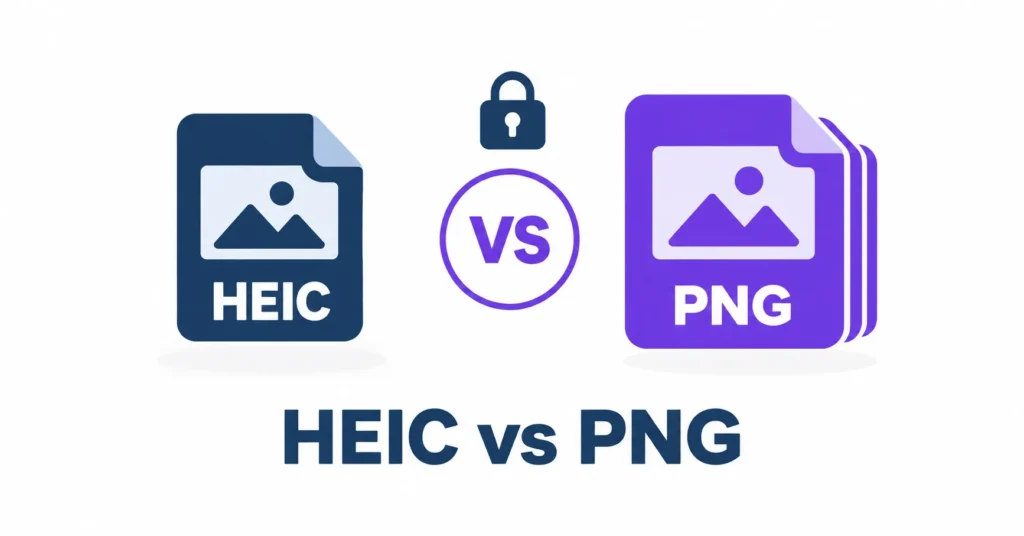
In the HEIC vs PNG decision, HEIC wins for storing photos compactly, while PNG wins for lossless editing, transparency, and opening almost anywhere.
Your iPhone has shot HEIC by default since iOS 11, as Wikipedia’s HEIF entry documents. The photos look flawless on your phone, then a job portal answers with “invalid file type”. PNG fixes that, but one photo can balloon from 2 MB to 15 MB or more. Neither format is simply better.
heic.dev’s HEIC to PNG Converter turns one into the other entirely in your browser, your photo never leaves your device.
Key Takeaways
- HEIC stores photos at roughly half the size of JPG, while PNG stores every pixel losslessly and supports transparency.
- You can convert HEIC to PNG for free at heic.dev, with no app, no account, and no signup.
- heic.dev runs on WebAssembly inside your browser, so your photos are never uploaded to any server.
- Converting HEIC to PNG won’t improve quality, and the PNG usually ends up many times larger.
Table of Contents
HEIC and PNG: what each format actually is
HEIC (High Efficiency Image Container) is Apple’s file extension for HEIF, the High Efficiency Image Format. HEIF is the container; HEIC is Apple’s flavour of it. Inside, the picture is compressed with HEVC (H.265), the same codec family used for 4K video, which is why a HEIC photo typically runs 40–50% smaller than a JPG of similar quality.
PNG (Portable Network Graphics) is older and plainer. It arrived in 1996 as a patent-free replacement for GIF, and it compresses without discarding anything, so what you save is exactly what you get back. The W3C PNG specification describes it as a lossless format with full alpha channel support, meaning proper transparency.
Same job. Opposite philosophies.
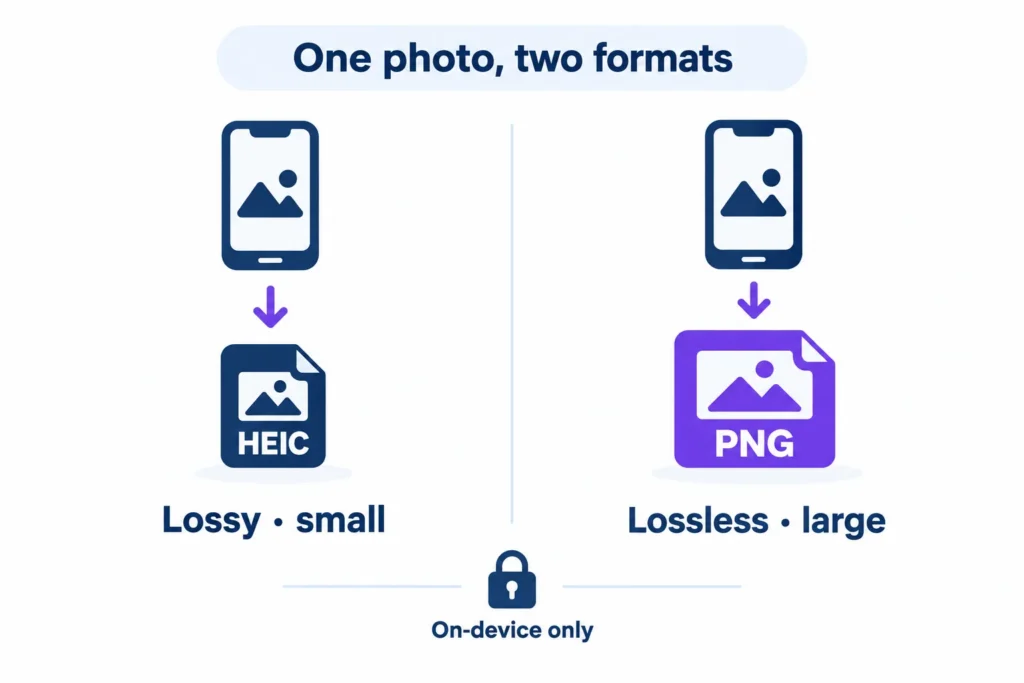
iPhone HEIC photos are lossy: the encoder throws away detail your eyes are unlikely to miss, and that’s how the files stay small. PNG is lossless, so nothing gets thrown away and the files stay heavy. That single difference drives almost everything else, from storage to editing to compatibility.
Some files arrive with a .heif extension instead. They belong to the same family, and the HEIF to PNG Converter handles those the same way.
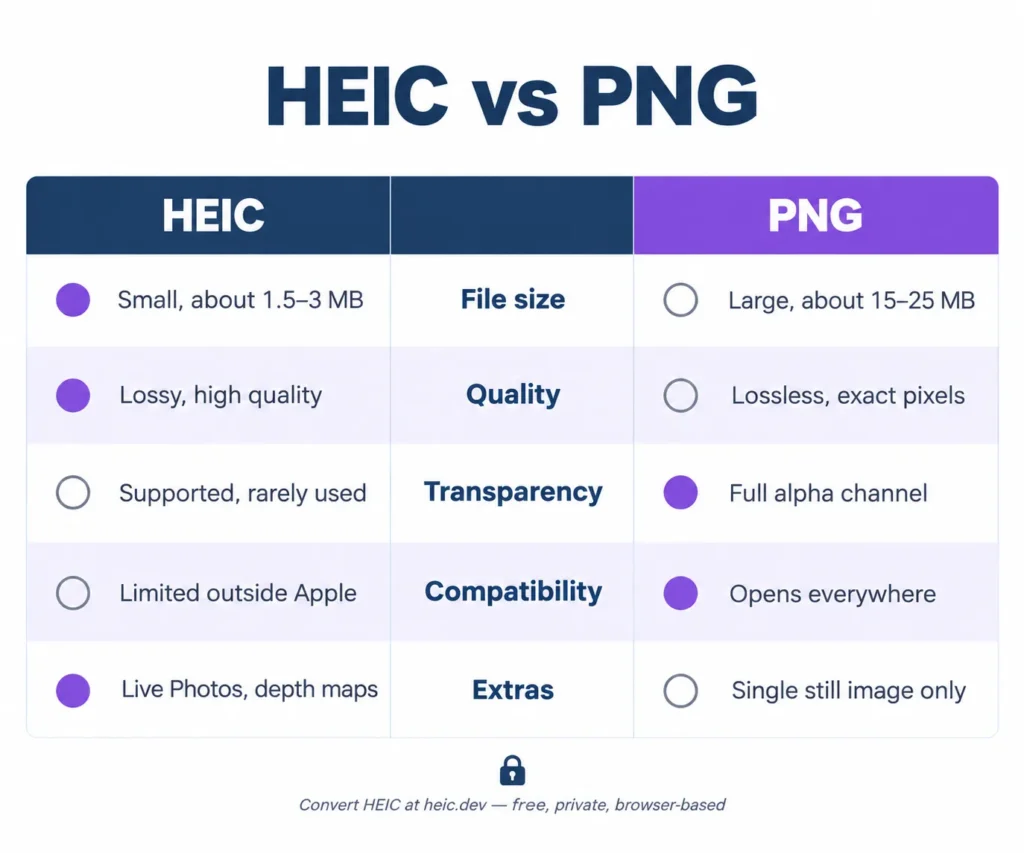
HEIC vs PNG at a glance
Four differences matter in practice.
File size
This is where HEIC wins, and it isn’t close. A 12-megapixel iPhone photo usually lands around 1.5–3 MB as HEIC. Export the same picture as PNG and you’re often looking at 15–25 MB, because PNG can’t discard anything to save space. Photographs are the worst case, since they’re packed with tiny, noisy colour changes that lossless compression can’t squeeze much.
Image quality
Quality is where people get confused. PNG is lossless, but only from the moment it’s created. Your iPhone already applied HEIC’s lossy compression when you pressed the shutter, so converting to PNG keeps those pixels exactly as they are. It doesn’t bring back detail that was never stored.
There’s one real advantage. PNG can store up to 16 bits per colour channel (its bit depth), which helps when you edit smooth gradients like skies without visible banding.
Transparency and extra data
PNG supports alpha transparency, so logos, cut-outs, and stickers sit cleanly on any background. HEIC supports alpha too, but almost no website or design tool treats it as the standard for transparent graphics. What PNG can’t hold is the extra payload HEIC carries: Live Photos, burst sequences, and the depth maps behind Portrait mode. Convert to PNG and those parts stay behind.
PNG can carry EXIF metadata (date, camera, GPS) through an eXIf chunk, though support is patchy, so check the result if you need that information.
Compatibility
PNG opens everywhere. Every browser, every phone, every version of Windows, every upload form built in the last twenty years. HEIC doesn’t, even in 2026: older Windows installs, plenty of web forms, and some Android apps still reject it. Windows needs the free HEIF Image Extensions from the Microsoft Store before it shows anything but a grey box.
Need the PNG? heic.dev’s HEIC to PNG Converter runs entirely in your browser. Open heic.dev/heic-to-png, drag your HEIC file in, and download the converted file. No account. No upload. Nothing stored.
When PNG is the better choice
Most Windows users hit the first problem when a friend sends an iPhone photo and nothing opens. PNG solves that, but it isn’t the answer to everything, so pick it when one of these applies:
- You’ll edit the image repeatedly. Every time you re-save a lossy file you lose a little more detail. PNG re-saves don’t. If a photo is going through Photoshop, Affinity, or GIMP for several rounds, work from a lossless copy.
- It has transparency. Logos, product cut-outs, and overlays need an alpha channel that every tool understands.
- It contains sharp text or flat colour. Screenshots, charts, and diagrams stay crisp in PNG, and because they compress far better than photographs, they can even land smaller than a JPG of the same screenshot.
- A platform requires it. Some design tools, e-commerce uploaders, and game engines accept PNG and refuse HEIC outright.
One honest caveat. PNG is a poor way to store a camera roll. A 10,000-photo library saved as PNG could easily swallow 150 GB or more, and you’d gain nothing visible over the HEIC originals.
Use PNG for specific jobs, not for everything.
When HEIC is the better choice
Keep your photos as HEIC. For the camera roll, it’s the right default.
The saving is real. Thanks to HEVC compression, iPhone photos run about 40–50% smaller than equivalent JPGs and far smaller than PNGs, which stretches a 128 GB phone or an iCloud plan a long way. HEIC also carries things PNG can’t. Live Photos, burst sequences, and the depth maps behind Portrait mode all live inside the file, and flattening it to PNG throws them away.
But there’s a catch. Outside Apple’s own apps, support is uneven, and that’s why people end up searching for a converter in the first place.
So the rule is simple: store HEIC, export copies. Shoot and archive in HEIC, then convert a copy when something refuses it. If you’d rather not shoot HEIC at all, tap Settings, scroll down and tap Camera, then tap Formats and choose Most Compatible. That switches future photos to JPG. It won’t touch anything already in your library, and it costs you the storage savings.
How to convert HEIC to PNG with heic.dev
Open the converter, drop in the file, grab the PNG. Here’s the full process:
- Open heic.dev/heic-to-png in Chrome, Safari, Firefox, or Edge.
- Drag your HEIC file onto the converter, or click the drop area to pick it from your device.
- Wait a few seconds while the conversion runs locally in your browser.
- Click download and save the PNG wherever you want it.
That’s it. It’s a free way to convert HEIC to PNG without uploading anything, with no account and nothing stored. The converter uses WebAssembly (Wasm), a browser technology that runs compiled code at near-native speed, so your photo is decoded on your own device. Most online converters require uploading your photos to their servers. heic.dev doesn’t, which matters when the picture is a passport scan, a medical document, or just something personal.
The method works well for single files and small batches. If you’re moving a 10,000-photo library in one go, a desktop app is a better tool for that job.
Other ways to convert HEIC to PNG
Three built-in routes exist, and each has a limit.
On a Mac running macOS 10.13 High Sierra or later, open the photo in Preview, choose File, then Export, pick PNG from the Format menu, and save. It works well one file at a time.
On an iPhone running iOS 16 or later, save the photo to the Files app first. Then touch and hold the file, tap Quick Actions, tap Convert Image, and choose PNG. The Most Compatible camera setting won’t help here, because it only produces JPG for future photos and leaves existing HEIC files alone.
On Windows, install the free HEIF Image Extensions from the Microsoft Store so the system can read HEIC at all. Then open the photo in an editor that reads HEIC, such as GIMP, and export it as PNG. That’s several steps for one image.
For photos already on your camera roll, the heic.dev method is faster: drag in the file, convert, done. No settings to change.
Choosing between HEIC, PNG, JPG, WebP and AVIF
The best image format for editing iPhone photos is usually a lossless one: PNG for most people, or TIFF if your editing software or print workflow expects it. For storage, HEIC still wins. And for sharing, it depends where the picture is going.
| Format | Compression | Transparency | Best used for |
|---|---|---|---|
| HEIC | Lossy (HEVC), small files | Supported, rarely used | Storing iPhone photos |
| PNG | Lossless, large for photos | Yes | Editing, screenshots, graphics |
| JPG | Lossy, mid-size files | No | Sharing anywhere |
| WebP | Lossy or lossless | Yes | Web pages |
| AVIF | Lossy or lossless, very small | Yes | Web pages, newer tools |
If you’re comparing HEIC vs JPG, the trade is similar: JPG is bigger but opens everywhere. For websites, WebP and AVIF usually beat PNG on size, and both have broad browser support, whereas native HEIC support in browsers is still limited in 2026. heic.dev offers a HEIC to WebP Converter and a HEIC to AVIF Converter for those cases, and a HEIC to TIFF Converter if your workflow needs it.
Common problems and how to fix them
The PNG is much bigger than the HEIC
That’s expected, not a bug. PNG can’t discard detail, so photos balloon. If you need something smaller, convert to JPG or WebP instead, or keep the HEIC original and only export PNG for the images that truly need it.
A website still rejects the converted file
Plenty of platforms check file size, not just format. A 20 MB PNG can fail even though PNG is accepted. Shrink the original first with the HEIC Compressor, then convert the smaller file.
Date and location are missing
Some converters strip EXIF data during conversion. heic.dev preserves metadata by default, but PNG’s EXIF support is patchy, so some viewers won’t display it. Check the original with the HEIC Metadata Viewer to see what was stored.
Batch conversion stops partway
Browsers have a memory limit, and a very large batch can hit it. Split the job into smaller groups and convert them one after another. It’s slower to set up, but it finishes reliably.
Frequently Asked Questions
Is HEIC better than PNG?
Neither is better overall; they solve different problems. HEIC is better for storing photos because files are typically 40–50% smaller than an equivalent JPG and far smaller than a PNG of the same photo. PNG is better for lossless editing, transparency, screenshots, and universal compatibility. For everyday iPhone photos, keep HEIC. For editing or uploading, convert to PNG.
Does converting HEIC to PNG lose quality?
No. PNG is lossless, so converting HEIC to PNG preserves the decoded pixels exactly and adds no new compression loss. It can’t recover detail that HEIC’s lossy compression already discarded when the photo was taken, so the result won’t look sharper than the original. Expect the PNG to be many times larger than the HEIC file.
Why is a PNG so much bigger than a HEIC file?
HEIC uses HEVC compression, which discards fine detail the eye rarely notices, so a photo may take only 1.5–3 MB. PNG keeps every pixel intact and can’t discard anything, and photographs contain constant tiny colour variations that lossless compression handles poorly. The same 12-megapixel photo can therefore reach 15–25 MB as a PNG.
Is PNG or HEIC better for iPhone photos?
HEIC is better for the photos on your iPhone because it saves storage and keeps Live Photos, burst sequences, and depth data. PNG is better only for specific copies, such as a picture you plan to edit repeatedly or one that must open on a device or website that rejects HEIC. Keep HEIC originals and convert copies when needed.
Can HEIC files have a transparent background?
Yes. HEIC supports alpha transparency, but standard JPG does not. In practice, though, most iPhone camera photos contain no transparent areas, and few websites or design tools treat HEIC as a transparency format. If you need a transparent image that works everywhere, PNG is the safer choice, since every browser and editor reads its alpha channel.
How do I convert HEIC to PNG without uploading my photos?
Use a converter that runs locally. heic.dev’s HEIC to PNG Converter uses WebAssembly to convert files inside your browser, so your photos never leave your device. Open heic.dev/heic-to-png, drag in your HEIC file, and download the PNG. No account or signup is needed. Most online converters upload files to their servers, which heic.dev avoids entirely.
Can I convert HEIC to PNG on iPhone?
Yes. On iOS 16 and later, save the photo to the Files app, touch and hold it, tap Quick Actions, then Convert Image, and choose PNG. You can also open heic.dev’s HEIC to PNG Converter in Safari and convert the file in your browser without uploading it. The Most Compatible camera setting only produces JPG for future photos.
Does PNG support Live Photos or depth data?
No. A standard PNG holds a single still image, so converting a Live Photo or a Portrait-mode HEIC to PNG keeps only the main frame. The motion clip and the depth map stay behind. HEIC can store those extras, which is one reason to keep your original HEIC files and convert copies only when you need them.
Is HEIC good enough for printing and editing?
For most printing, yes. iPhone HEIC photos have plenty of resolution, though print shops often ask for JPG or PDF, so check what yours accepts. For editing, many apps still read HEIC poorly, and lossless PNG avoids stacking compression across repeated saves. Convert a copy to PNG when you edit, and keep the HEIC original as your master.
Why won’t my HEIC file open on Windows?
Windows usually needs the free HEIF Image Extensions from the Microsoft Store to read HEIC files; without them, you’ll see a grey box or no thumbnail. Install the extension, or skip the install and convert the file to PNG using heic.dev’s HEIC to PNG Converter, which works in your browser with no upload.
Final words
You came here to pick between HEIC and PNG, and the answer turns out to depend on the job: HEIC for storing, PNG for editing and sharing. Nothing about that choice has to cost you your privacy.
The HEIC to PNG Converter gets you from one format to the other in seconds, entirely in your browser, with no upload and no account. It’s free every time. And if the PNG comes out heavier than you’d like, the HEIC to JPG Converter gives you a smaller file that still opens almost everywhere.