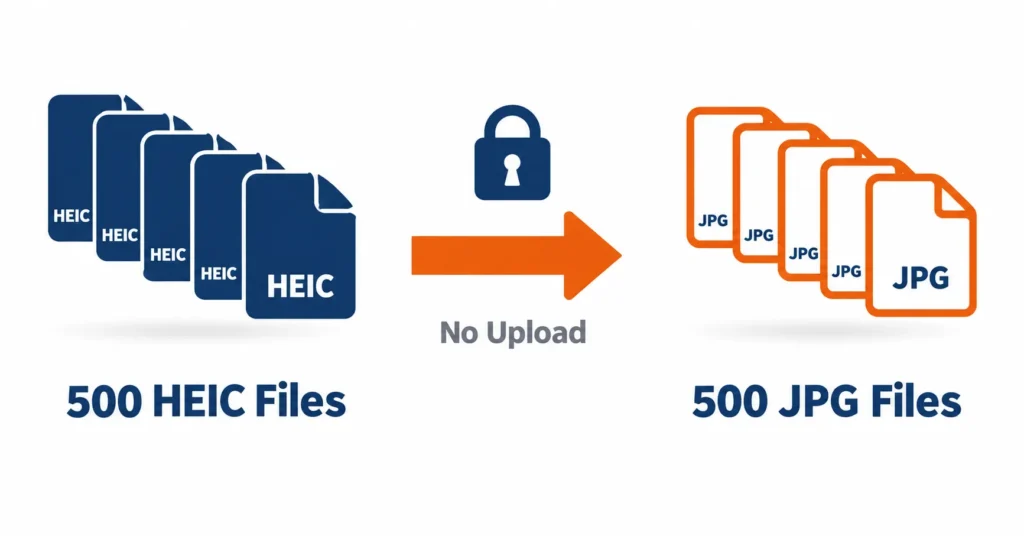
You can batch convert HEIC to JPG by selecting many photos at once in the heic.dev HEIC to JPG Converter. It converts them in your browser, so the photos are not uploaded to a conversion server, and it accepts up to 500 files per batch.
HEIC files look perfect on your iPhone. Then you drop a folder of them onto a Windows PC, attach one to an email, or push them through a print-shop upload form, and they turn into grey boxes or get rejected. Converting 500 of those by hand, one export at a time, is not realistic.
The converter handles the whole batch on your own device, so you can leave it running while you do something else.
Key Takeaways
- You can batch convert HEIC to JPG by selecting up to 500 files at once, with no app to install and no signup.
- Conversion runs in your browser using WebAssembly, so the photos are not uploaded to a conversion server.
- Very large batches can be slow, or stall on devices with little memory, so split them into smaller groups if that happens.
- The iPhone’s Most Compatible setting only affects future photos. Check a few converted files before you delete any HEIC originals.
Table of Contents
Why Converting 500 HEIC Files One by One Fails
Open a file, export it, repeat. Do that 500 times and you have lost an afternoon to a job a computer should finish in the background while you make tea or answer email. The fix is to batch convert HEIC to JPG in one pass.
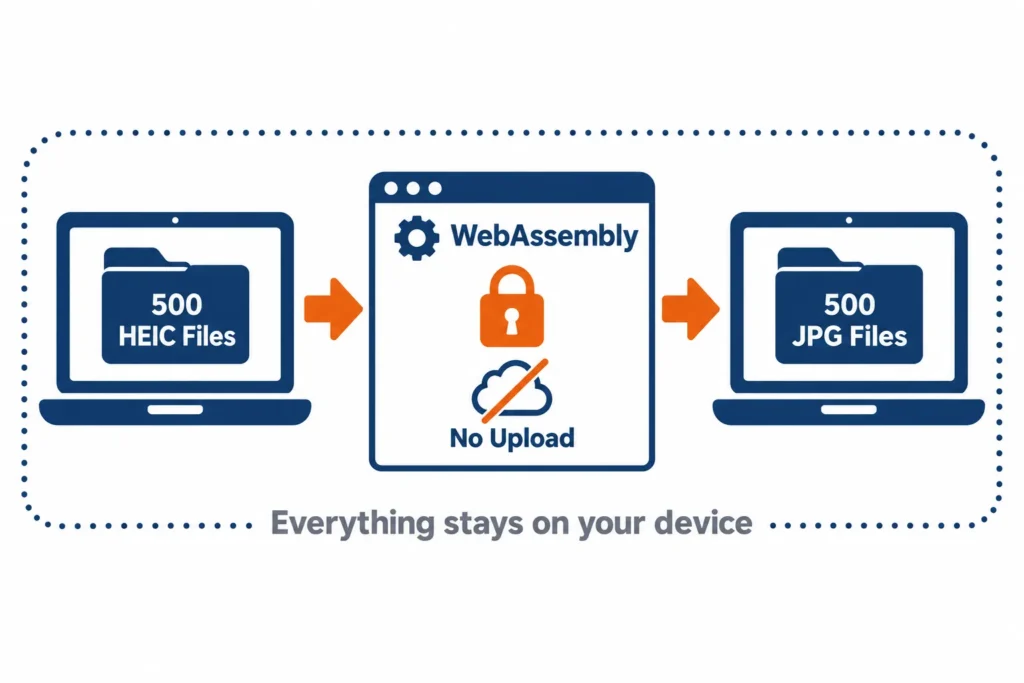
HEIC is the name for files in the HEIF (High Efficiency Image File Format) container whose images are compressed with the HEVC (H.265) codec. Apple made it the iPhone default in iOS 11 (see Apple’s camera formats page). HEIC photos are often 40 to 50% smaller than a JPG of similar quality. The catch is support: older Windows setups, many upload forms and some Android apps still cannot open the format.
Many online converters ask you to upload your photos to their servers, and some limit how many files you can convert at once. That is a poor trade for a wedding, a family archive or client work.
The heic.dev HEIC to JPG Converter runs in your browser using WebAssembly (Wasm), which executes compiled code on your own device. The photos are not uploaded to a conversion server, it is free, and there is no signup.
It does have limits, and they are better stated now than discovered at file 312. A browser tab gets a limited share of your computer’s memory, so a 500-file run on an older laptop with a dozen tabs open can stall. A later section covers how to split the job.
How to Batch Convert HEIC to JPG With heic.dev
Open a current browser such as Chrome, Safari, Firefox or Edge. Speed depends on your device and the size of your photos, so a large batch can take a few minutes or longer. It is not instant.
- Open heic.dev/heic-to-jpg in your browser. There is no account to create and nothing to install.
- Put all your HEIC files in one folder, copied from your iPhone import, memory card or cloud storage.
- Drag the files onto the page, or click the drop area and press Ctrl+A (Cmd+A on a Mac) to select them all.
- Let the conversion finish, and keep the tab open until every file is done.
- Download your JPGs into a new folder. If your browser asks whether to allow multiple downloads, choose Allow.
- Open five or six converted files from across the batch and check sharpness, orientation and date.
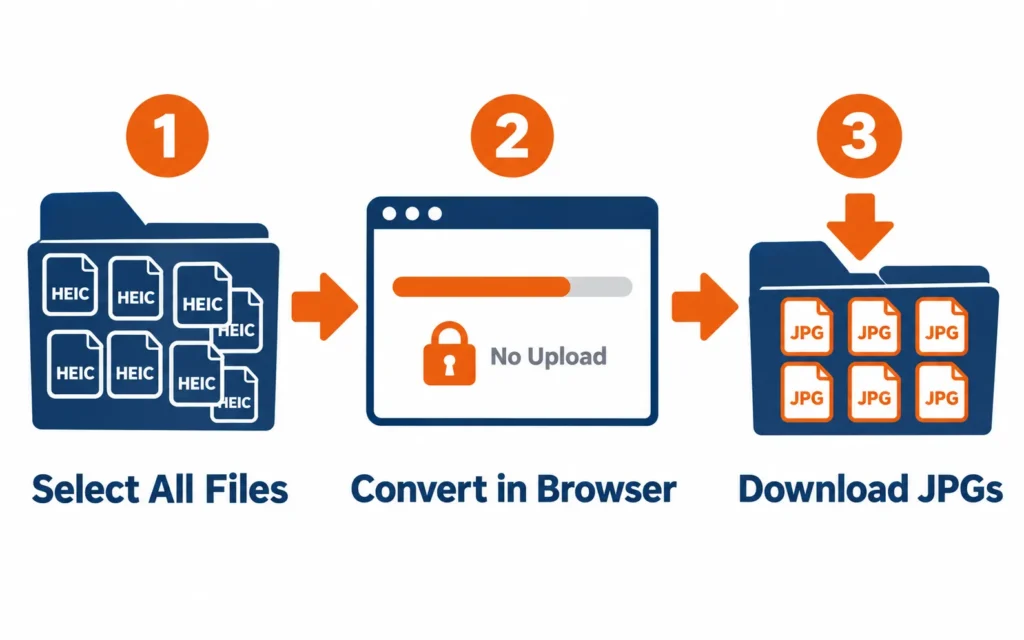
That is the whole process. The conversion happens in your browser, on your device, rather than on a server. For other ways to convert, including iPhone, Mac, Windows and Android, see How to Convert HEIC to JPG.
JPG or JPEG? It is the same format. The three-letter extension exists because older systems limited file extensions to three characters, and both open identically everywhere.
Convert HEIC to JPG Without Losing Quality
JPG is a lossy format, so every conversion re-encodes the image and discards a little data. At a high quality setting, that loss is hard to see at normal viewing and print sizes. The heic.dev default is 85%; raise it if you want more detail, and expect larger files.
What you cannot carry across is anything JPG does not support. Live Photo motion, depth maps and HDR range stay behind, which is why you should keep the HEIC originals. The Limitations page lists what is and is not carried over.
Batch Converting on Mac, Windows and iPhone
Mac and iPhone users get options built into the system, though they do not scale to hundreds of files as comfortably as a browser tool. Windows has no built-in bulk converter at all.
Mac: Export Selected Images in Preview
Preview opens and exports HEIC on macOS 10.13 High Sierra and later. Select your HEIC files in Finder, press Cmd+O to open them all in Preview, then press Cmd+A in the sidebar to select every thumbnail. Choose File, Export Selected Images, set the format to JPEG, pick a folder, and click Choose. It works well for a few dozen photos. With hundreds, expect it to get slow.
Windows: Install the HEIF and HEVC Extensions
Windows needs the free HEIF Image Extensions from the Microsoft Store before it can show HEIC thumbnails, and many PCs also need the HEVC Video Extensions. Without them you get grey boxes. The extensions let you view the files, but they do not add bulk conversion to File Explorer. For that you still need a converter.
iPhone: Switch to Most Compatible
Tap Settings, scroll down and tap Camera, tap Formats, then choose Most Compatible. Your iPhone then saves new photos as JPG instead of HEIC. That only changes future photos; every HEIC already in your library stays as it is.
There is also Settings, Photos, Transfer to Mac or PC, Automatic, which converts photos to compatible formats as they move to a computer.
Tips to Batch Convert HEIC to JPG Without Stalling
If you need to batch convert HEIC to JPG for hundreds of photos, a few habits help keep the run stable.
- Split huge jobs. Try groups of 100 to 150 photos, sorted by date or event, which are easier on browser memory than one 500-file run.
- Close other tabs and heavy apps. A single tab has a limited share of memory, and video calls or spreadsheets compete for it.
- Use a laptop or desktop rather than your phone. Phones usually have less memory to spare, and locking the screen can interrupt a running tab.
- Check your free disk space first. JPGs are often 70 to 100% larger than HEIC, so 1 GB of HEIC photos can become roughly 1.7 to 2 GB of JPG.
Keep your originals. Treat the JPGs as the shareable copies and the HEIC files as the masters, since HEIC can hold depth data and Live Photo information that JPG drops. Delete nothing until you have checked the results.
Metadata also deserves a quick check on any large batch. What survives conversion, such as capture date and GPS location, depends on the converter and the output format. Open a few converted files in a metadata viewer, for example heic.dev’s HEIC Metadata Viewer, and compare them with the originals before you delete anything.
One honest limit: this approach suits batches of up to 500 files, not a full 10,000-photo library. For that, a desktop app or a scripted workflow is the better tool. Browsers are built for tabs, not marathon jobs.
Common Problems and How to Fix Them
The batch stops partway through
Your browser most likely ran out of memory. Close other tabs and apps, check the output folder to see where the run stopped, and convert only the remaining files in smaller groups. Keep the tab open and in the foreground while it runs.
Converted JPGs look blurry or soft
The quality setting was probably too low. Reconvert from the original HEIC files, never from JPGs you have already converted, and raise the quality. Re-encoding a JPG a second time stacks up compression artefacts.
A website still rejects your JPGs
Many upload forms check file size, not just format, and JPGs are usually larger than HEIC. Check the form’s size limit, then convert again at a lower quality setting, or reduce the size with the HEIC Compressor.
HEIC files show grey boxes on Windows
Install the free HEIF Image Extensions from the Microsoft Store, and add the HEVC Video Extensions if thumbnails are still grey. If they do not appear right away, restart File Explorer or your PC.
Frequently Asked Questions
How do I convert multiple HEIC files to JPG at once?
Select all your HEIC files in the heic.dev HEIC to JPG Converter at once, wait for the conversion to finish, and download the JPGs. It runs in your browser using WebAssembly, so the photos are not uploaded to a conversion server, and it needs no account or install. You can convert up to 500 files in one batch; splitting larger jobs into groups keeps things stable.
How many HEIC files can I convert at one time?
The converter accepts up to 500 files in one batch. The practical ceiling depends on your device, because a browser tab gets a limited amount of memory. If a run stalls on an older laptop or a phone, try 100 to 150 files at a time.
Does converting HEIC to JPG lose quality?
Slightly. Both formats use lossy compression, so converting re-encodes the image and discards a little detail. At a high quality setting the difference is hard to see at normal viewing and print sizes. JPG cannot keep HEIC-only data such as depth maps, HDR range and the video part of a Live Photo.
Is it safe to convert HEIC files with an online converter?
It depends on the converter. Many online converters require uploading your photos to their servers, which means personal or client images leave your device. heic.dev converts in your browser using WebAssembly, so the photos are not sent to a conversion server. If privacy matters, check how a converter processes files before you use it.
How do I batch convert HEIC to JPG on Mac?
Select your HEIC files in Finder and press Cmd+O to open them in Preview. Press Cmd+A in the sidebar to select every thumbnail, choose File, Export Selected Images, set the format to JPEG, pick a folder, and click Choose. Preview works on macOS 10.13 High Sierra or later and gets slow with very large batches.
Can I batch convert HEIC to JPG on Windows 11 for free?
Yes. Windows can show HEIC files after you install the free HEIF Image Extensions (and often the HEVC Video Extensions) from the Microsoft Store, but it has no built-in bulk converter. To turn a folder into JPGs, open heic.dev in Chrome, Edge or Firefox, select the files, and download the results. It is free and needs no signup.
Will my photos keep their date and location after conversion?
It depends on the converter and the output format. Open a few converted files in a metadata viewer and compare them with the originals before you delete anything. The Limitations page explains what each output format keeps.
Can I stop my iPhone from saving photos as HEIC?
Yes, but only for future photos. Tap Settings, Camera, Formats, then choose Most Compatible. Your iPhone will save new photos as JPG. This does not convert existing HEIC photos, so you will still need a converter for the ones already in your library. The trade-off is larger files.
Final Words
Five hundred HEIC files no longer means an afternoon of clicking. When you batch convert HEIC to JPG, you select the files, wait a few minutes, and end up with JPGs that open on any PC, email client or upload form.
That is the point of the HEIC to JPG Converter: it is free, needs no signup, and does the conversion in your browser rather than on a server. Try it on your next folder of iPhone photos, and if the JPGs need to shrink before you send them, the HEIC Compressor can help.